BEPRO Space
BEPRO Editor
Cerberus
Login & Signup
Request Match Analysis
2
Cerberus
Basic
All Users
Laptop Connection
Let's learn how to connect Cerberus to a laptop
Hello, this is the BEPRO team.
In this article, we will learn how to connect Cerberus to your laptop.
There are two methods for connecting Cerberus to your laptop.
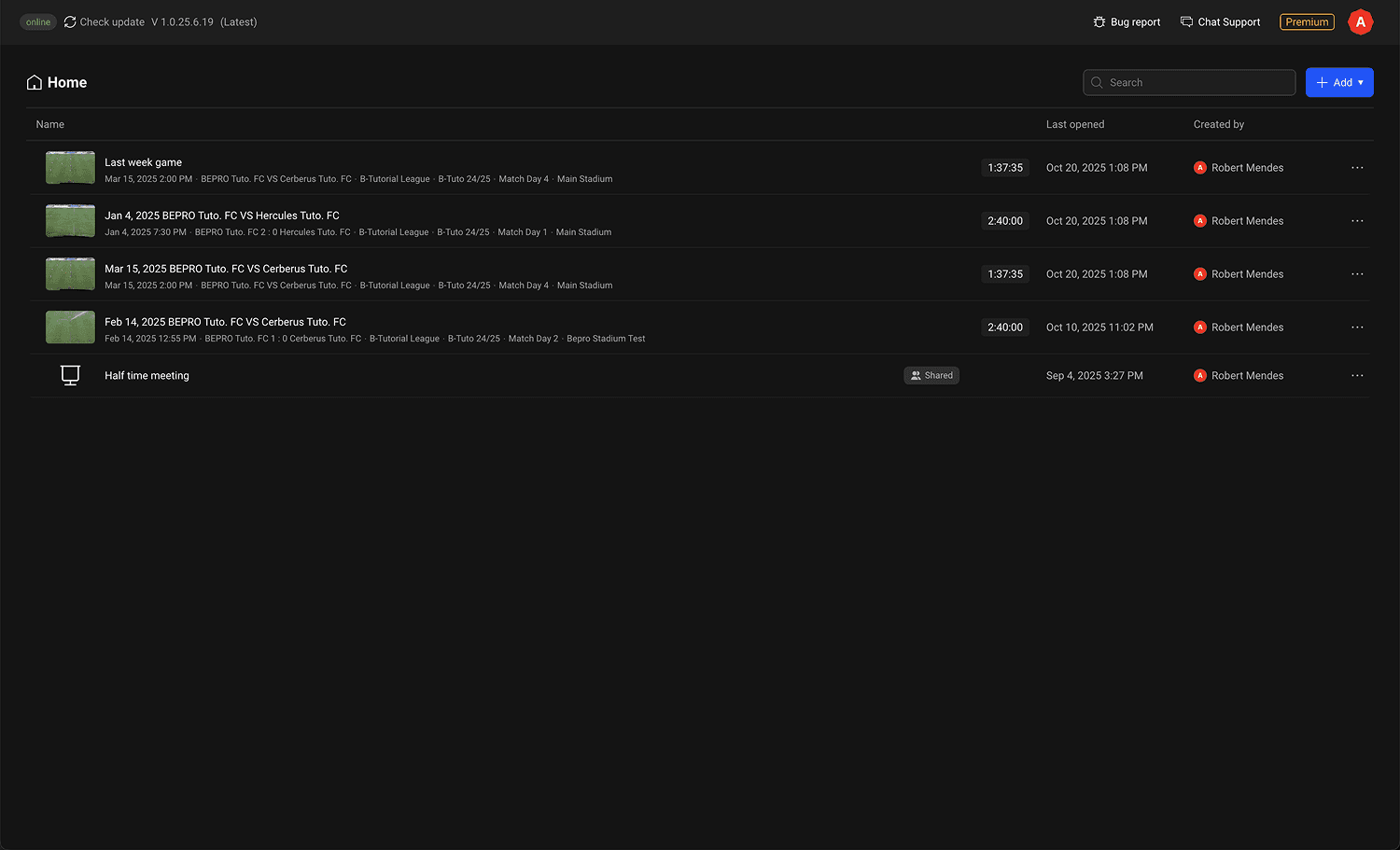
First, launch the editor.
1. Connecting via Wi-Fi
Connecting via Wi-Fi is convenient, but signal interference may cause a reduction in speed.
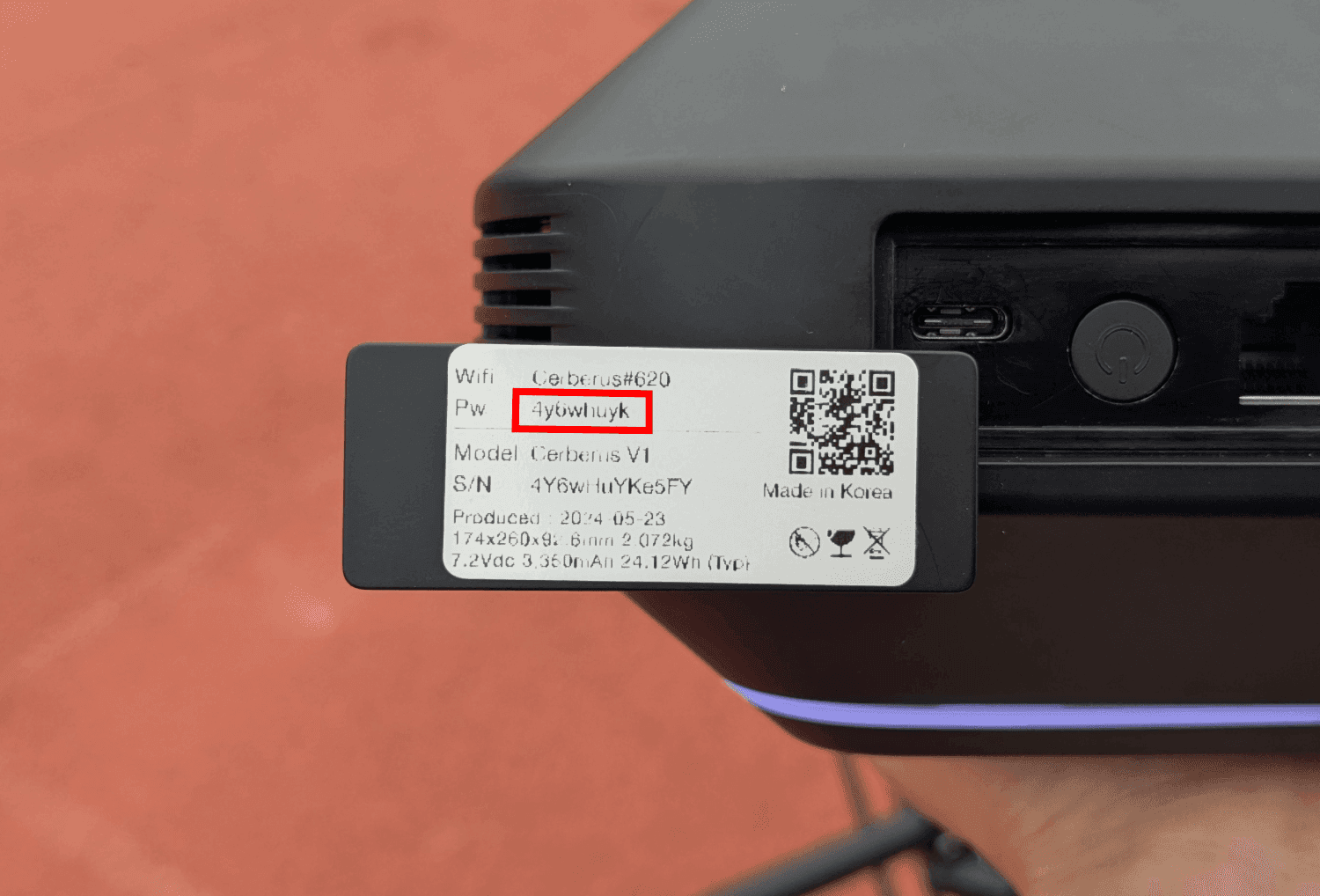
The label affixed to the bottom lead of Cerberus displays the Wi-Fi name and password for that device.
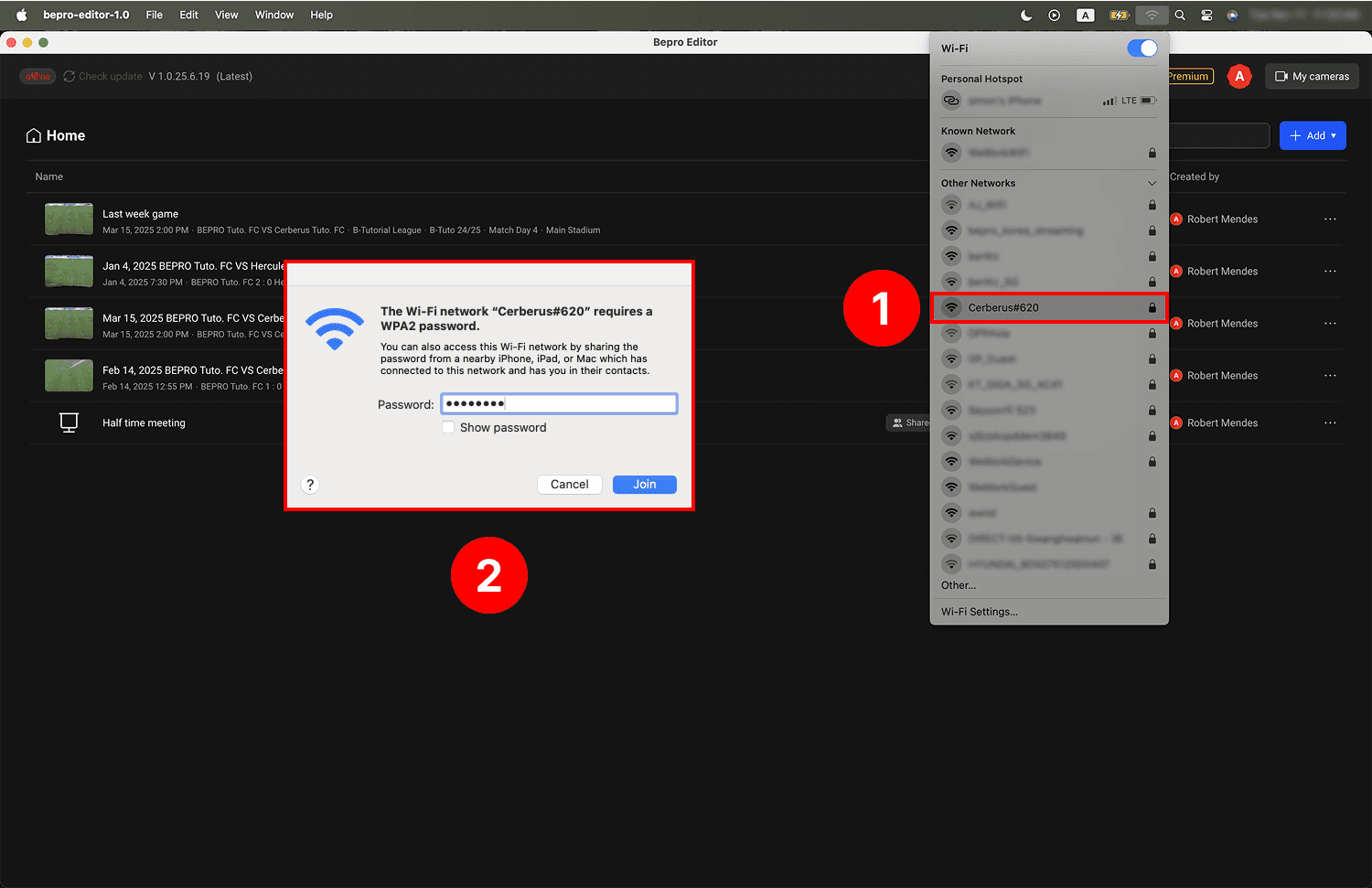
Select the corresponding Cerberus unit in the Wi-Fi settings, then enter the Wi-Fi password displayed on the label.
2. Connecting via Ethernet Cable
Connecting via Ethernet cable provides more stable and seamless operation compared to Wi-Fi. For important matches, we recommend using an Ethernet cable.
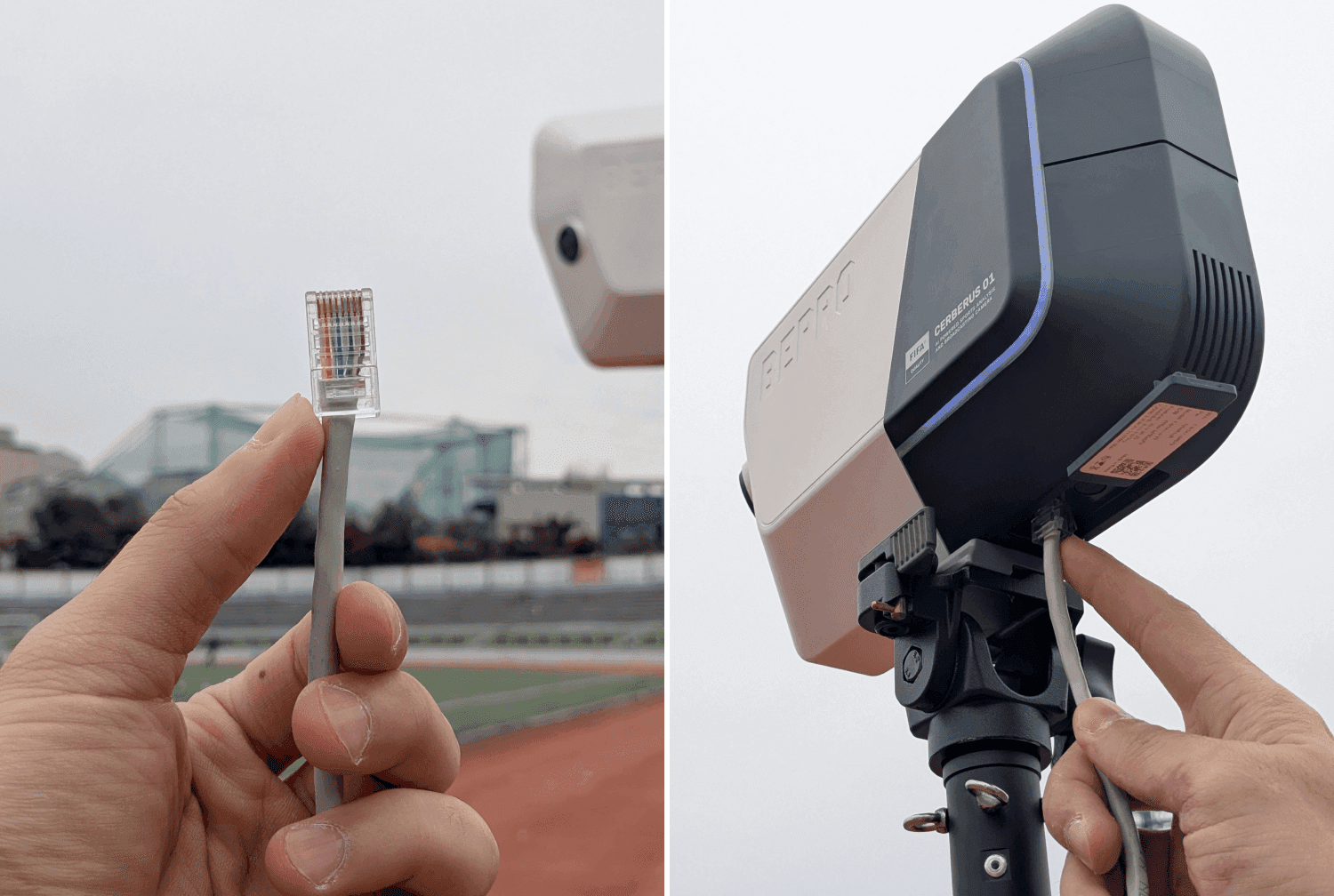
Prepare an Ethernet cable of the required length depending on how much you extend the tripod or stand, then connect it to the Ethernet port on the bottom of Cerberus.
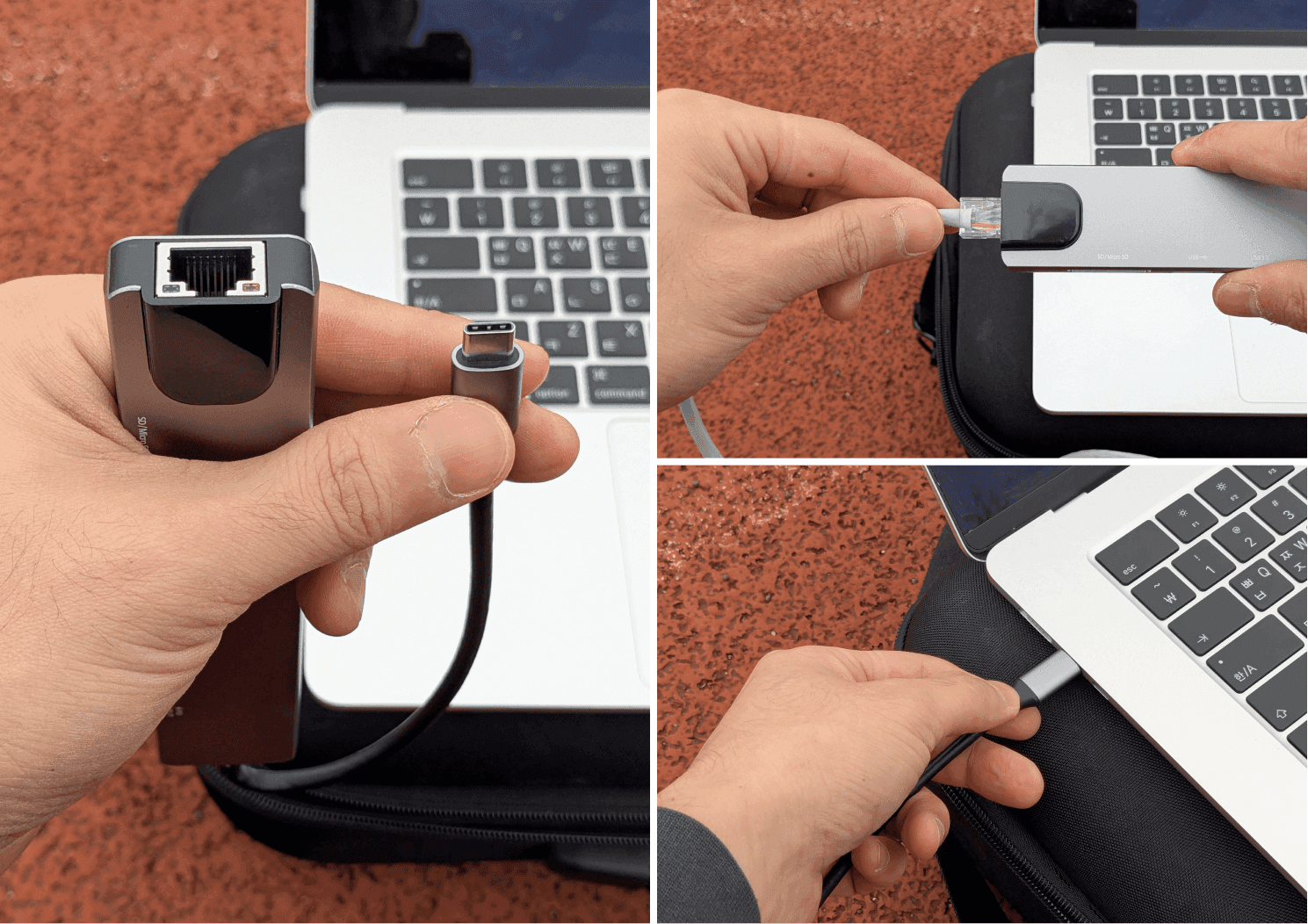
When connecting the Ethernet cable to your laptop, if your laptop does not have an Ethernet port, a converter may be required.
If a converter is needed, connect the Ethernet cable to the converter, then connect the converter to your laptop.
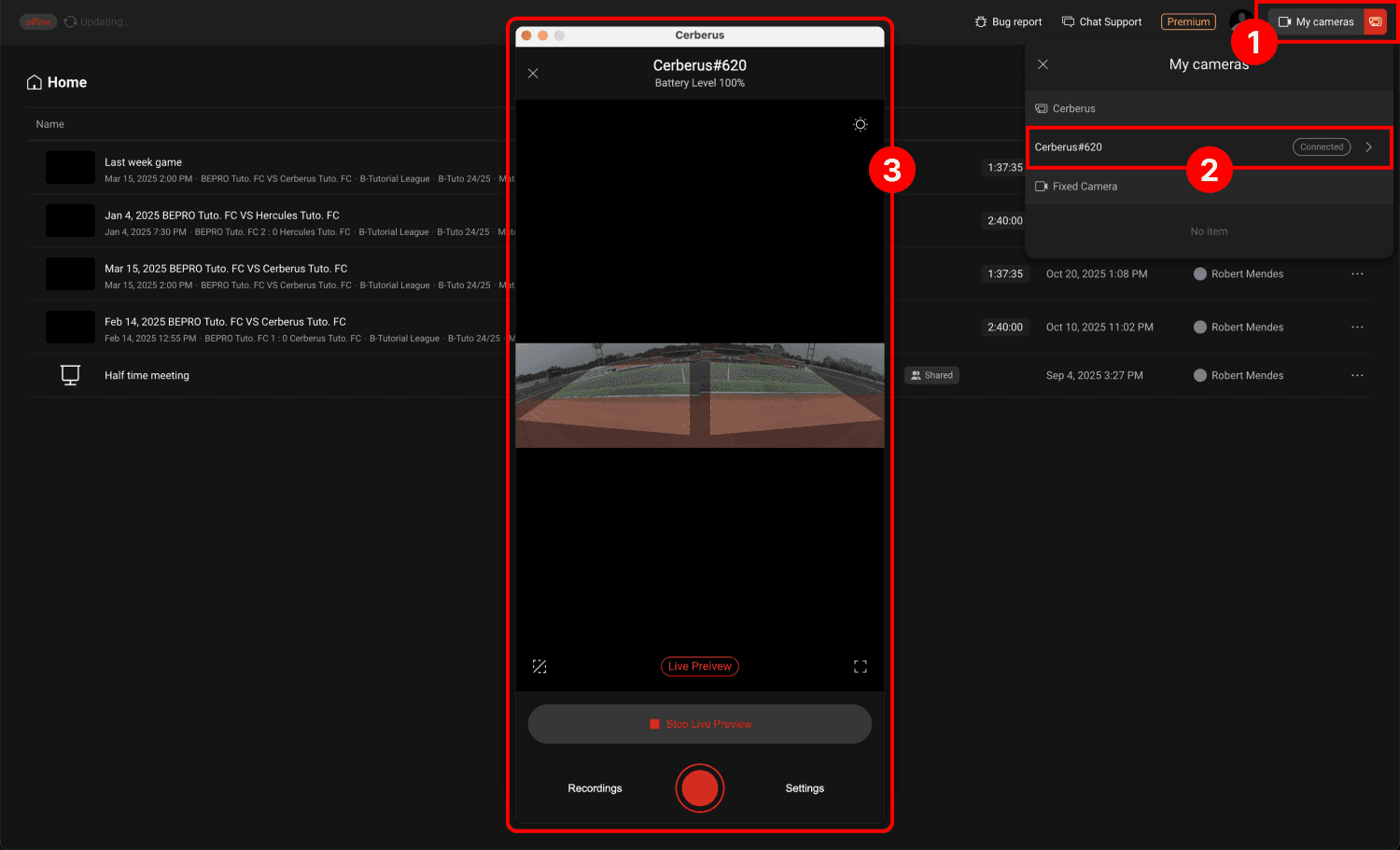
Once the connection is complete, open the BEPRO Editor window and follow the steps below.
A Cerberus logo with a red background will appear to the right of the My Cameras button in the top right corner of the editor.
Click the My Cameras button to open the camera list window showing all cameras you can access. You can confirm the Cerberus unit you just connected in this list, and you will see a "Connected" status displayed to the right of that item.
Click the corresponding Cerberus item to open the Cerberus controller screen.
Your connection between Cerberus and your laptop is now complete.
You can now operate Cerberus from your laptop in the same way as you would using the Cerberus controller screen on mobile.
Previous
Next