BEPRO Space
BEPRO Editor
Cerberus
Login & Signup
Request Match Analysis
1
BEPRO Editor
Basic
All Users
Lobby interface
Let's learn about BEPRO Editor's lobby interface
Hello, this is the BEPRO team!
In this article, we'll explore the composition of the lobby, which is the first screen of the BEPRO editor.
Main Screen
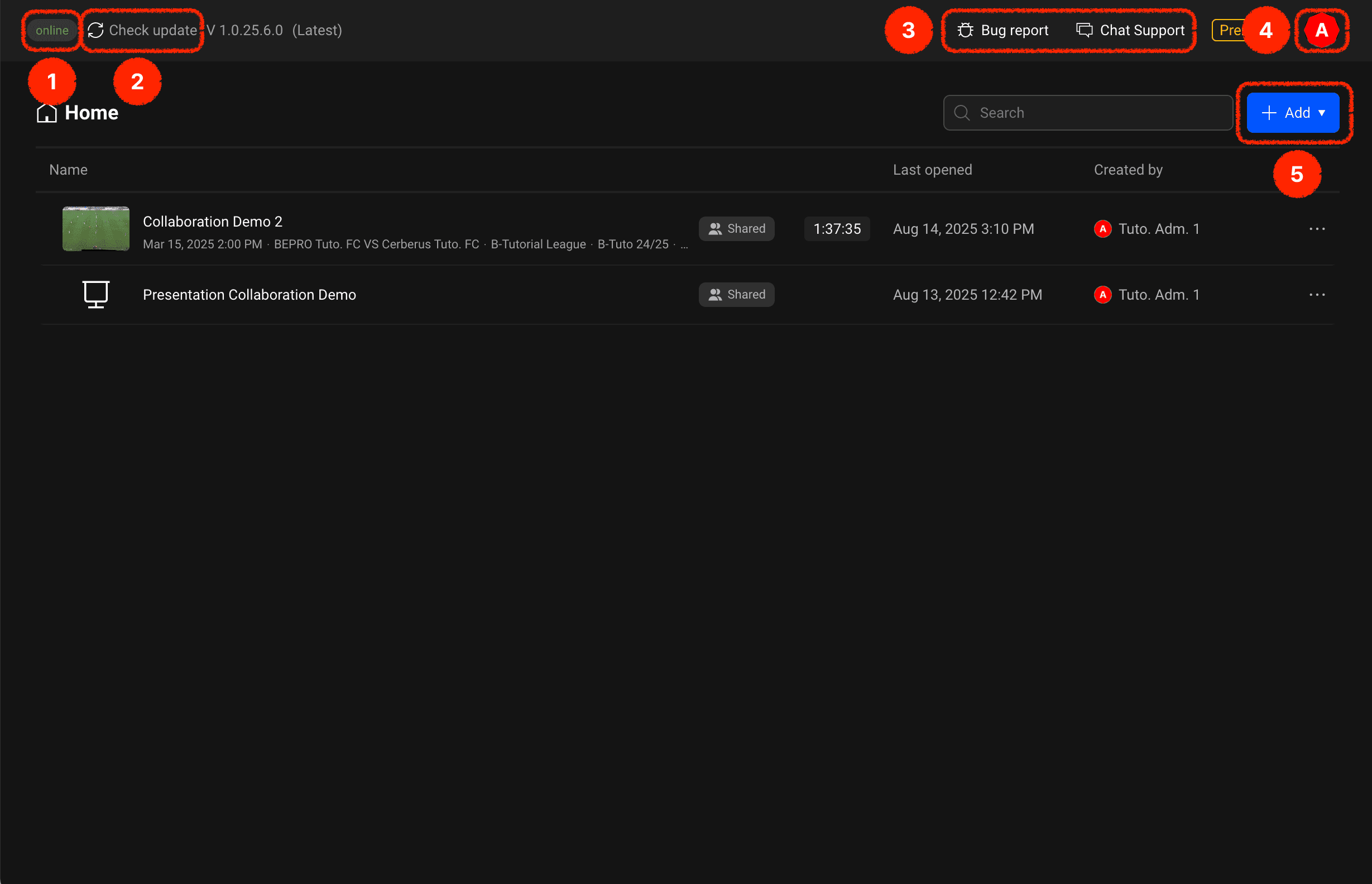
Internet connection status indicator: Shows whether your computer is currently connected to the internet
Check for updates button: Checks if there are any new updates available
Bug report & chat enquiry: Where you can make enquiries when you encounter problems whilst using the service
Profile menu button: Click to display label management & settings menu
Add button: Allows you to add projects, presentations, or folders
Settings Modal
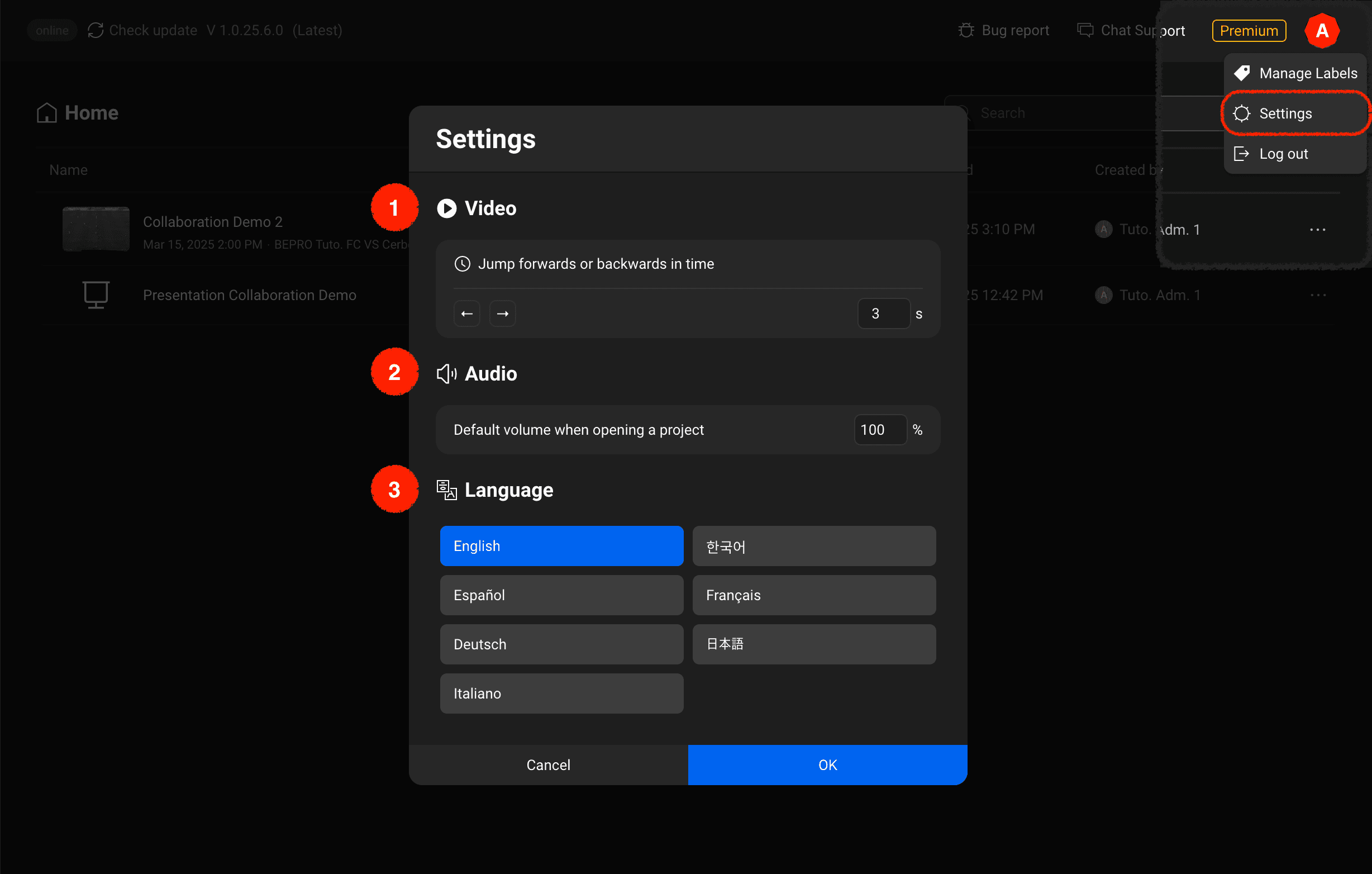
When you click the profile menu button and select the settings menu, the basic settings modal appears.
Video: You can set how many seconds to skip when pressing the left or right keyboard keys to navigate through videos
Audio: You can set the default volume when opening projects
Language: You can change to your preferred language
Previous