BEPRO Space
BEPRO Editor
Cerberus
Login & Signup
Request Match Analysis
1
BEPRO Editor
Basic
All Users
Create a project
Let's learn how to create a project
Hello, this is the BEPRO team!
In this article, we'll explore how to create a project for video analysis.
Starting Project Creation
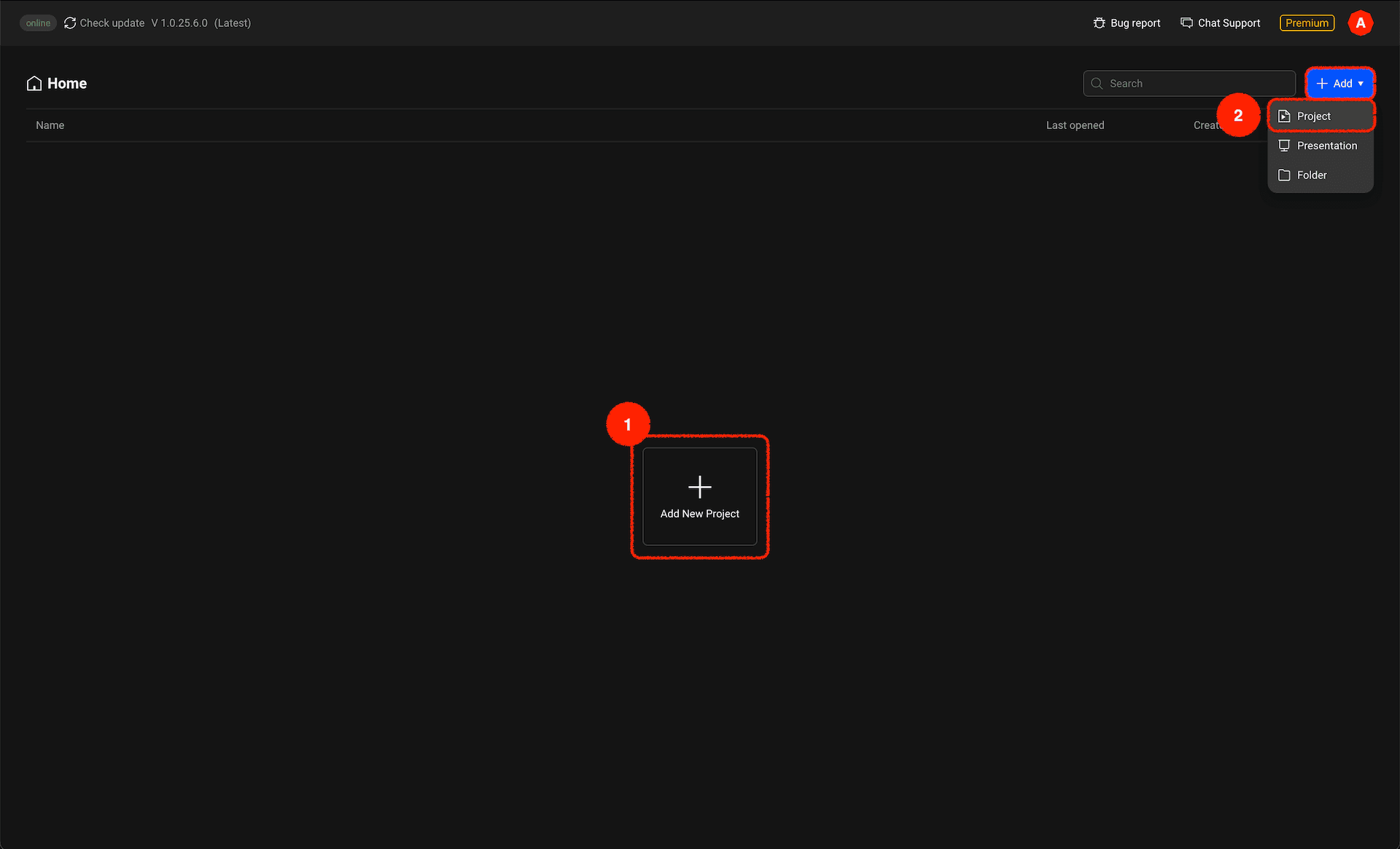
If nothing has been created yet, a large project creation button will appear in the centre of the screen. You can also create a project by clicking the add button in the top-right corner.
Project Creation Modal
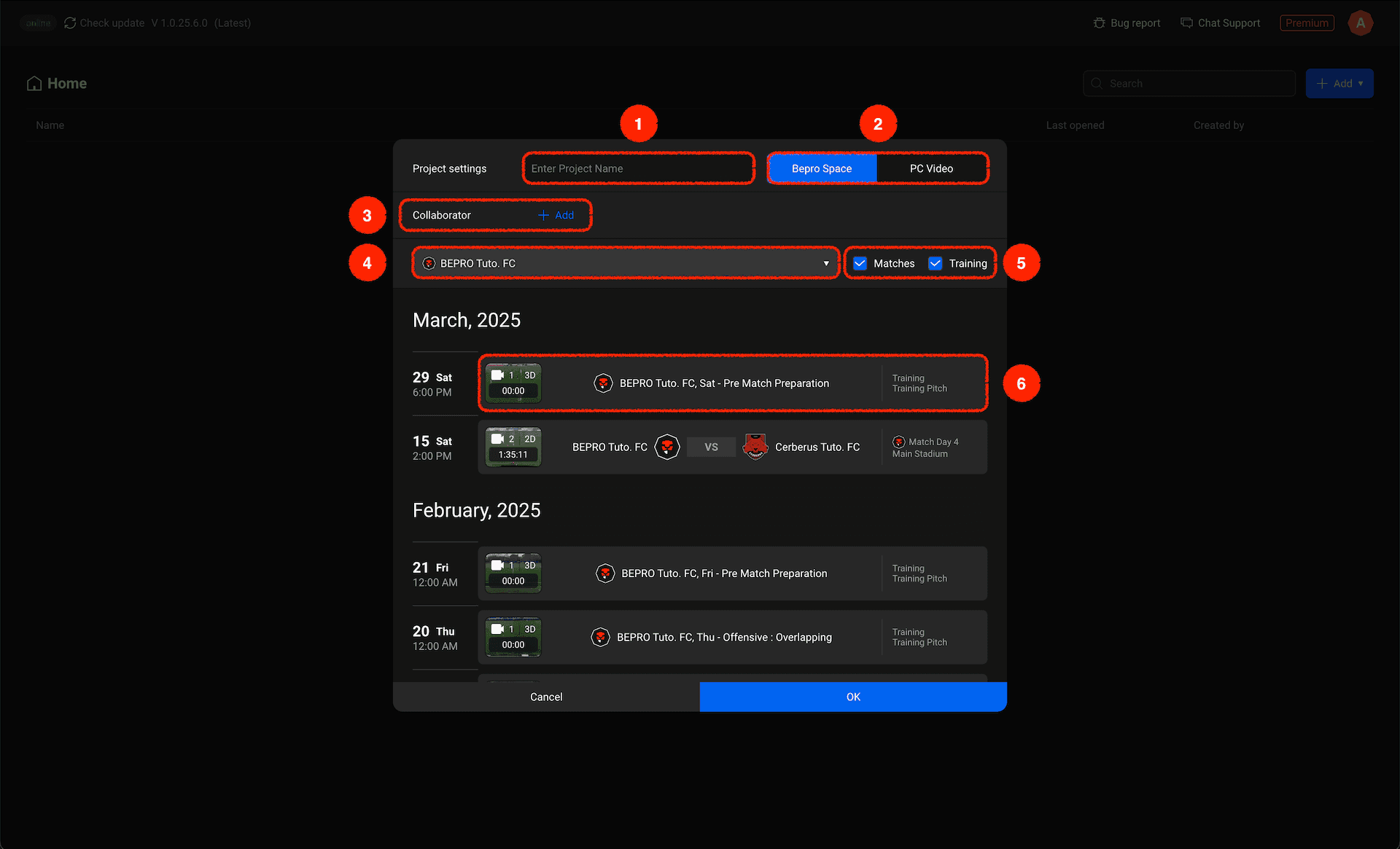
When you click the project creation button, a project creation modal appears. Here's a brief description of each menu:
Project Name: Enter the project name.
Video Source Selection: You can load videos uploaded to BEPRO Space or load videos from your computer.
Add Collaborators: You can add collaborators who will edit and manage this project together or review editing content.
Team Selection: If the video source is set to BEPRO Space, you can select which team's scheduled videos to load.
Match/Training Filter: If there are many schedules, you can filter match or training schedules.
Schedule Items: You can select schedule items to load and create a project.
Starting with BEPRO Space Scheduled Videos
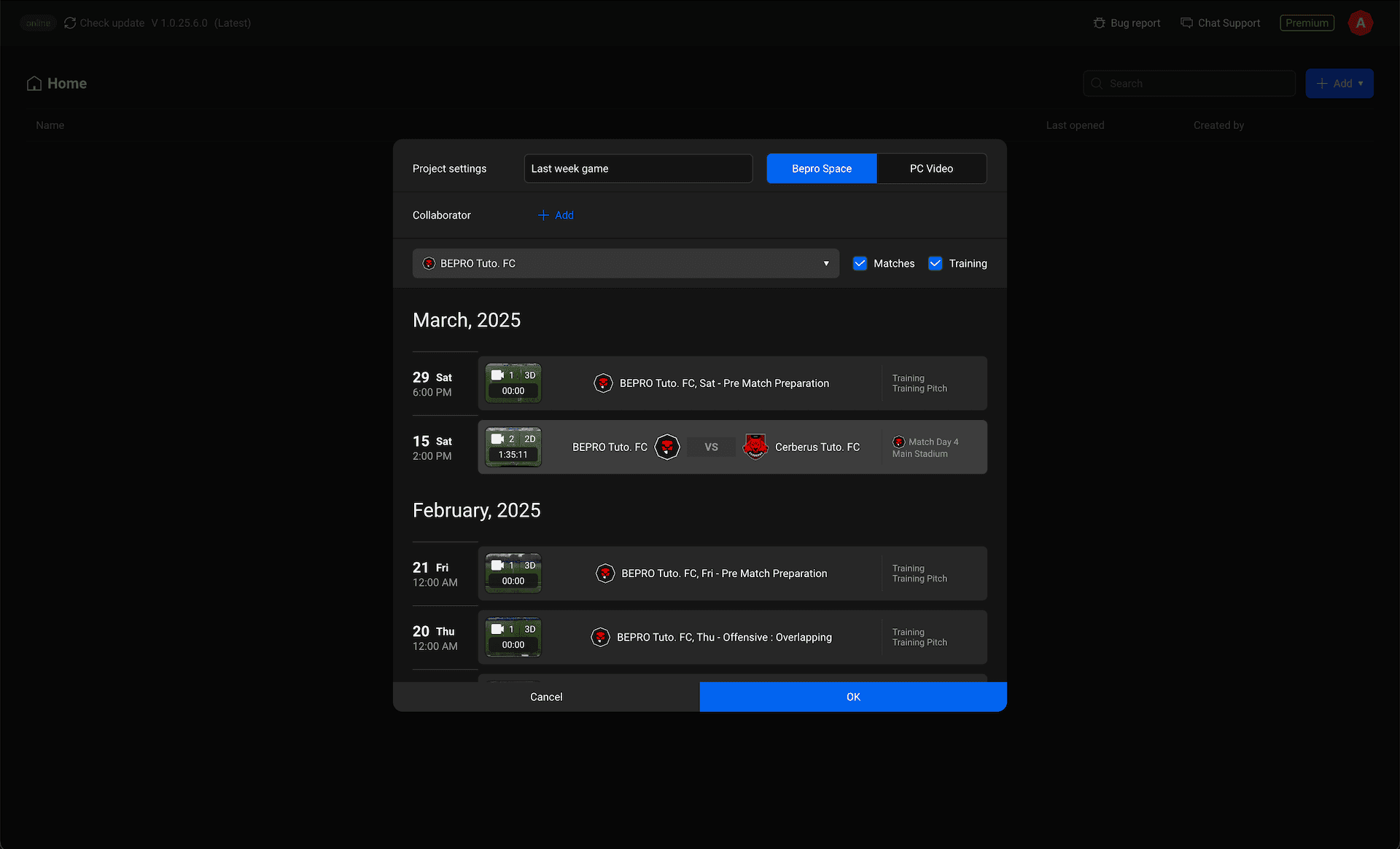
If you want to create a project with a schedule where all videos have already been uploaded to BEPRO Space, simply select the desired schedule and click the confirm button.
Starting with Videos from Your Computer
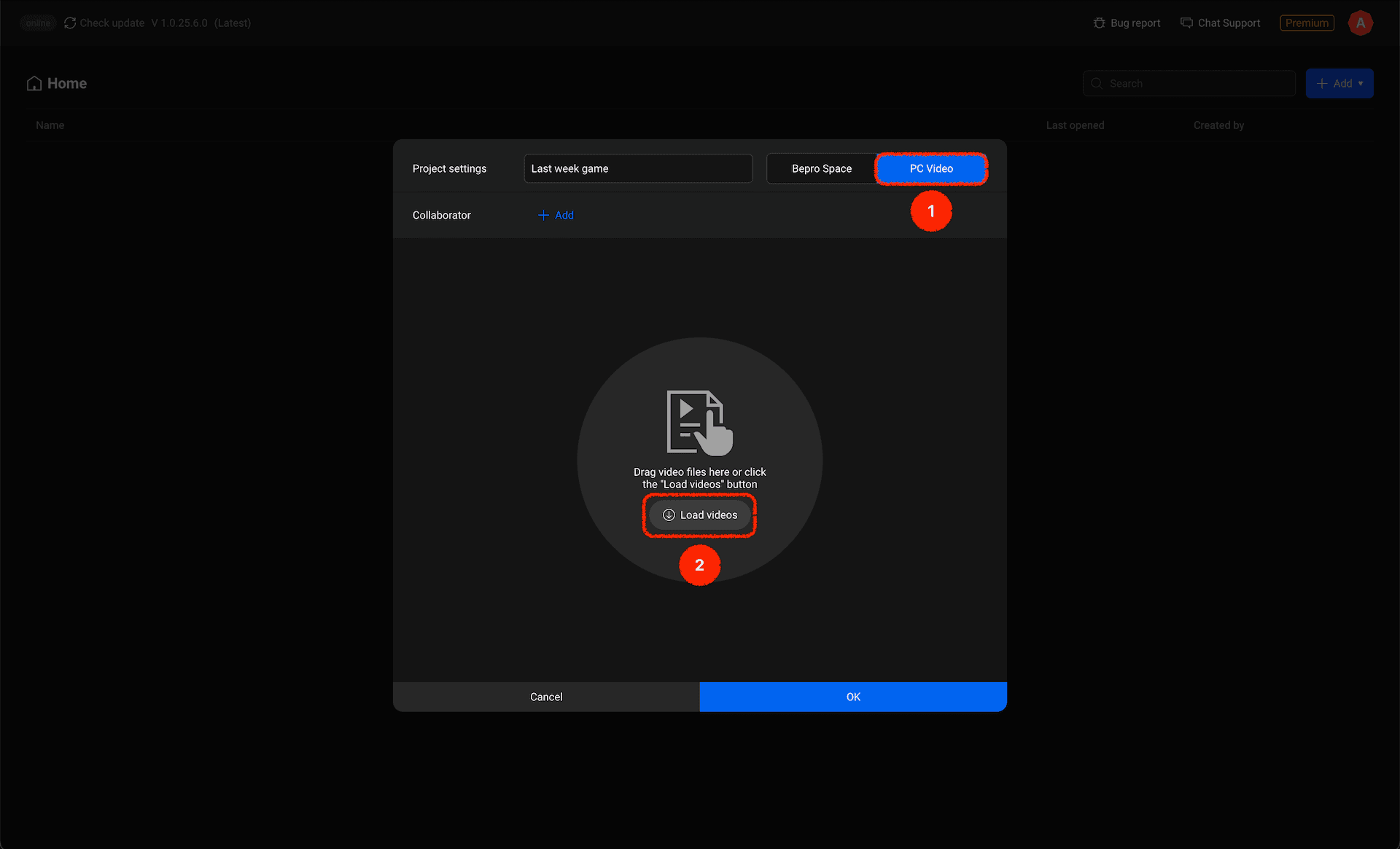
If you want to start a project with videos from your computer, click the PC Video button in the top-right of the modal, then click the Load Video button to find and load videos from your computer.
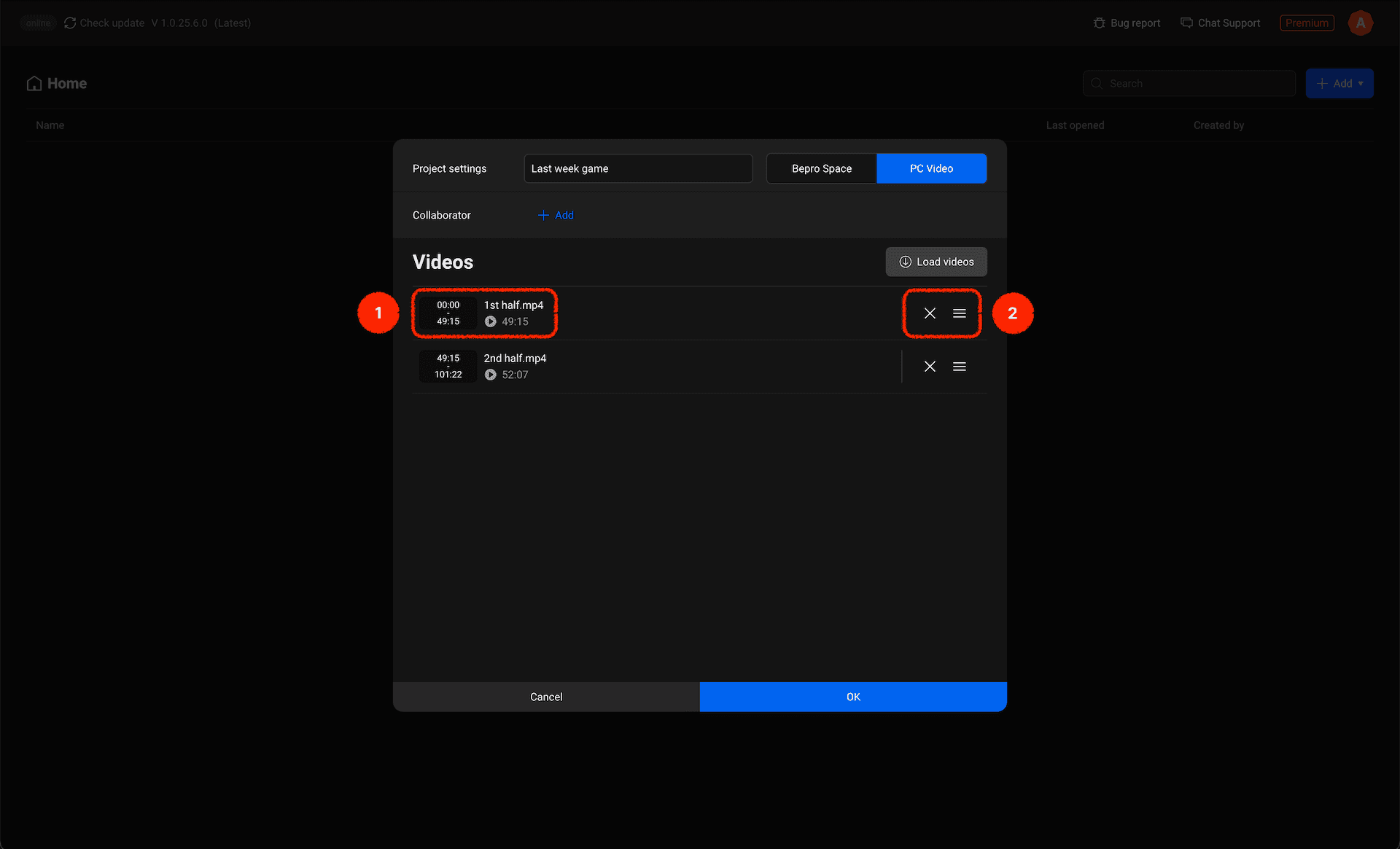
The loaded videos will display their title and duration. If you've loaded the wrong video, you can delete it, or if the order is incorrect, you can drag to change the sequence.
Selecting Labels for the Project
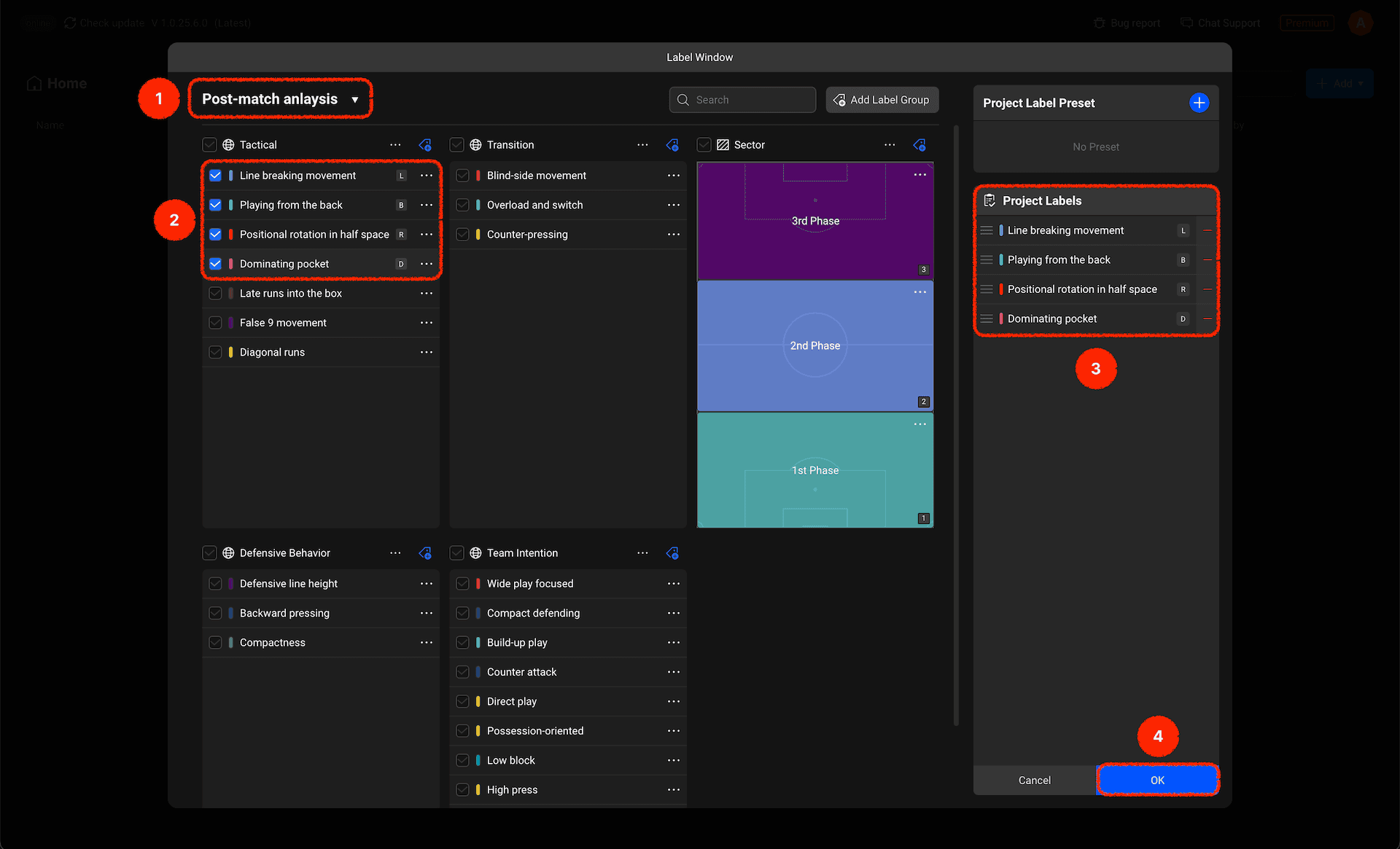
You need to select the labels to use for this project from the My Labels window.
If you have multiple label windows, select the desired label window.
In that label window, tick the labels you want to use for this project.
Check that they've been properly added to the Project Labels panel on the right, then drag to adjust the order.
After confirming everything, click Confirm to complete.
Running the Project
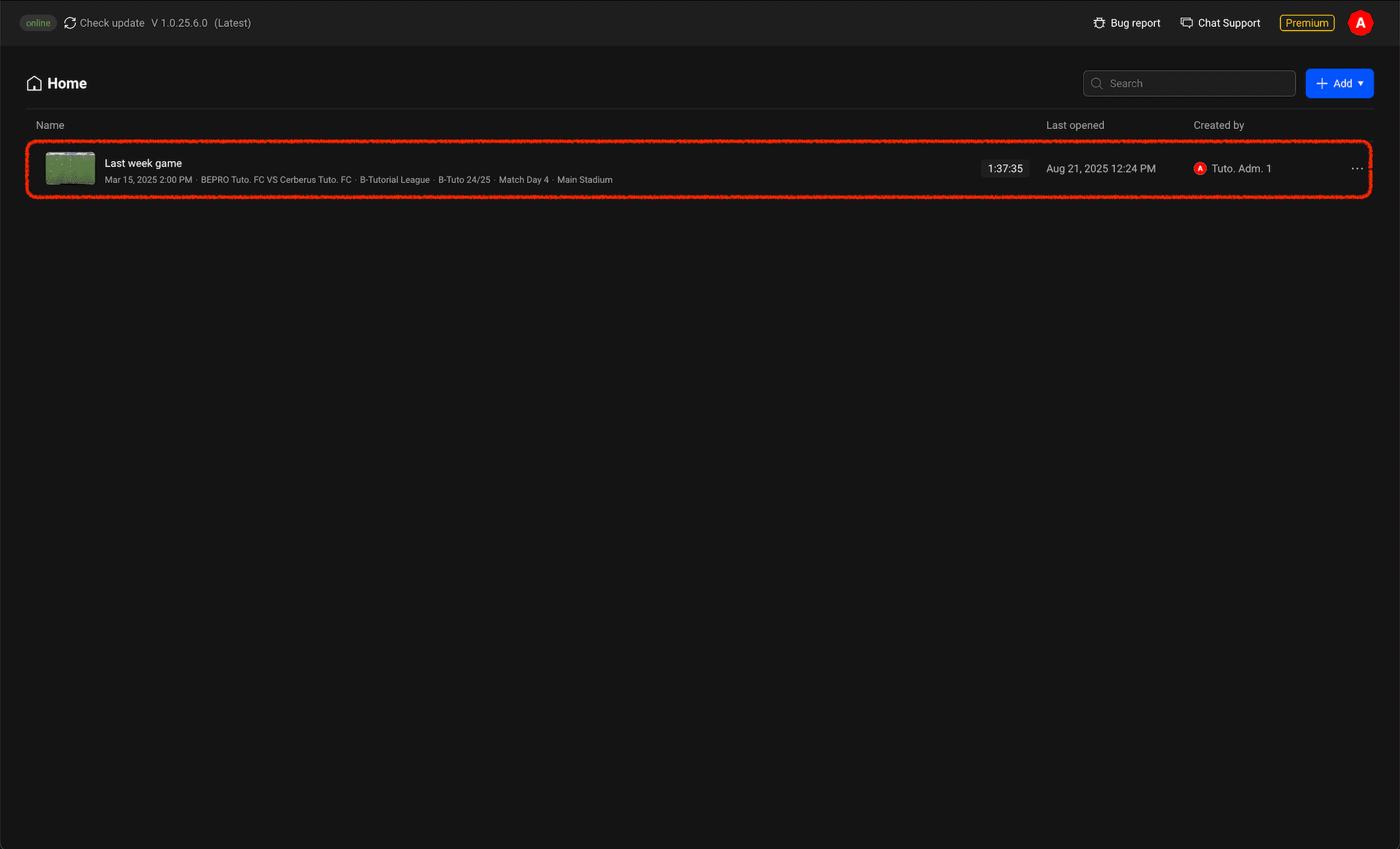
Once you've finished selecting project labels, you can see the created project in the lobby.Double-click to open the project.
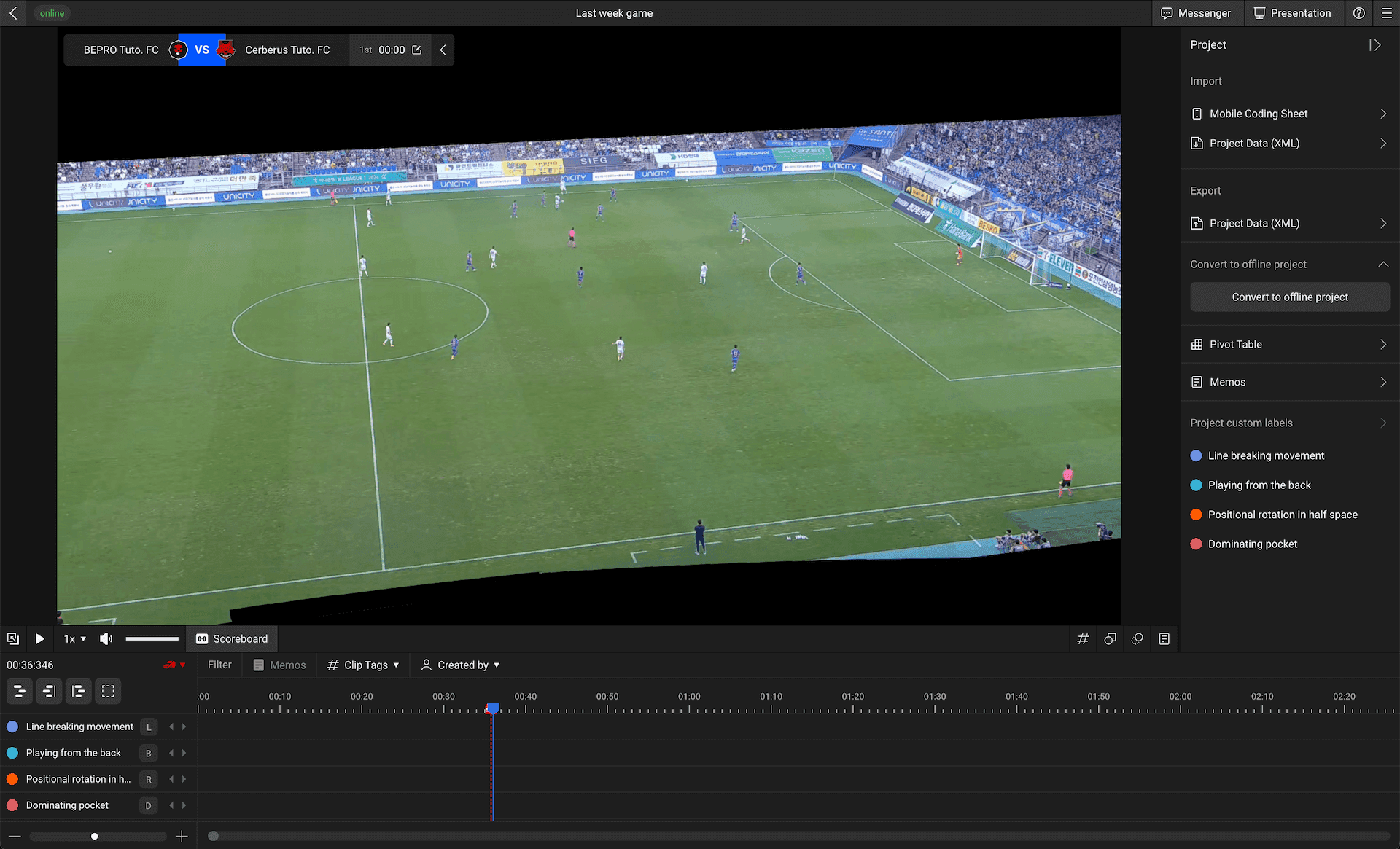
Now you can start video analysis using the project labels.
Previous
Next