BEPRO Space
BEPRO Editor
Cerberus
Login & Signup
Request Match Analysis
1
BEPRO Editor
Basic
All Users
Share projects
Share project and edit clips with your team members
💡
Prerequisites
1. Basic Package
2. Download BEPRO Editor in BEPRO Space
Hello, this is the BEPRO team.
In this article, we'd like to introduce our collaboration feature that allows multiple people to edit a single project together.
Just like Google Docs or Google Sheets, changes made by others are reflected to you in real-time, enabling much closer collaboration.
When you need to analyse large amounts of data in a short time, two or more people can edit together, or all project collaborators can view the results of one person's edits in real-time.
There are two main ways to share a project:
Project Creation Methods
1. Sharing when creating a project
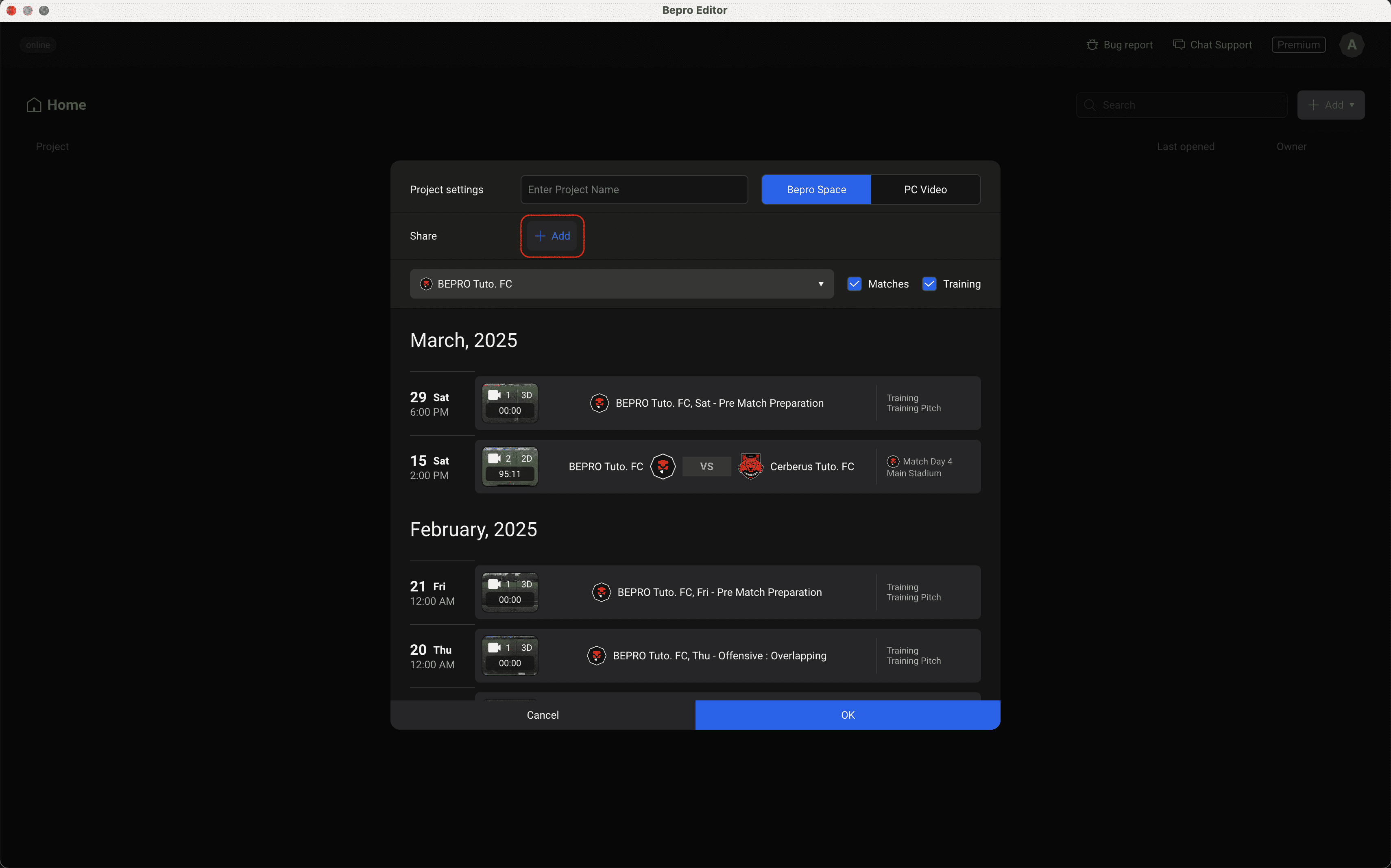
When creating a project in the editor, there's a sharing section below the project name input section.You can share the project by pressing the add button here.
2. Sharing an already created project
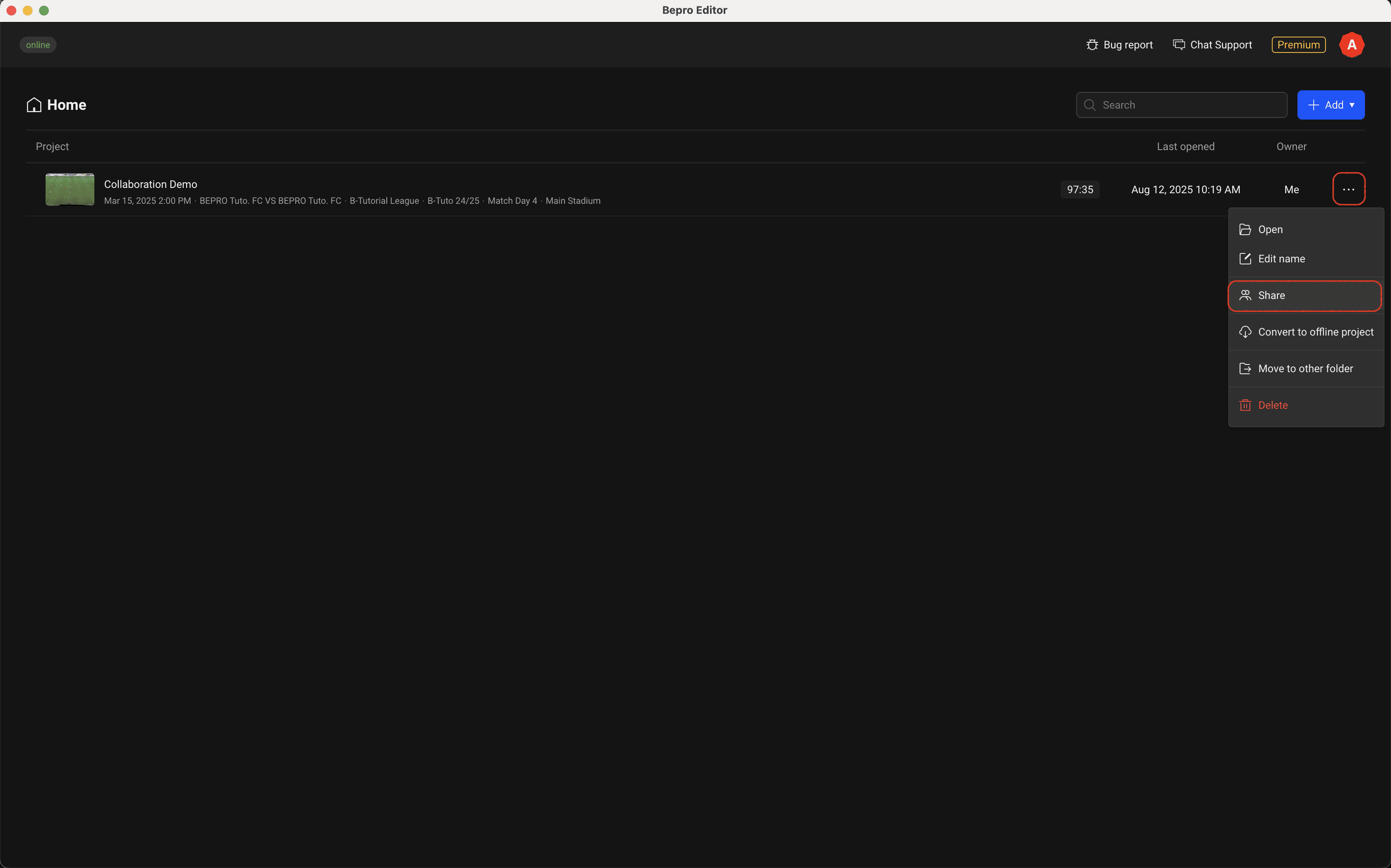
For projects that have already been created, you can share the project by clicking the more options button on the right, then clicking the "Share" button in the menu.
Adding Project Collaborators
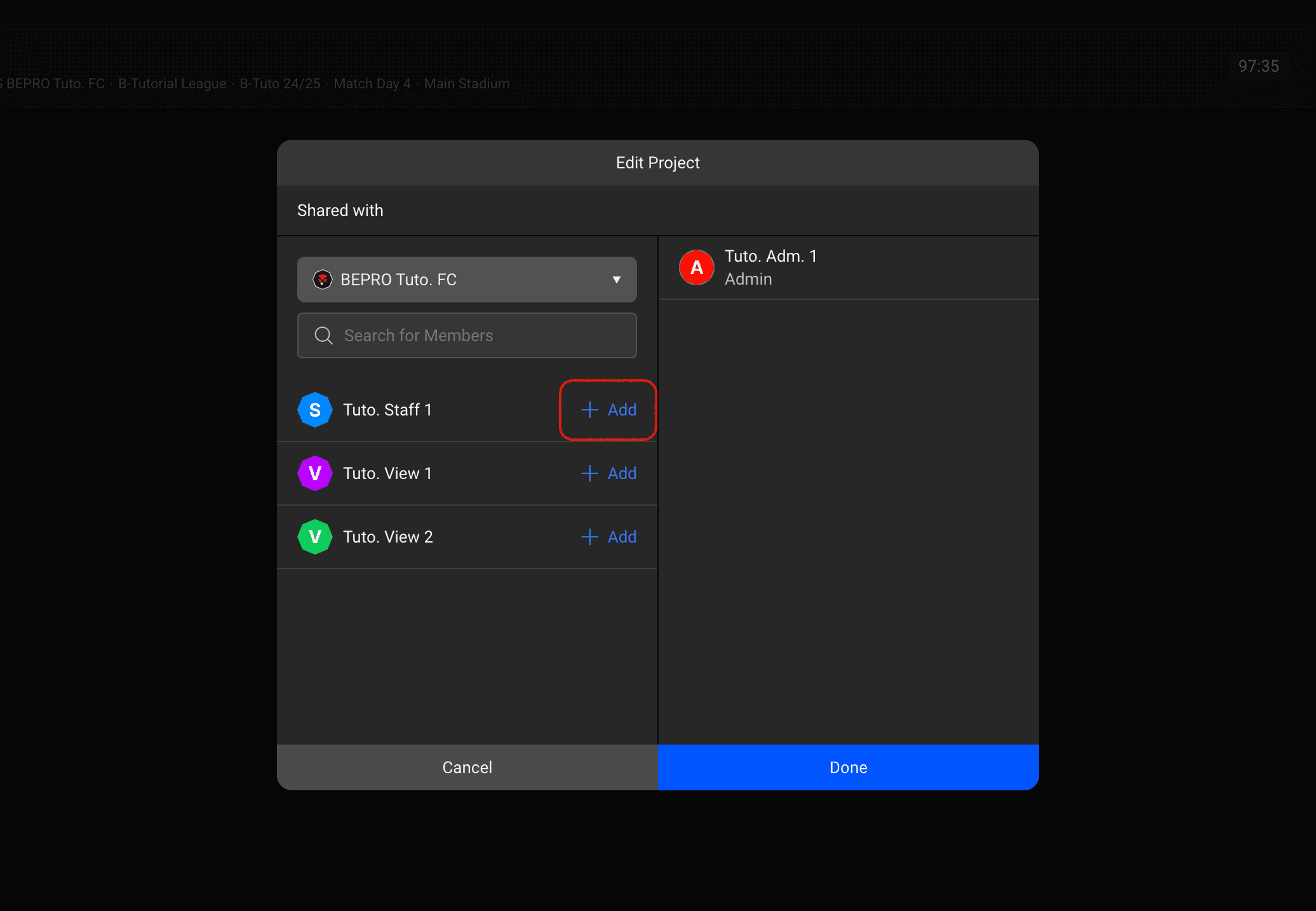
You can add team members from your team to that project by clicking the "Add" button in the share modal.
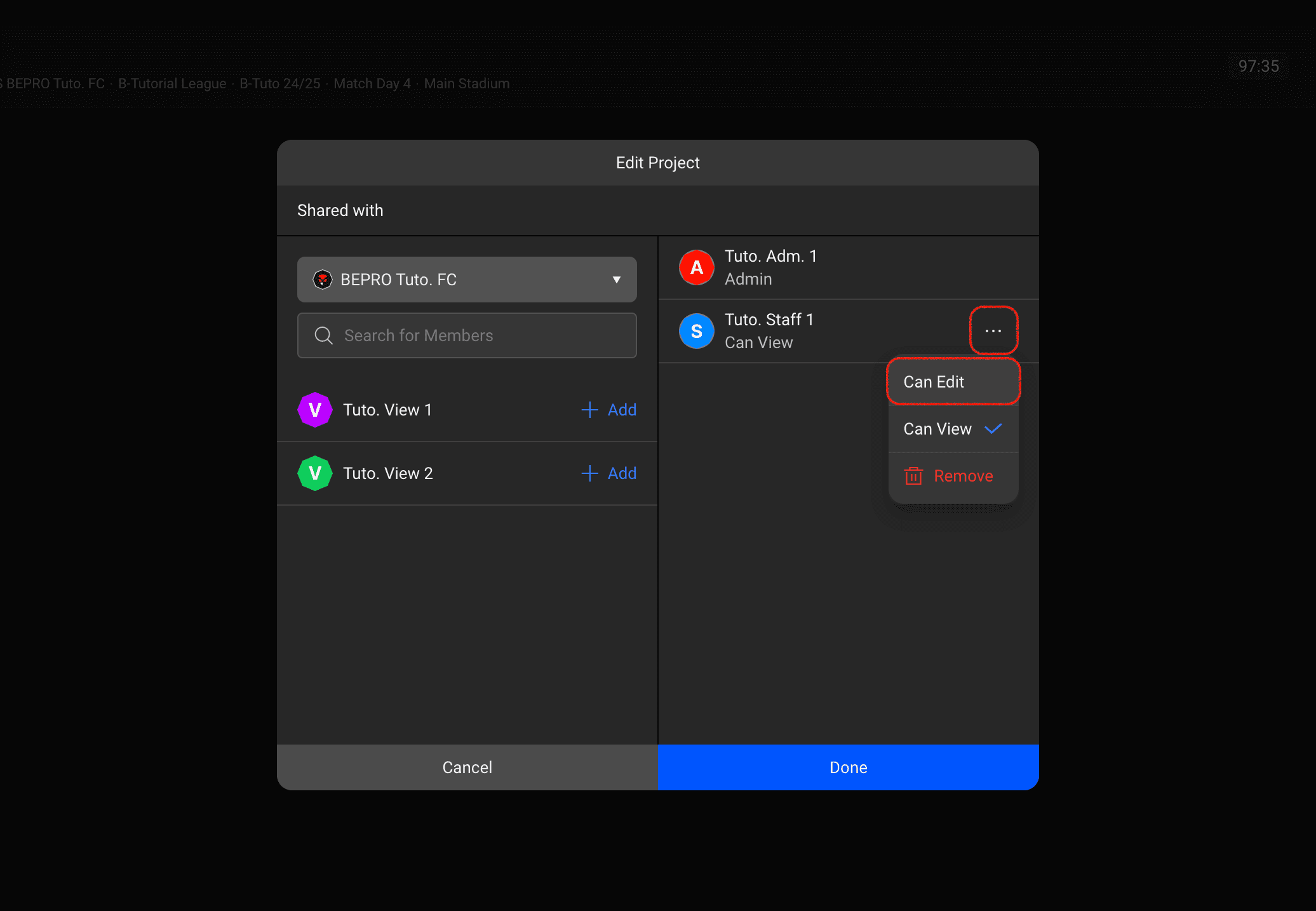
When you add team members to a project, they're added with "Can View" permissions. If you want to edit the project together, you'll need to click the more options button to change their permissions to "Can Edit".
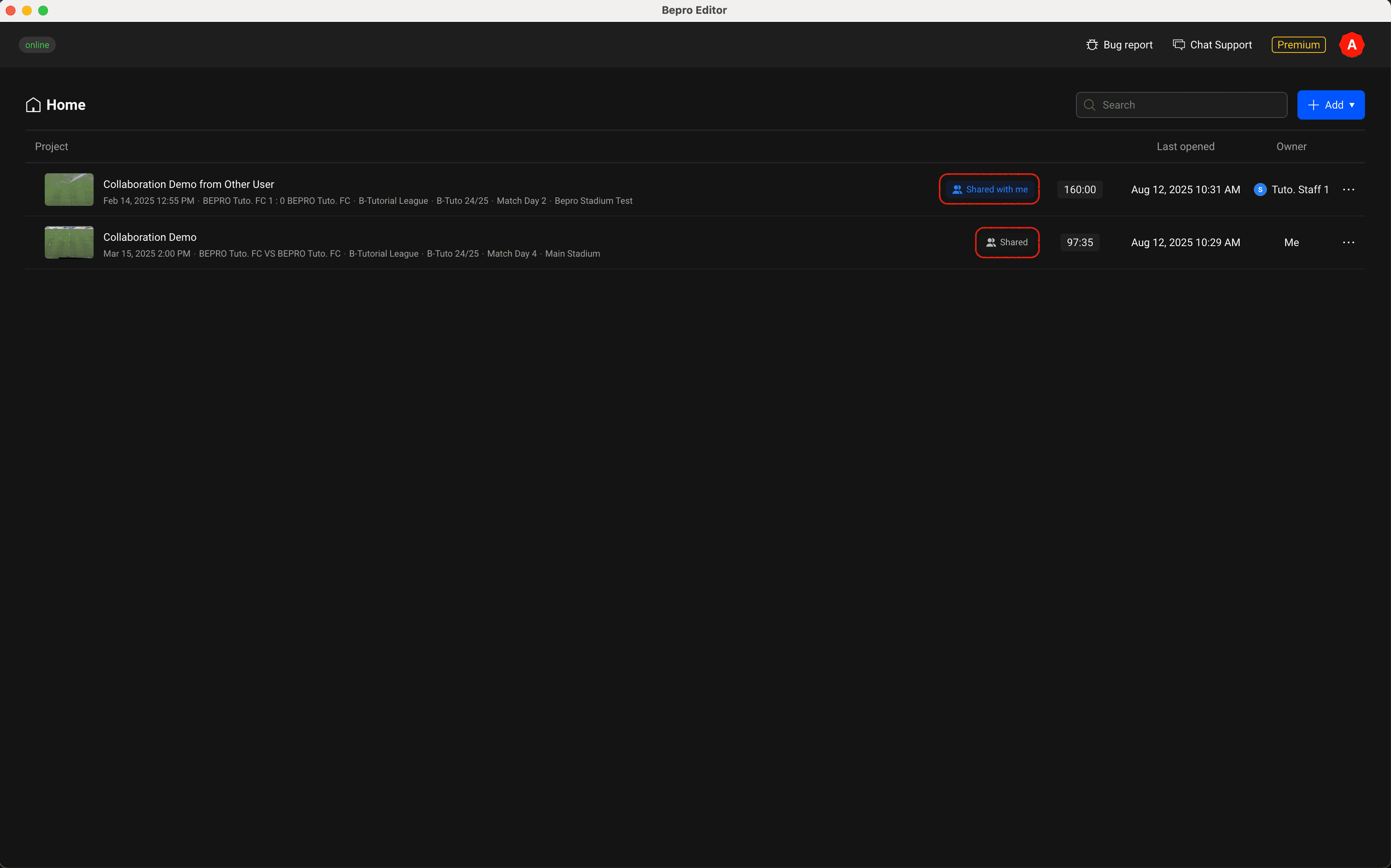
Once project sharing is complete, projects I've shared will display a "Shared" status, and projects shared with me will show "Shared with me" status.
Clip Editing Collaboration
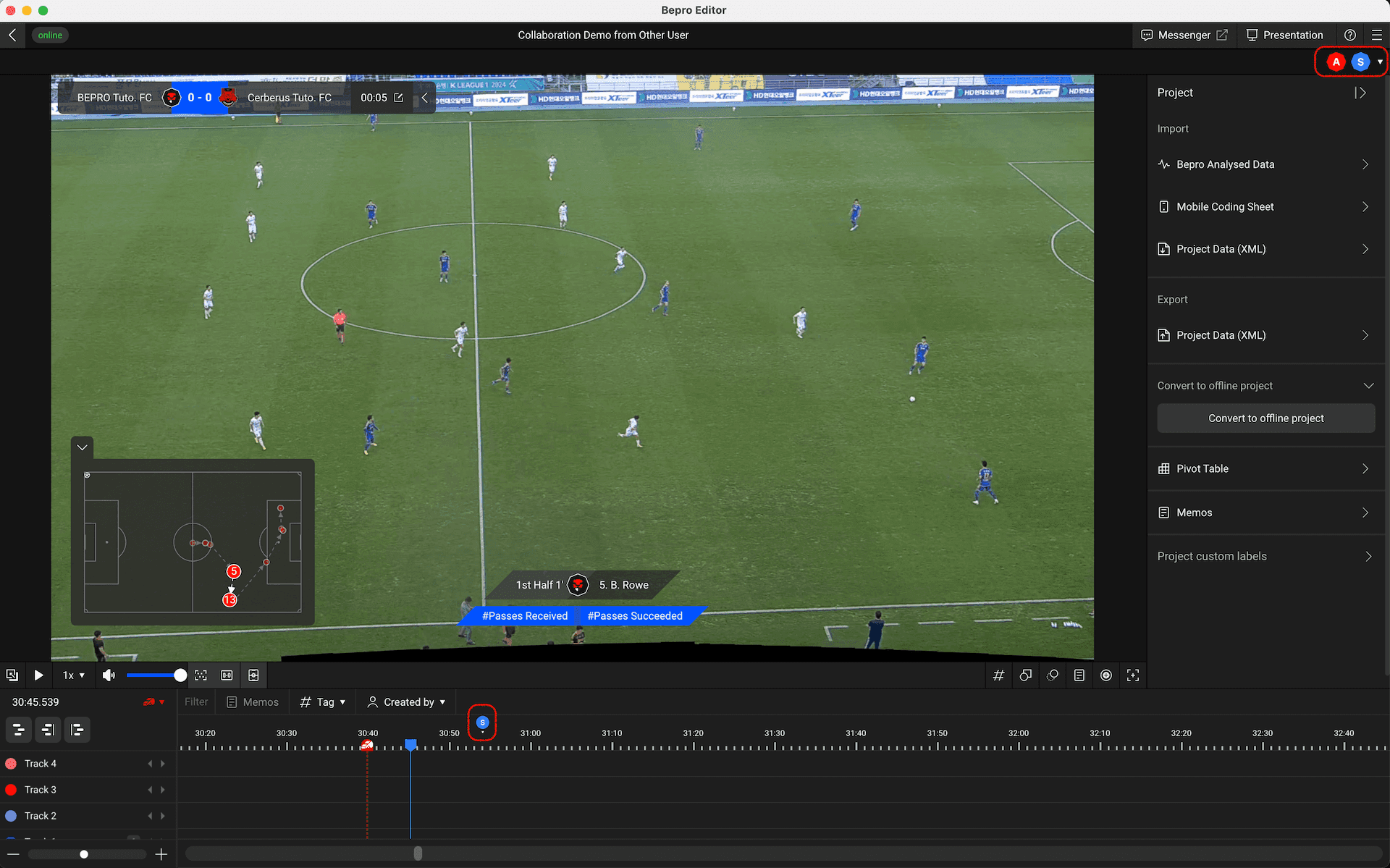
When you enter a project, the top right displays online users who are currently accessing the project in real-time.At the bottom of the screen, you can also see the playback points of online users.
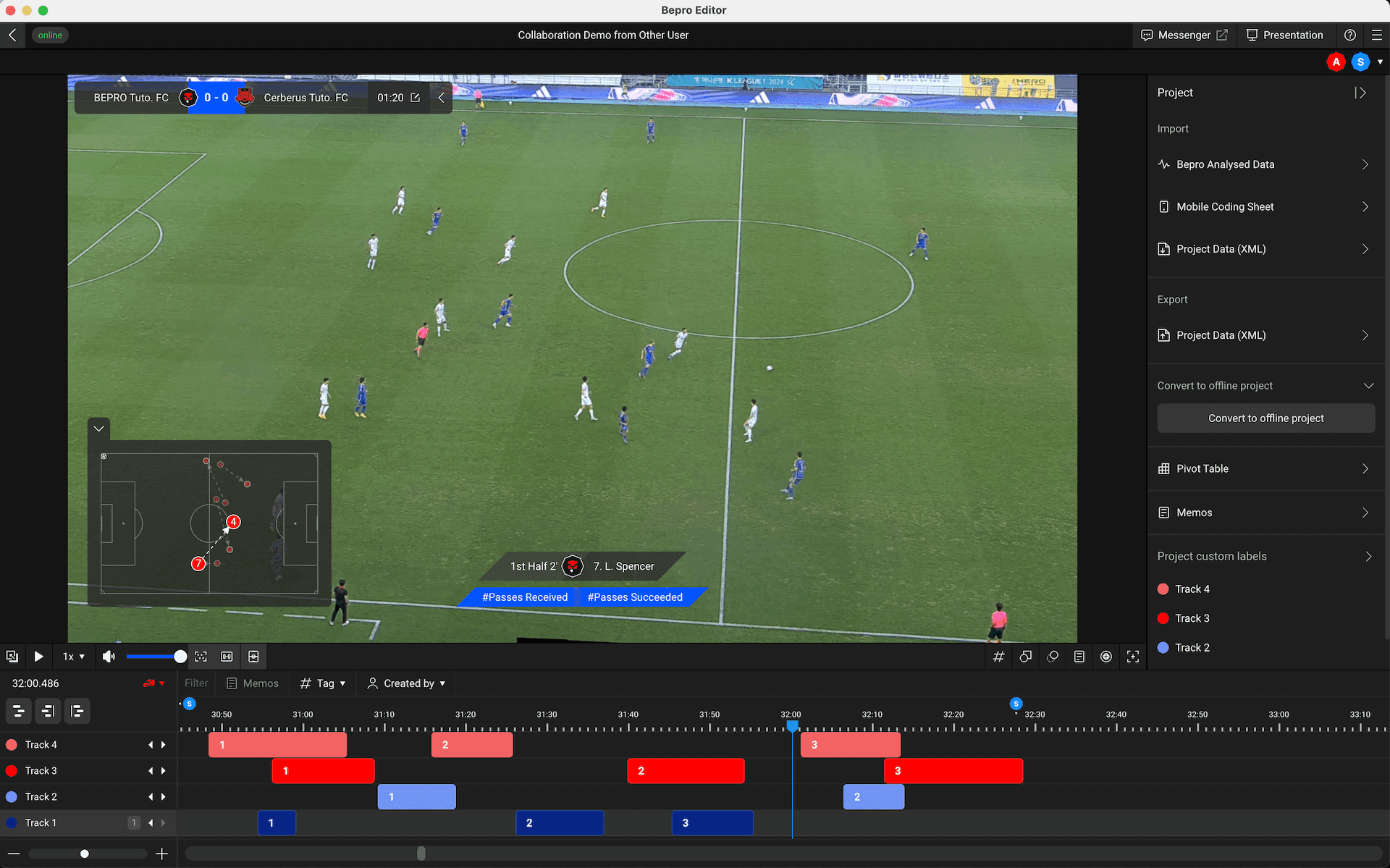
Since the process of all users creating and modifying clips is reflected on your screen in real-time, you can collaborate closely whilst monitoring each other's work progress.
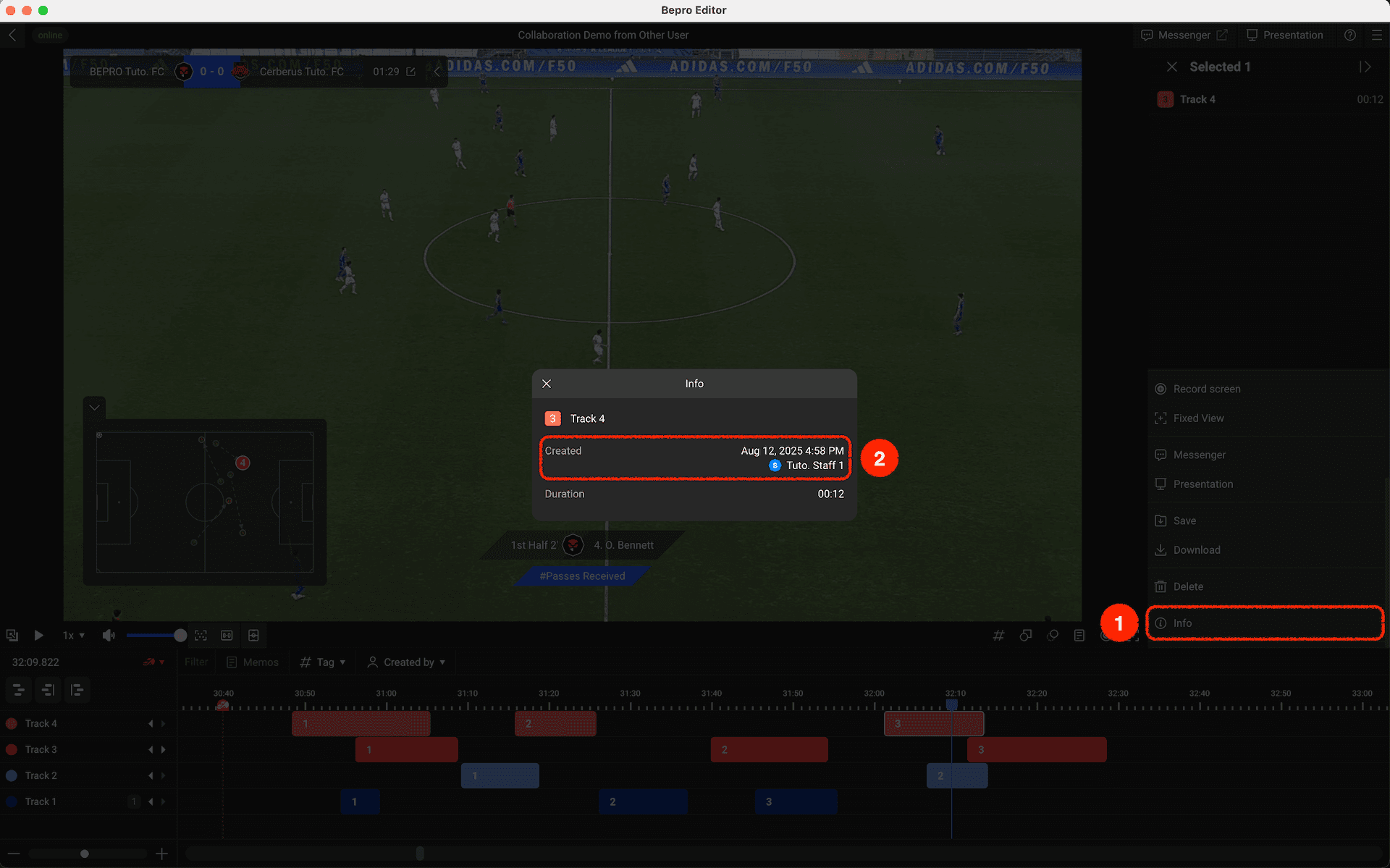
Each clip can be checked to see who created it through the "Info" menu.
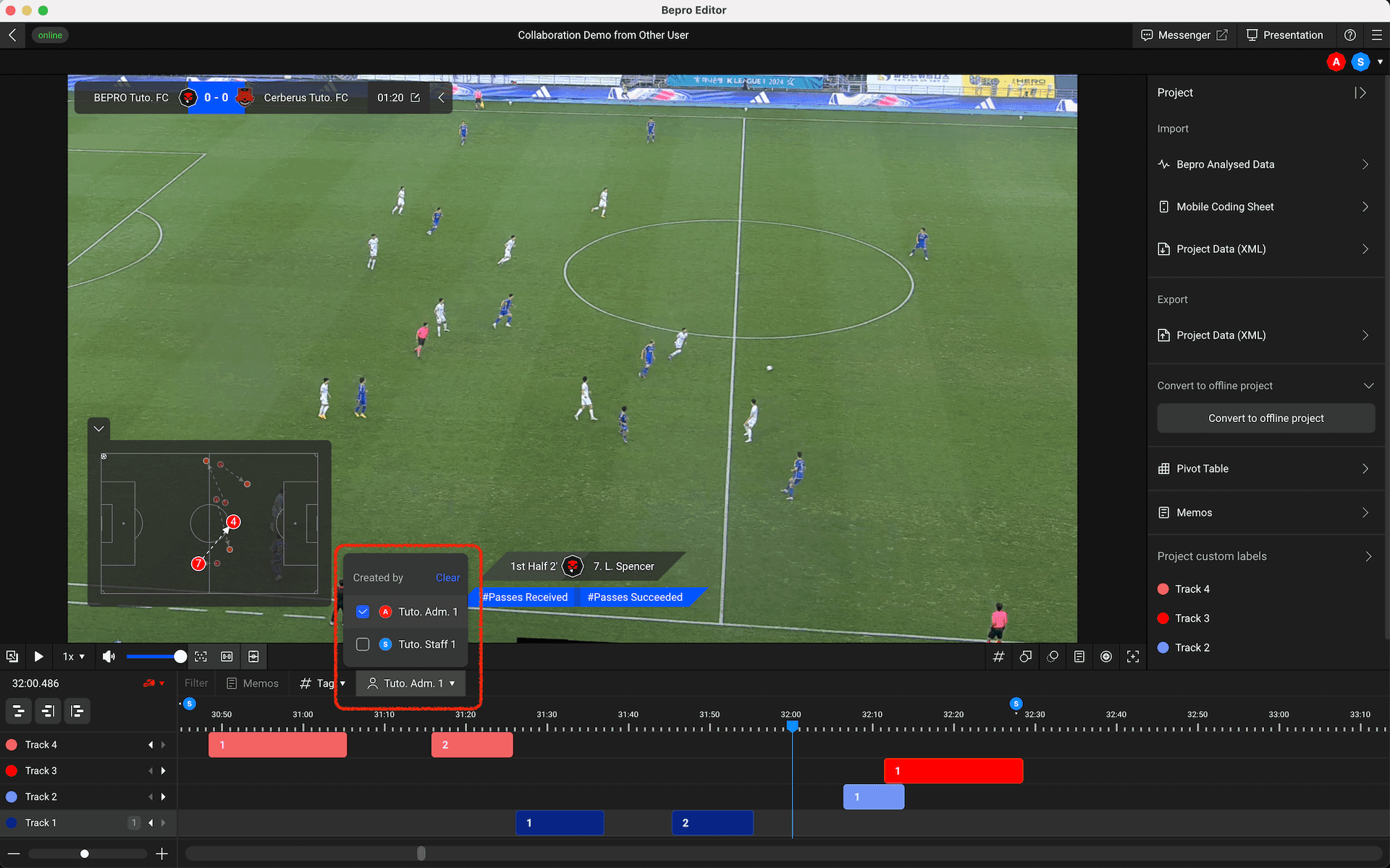
You can also filter clips based on the person who created them.Use the project collaboration feature for faster and more efficient teamwork - make the most of it according to your team's needs!
Now start editing videos together in your shared project!
Previous
Next