BEPRO Space
BEPRO Editor
Cerberus
Login & Signup
Request Match Analysis
1
BEPRO Editor
Basic
All Users
Select multiple clips
Let's learn how to select multiple clips
Hello! We are the BEPRO team!
In this article, we'll explore various methods for selecting multiple clips.
After creating numerous clips during the video analysis process, you can select clips according to your purpose to save them to the BEPRO Space library, share them with team members via messenger, or download them to your computer.
At this point, whilst you can manually select the desired clips one by one, the BEPRO editor provides several options to easily select multiple clips.
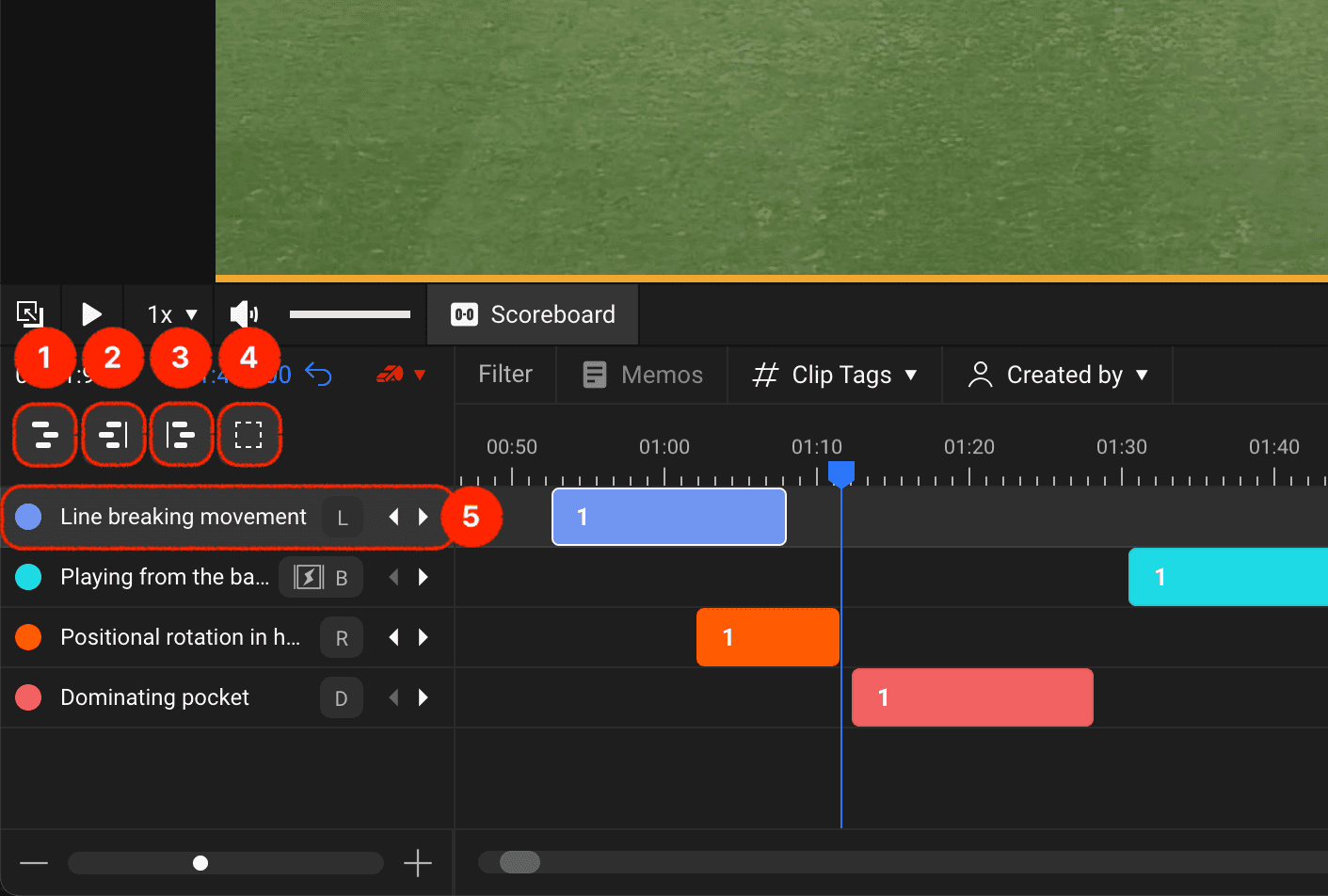
There are clip selection buttons on the left side of the timeline as shown above, and we'll examine each menu one by one.
Select All Clips: Selects all clips in the timeline's label track
Select All Clips to the Left of Current Playback Position: Selects all clips to the left based on the current playback header position
Select All Clips to the Right of Current Playback Position: Selects all clips to the right based on the current playback header position
Deselect: Deselects all currently selected clips
Select All Clips in Label Track: Selects all clips created in the corresponding label track
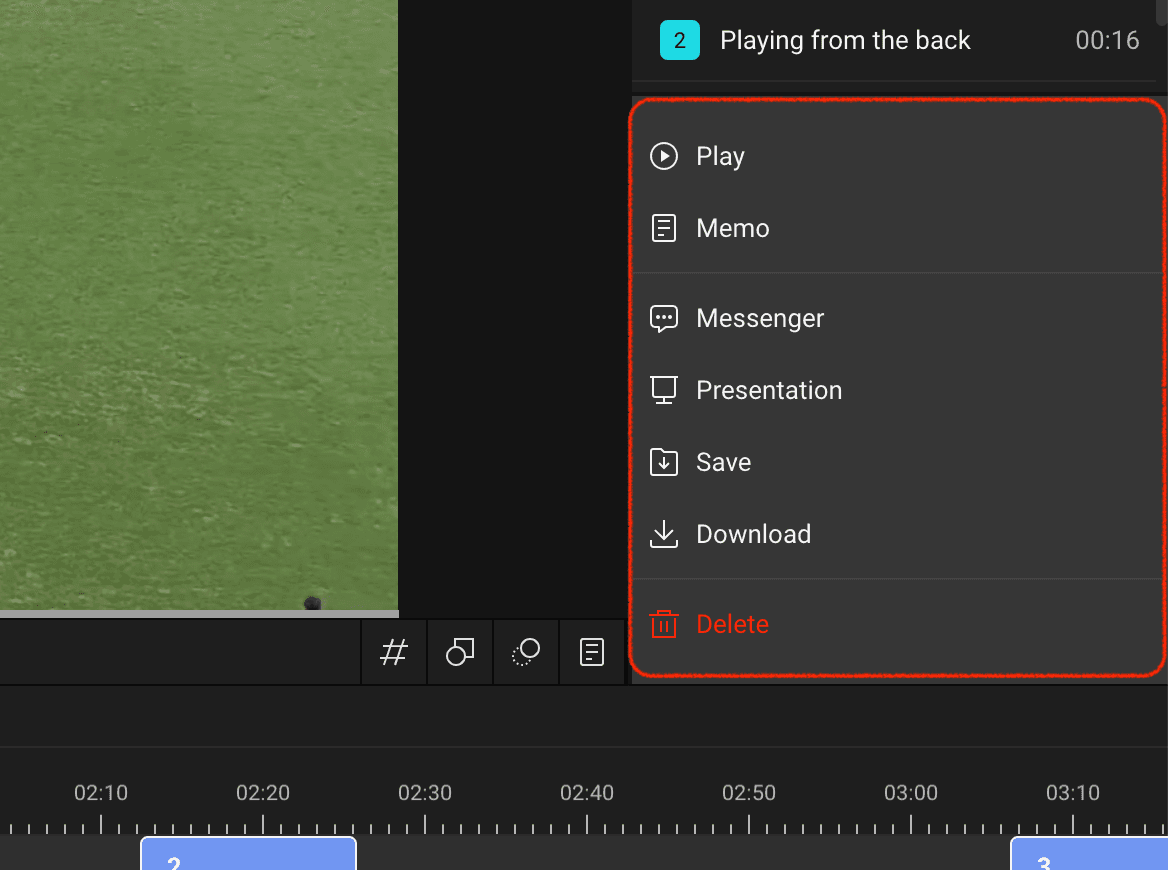
After selecting multiple clips, you can drag them to move the entire position of the selected clips, or utilise various menus in the right panel such as playback, send via messenger, save to library, download, delete, and more.
Previous