BEPRO Space
BEPRO Editor
Cerberus
Login & Signup
Request Match Analysis
1
BEPRO Editor
Basic
All Users
Send clips to messenger
Let's learn how to send clips to messenger and share with team members
Hello, this is the BEPRO team!
In this article, we'll explore how to send edited clips to team members through the BEPRO messenger.
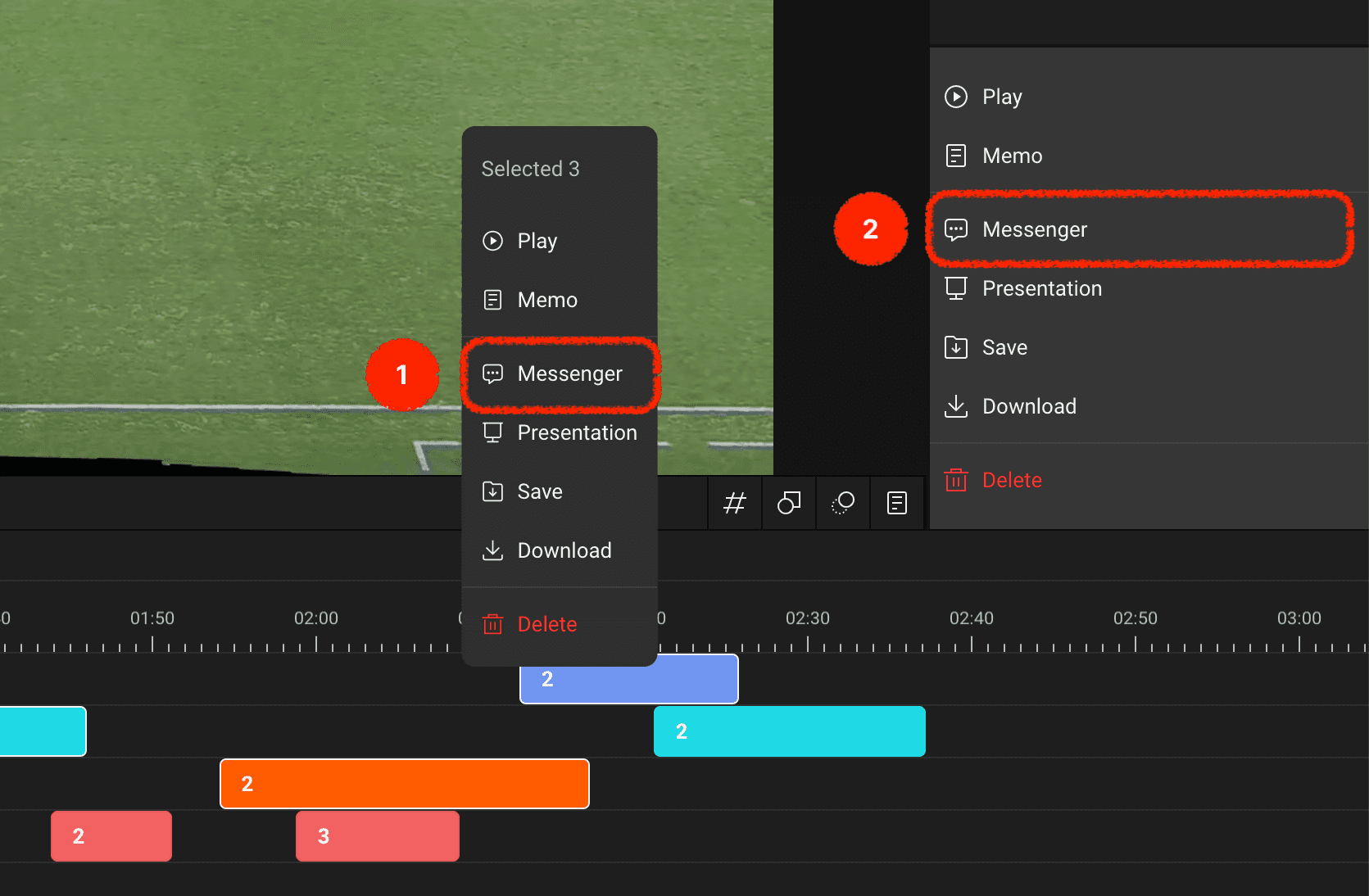
First, select the clips you wish to send via messenger, then choose the messenger menu from the context menu that appears when you right-click or from the right panel.
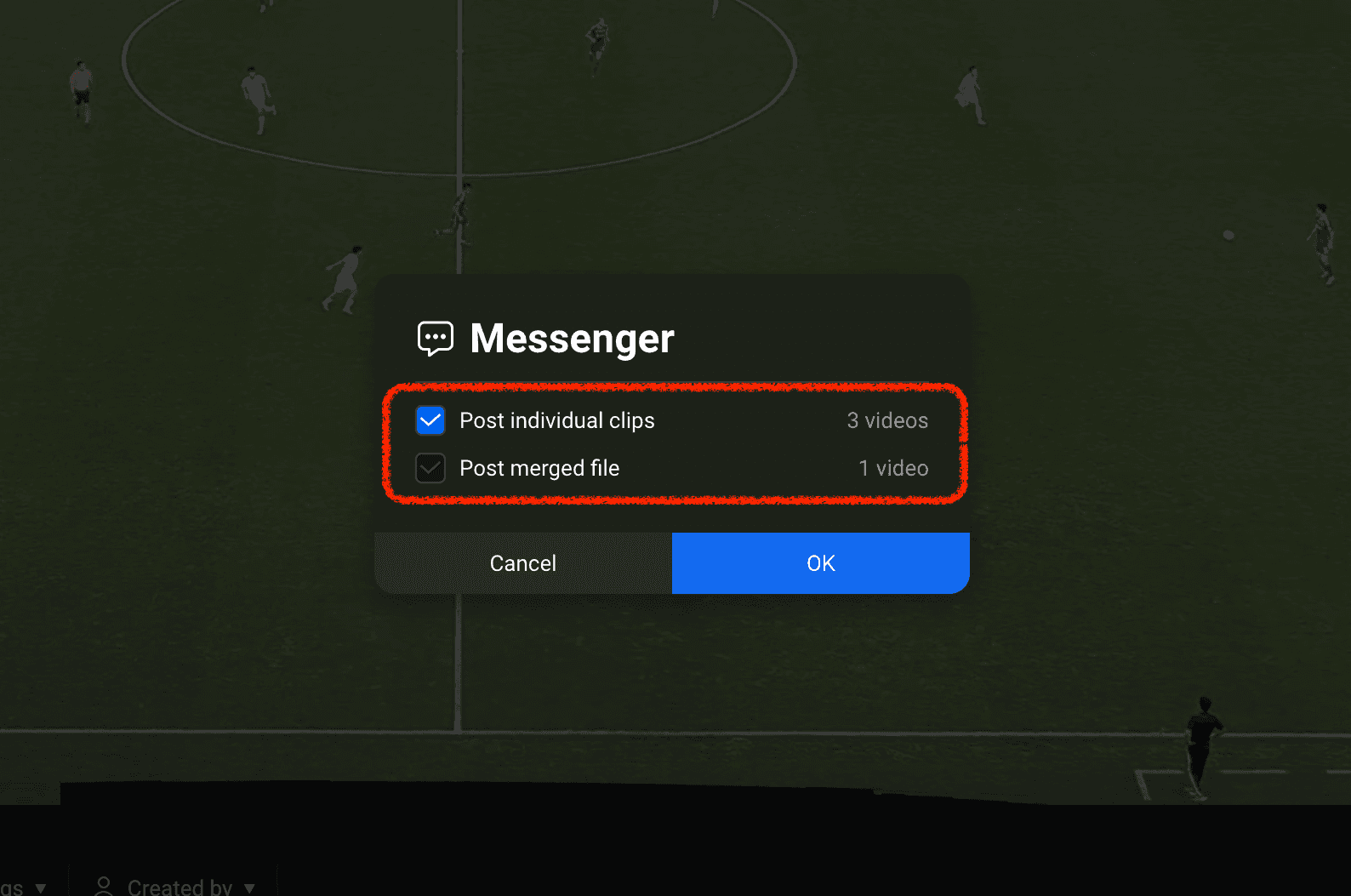
You can choose to send individual selected clips or combine them into a single video for sending.
Please select the option you need and confirm.
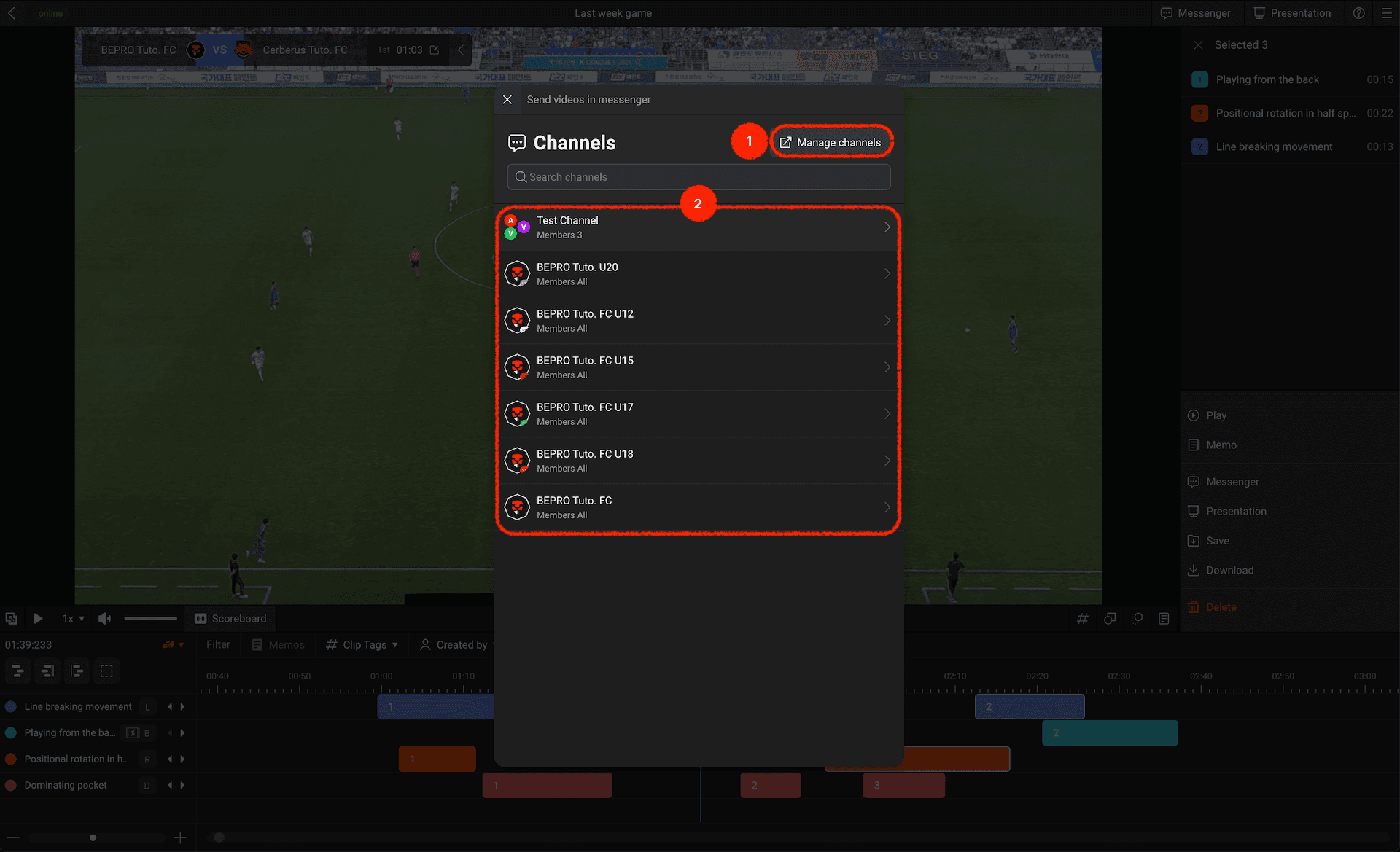
The messenger allows you to create multiple channels (similar to chat rooms), and channel management can be done in BEPRO Space.
Navigate to BEPRO Space where you can create, modify, or delete channels
If there's a desired channel in the list, please select the channel where you want to send your message
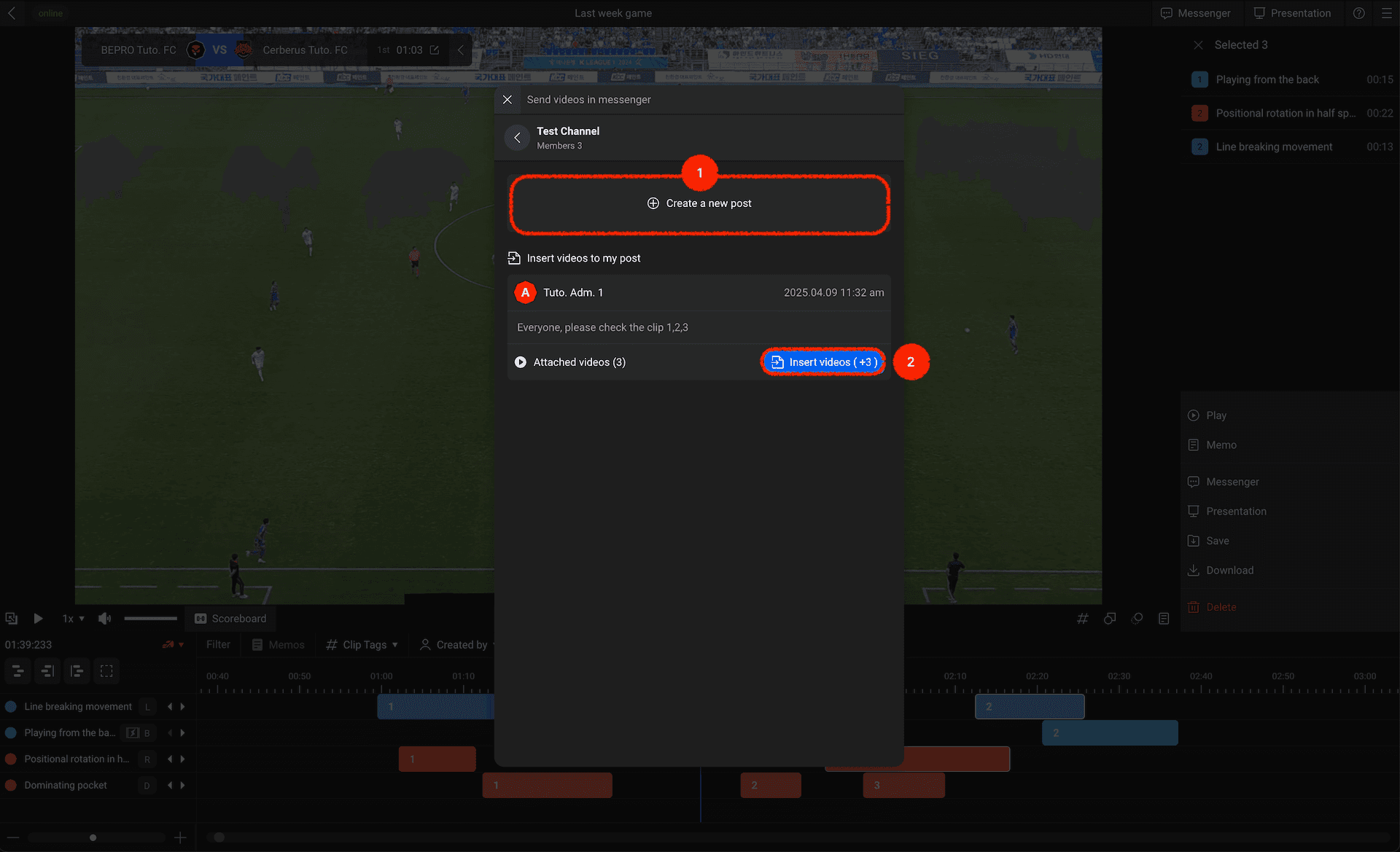
Once you select a channel, you can share videos in that channel using two methods:
Create a new message along with the video
Add the selected videos to a message that you've previously written
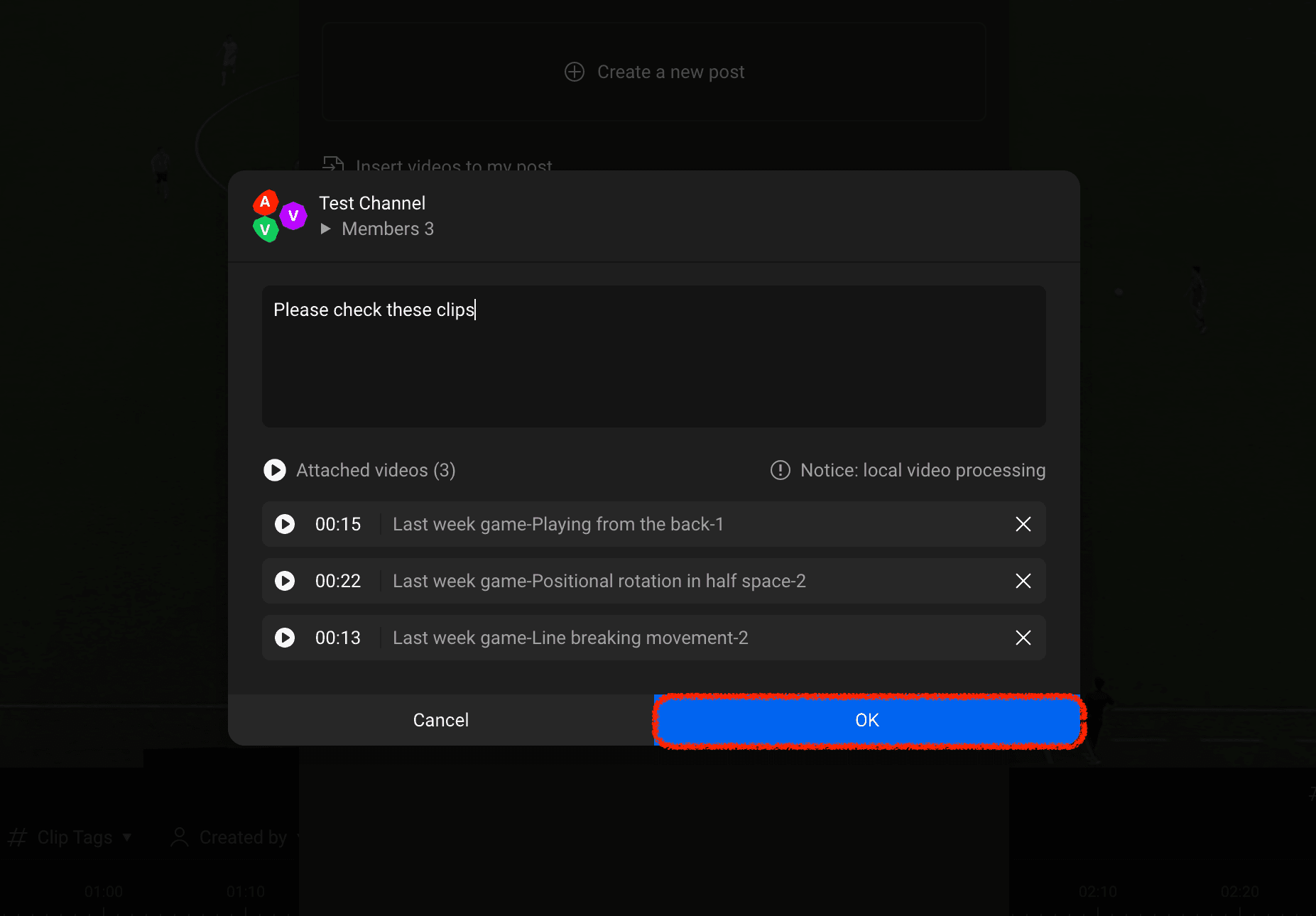
When creating a new message, please write the content and click the confirm button.
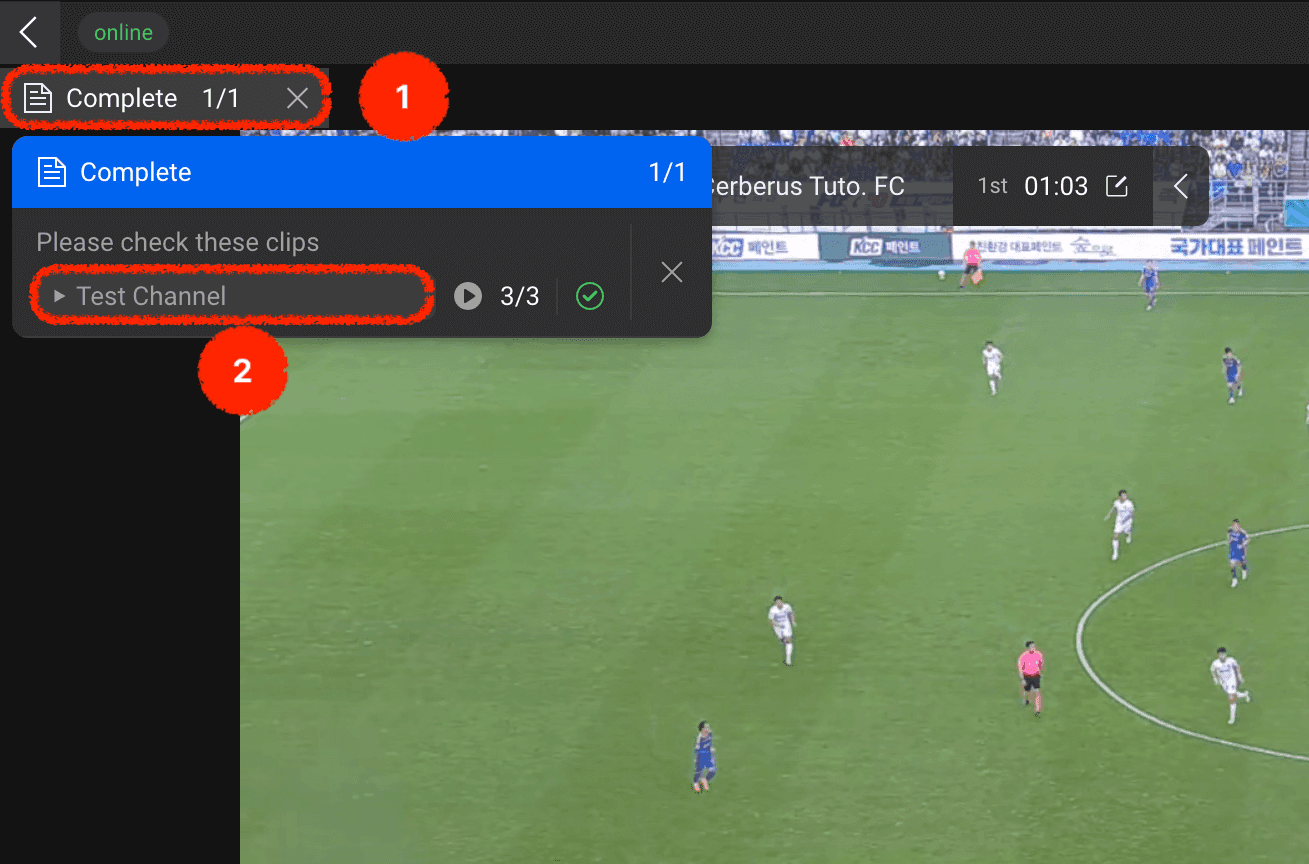
After sending the message and video, a button will appear in the top-left corner allowing you to check the progress of message composition
Clicking this will display a pop-up showing detailed progress, and you can click the channel button to navigate to the BEPRO Space messenger page to quickly check the created message
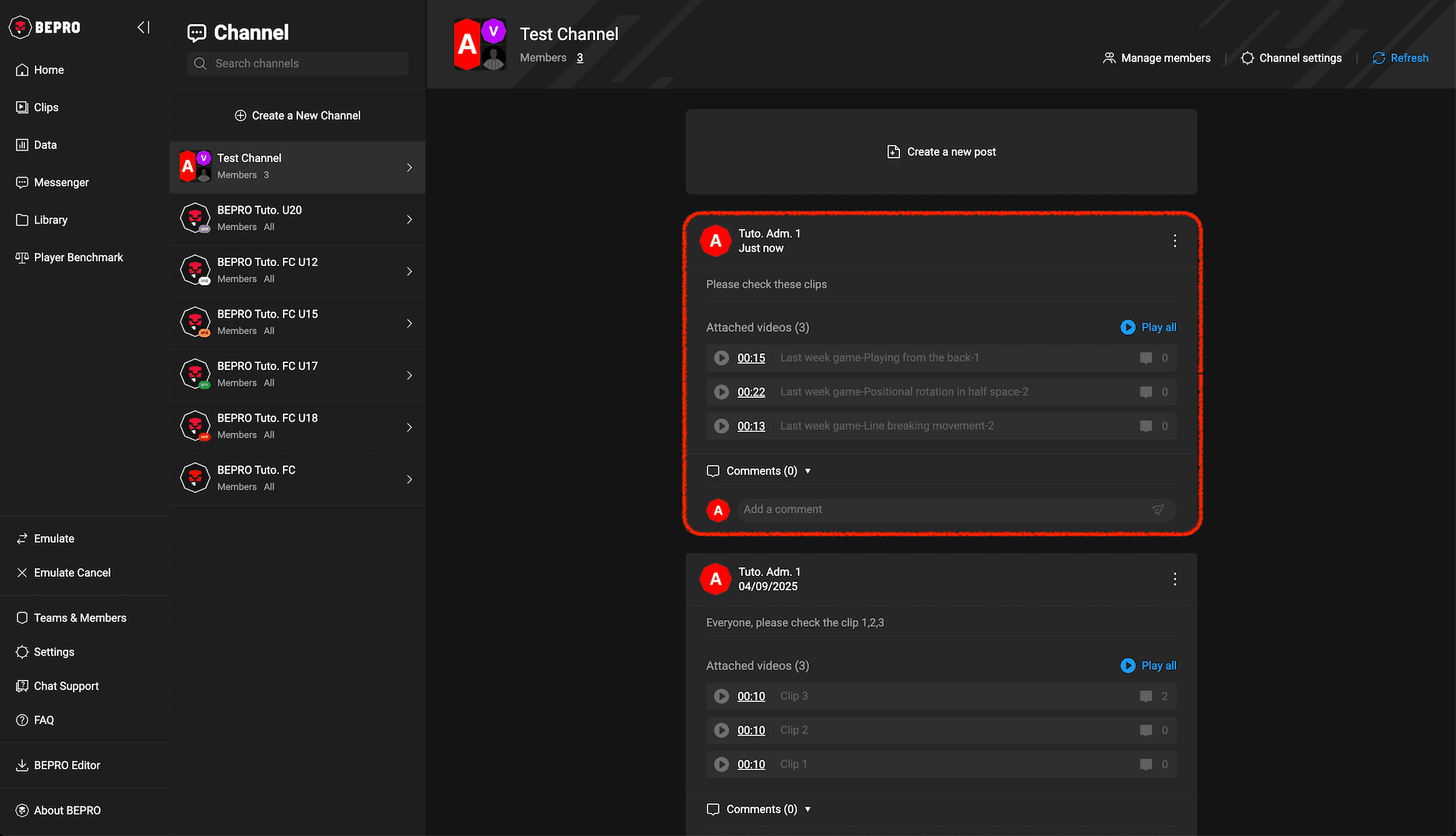
By navigating to the messenger page in BEPRO Space, you can view the message you've just created.
Send your edited clips to the desired channel and communicate more closely with your team members!
Previous
Next