BEPRO Space
BEPRO Editor
Cerberus
Login & Signup
Request Match Analysis
1
BEPRO Editor
Advanced
All Users
Add tags to clips
Let's learn how to add tags to clips for comprehensive analysis
💡
Prerequisites
Hello from the BEPRO team!
In this article, we'll explore how to add tags to clips for more comprehensive analysis.
What are tags?
The BEPRO editor fundamentally creates labels and imports them into projects to generate clips with corresponding labels. For instance, you would create a label called "Good Play", set it as a project label, and then generate clips at moments during a match that correspond to "Good Play".
When you input secondary information into clips, such as whether a "Good Play" occurred in the defensive area or attacking area, you can quickly find the information you need later and enable more comprehensive analysis using the pivot table function.
The tool used to input this secondary information is called a 'tag'.
How to Input Tags
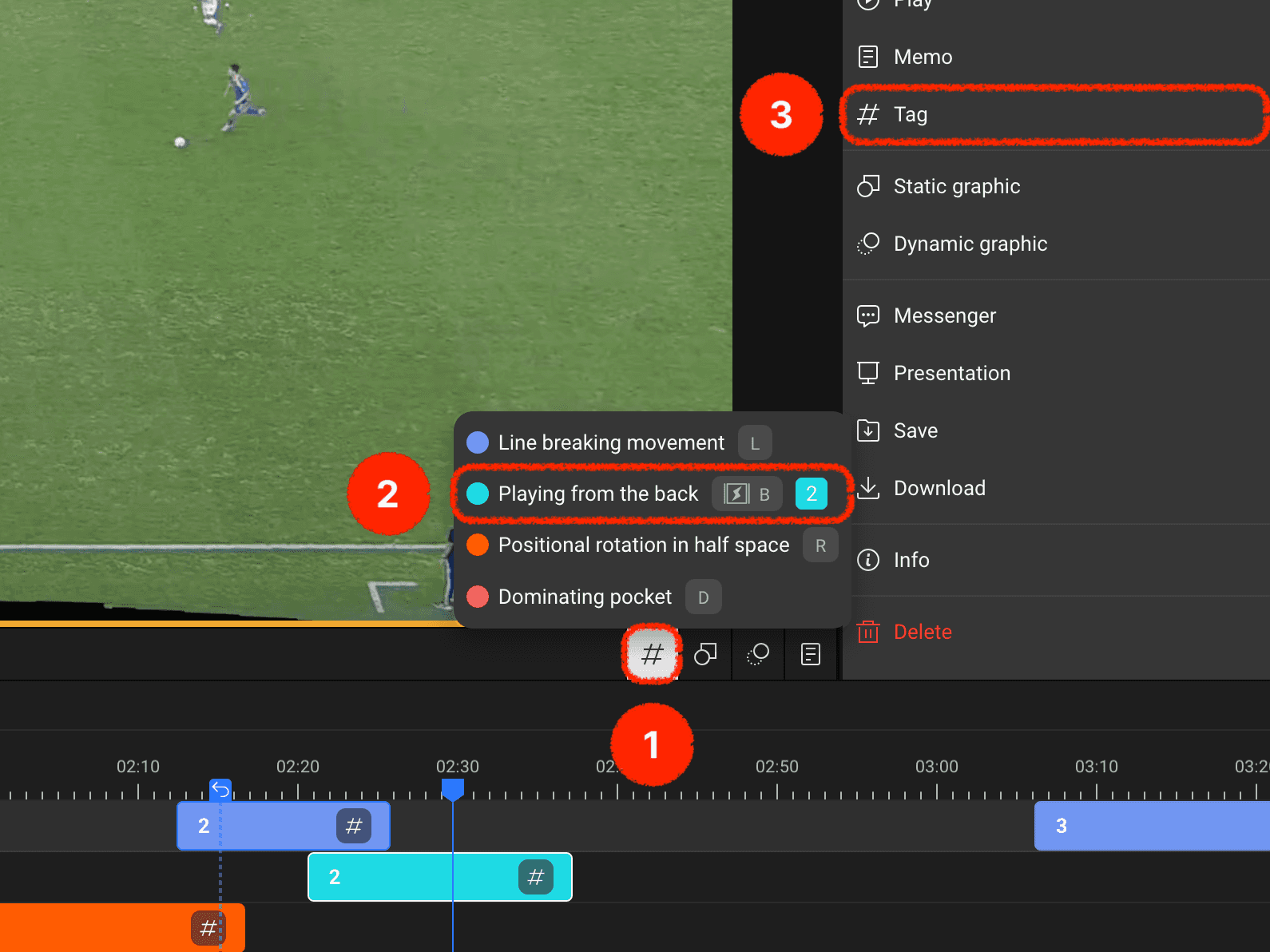
There are two methods for inputting tags into clips: using the tag button in the timeline header or using the right menu panel after selecting a clip.
Let's examine the menus displayed on screen together:
You can use the tag button in the timeline header to add tags to the desired clips
If there's a label track with a clip generated at the current playback time, you can input tags directly to that clip. For tracks without clips generated at the current playback time, you can input tags whilst simultaneously creating clips
Alternatively, you can select a specific clip and input tags through the tag menu in the right panel
Selecting Labels to Input as Tags
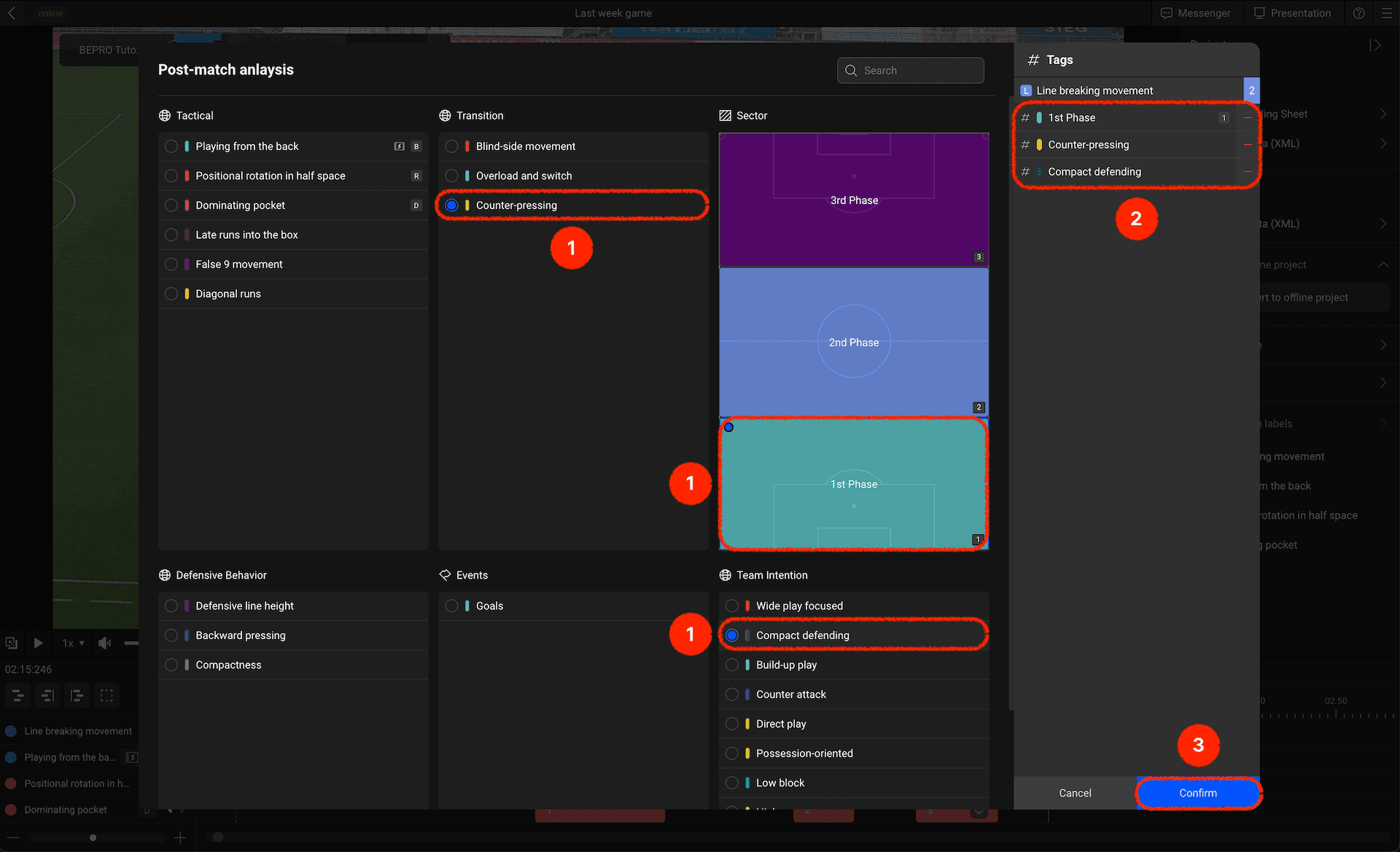
Select the labels you wish to input as tags from amongst the available labels. You can select multiple labels, one from each label group
The selected label tags are displayed in the right panel
Once you've finished selecting tags, please click confirm
Tag Filters
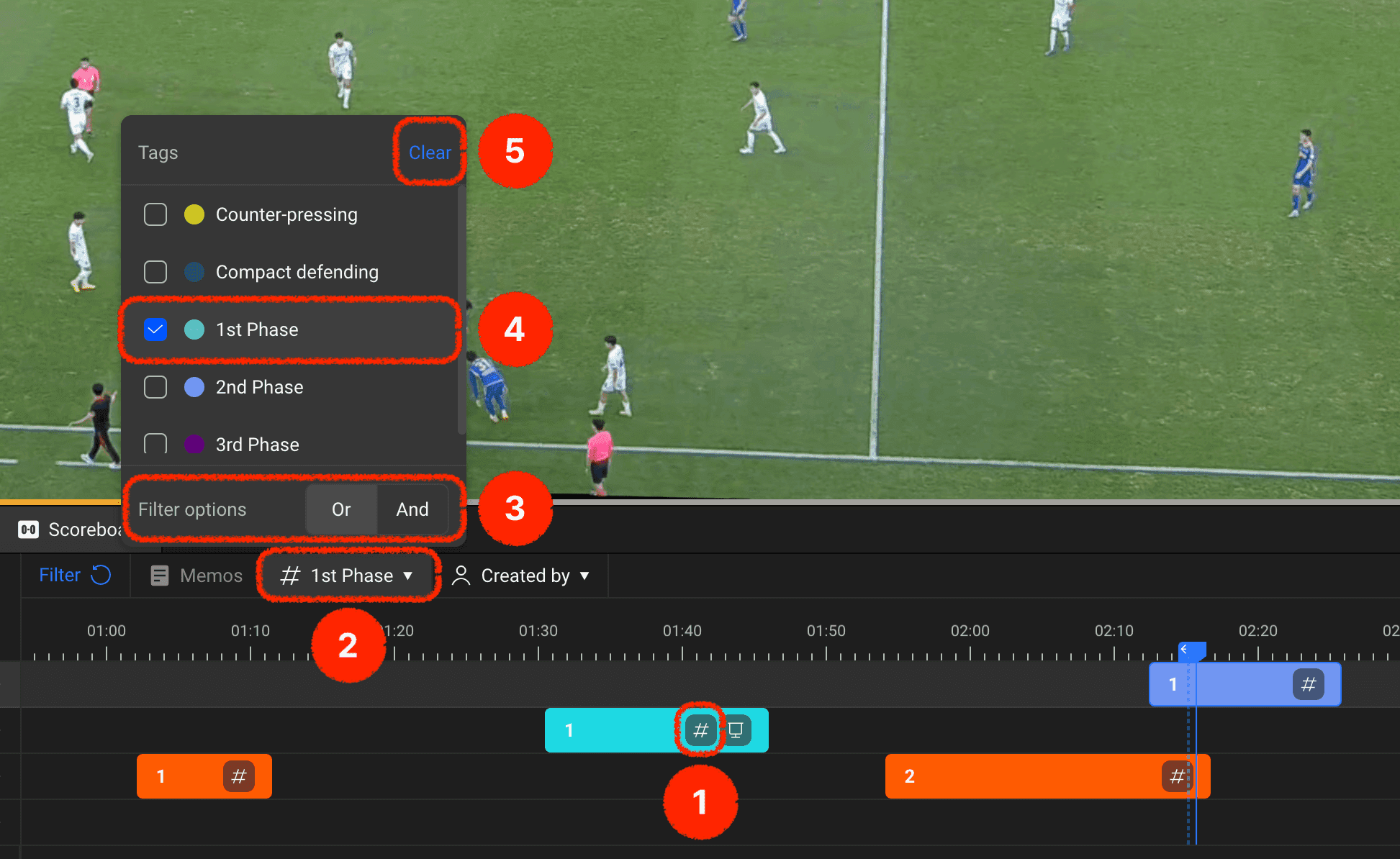
Once you've input tags into clips, you can filter clips based on those tags.
Clips with tags will display a tag icon on the right
Clicking the tag button in the timeline header will bring up the tag list popup
When selecting multiple tag filters, you can choose the multiple selection filter method
A list of all label tags used in the clips will appear, and selecting the desired tag will leave only clips with that tag on the timeline
You can reset the tag filter if desired
Use the tag function to add context to your generated clips and begin more comprehensive analysis!
Previous
Next