BEPRO Space
BEPRO Editor
Cerberus
Login & Signup
Request Match Analysis
1
BEPRO Editor
Basic
All Users
Create a presentation
Let's learn how to create a presentation
Hello, this is the BEPRO team!
In this article, we'll explore how to create presentations.
After conducting match analysis in the BEPRO editor, when utilising this during team meetings, you can use the presentation feature.
Whilst working, you can quickly organise important clips by sending them directly to presentations for scenes you want to show, and you can also arrange clips edited from multiple projects within a single presentation file.
So, shall we explore how to create presentations?
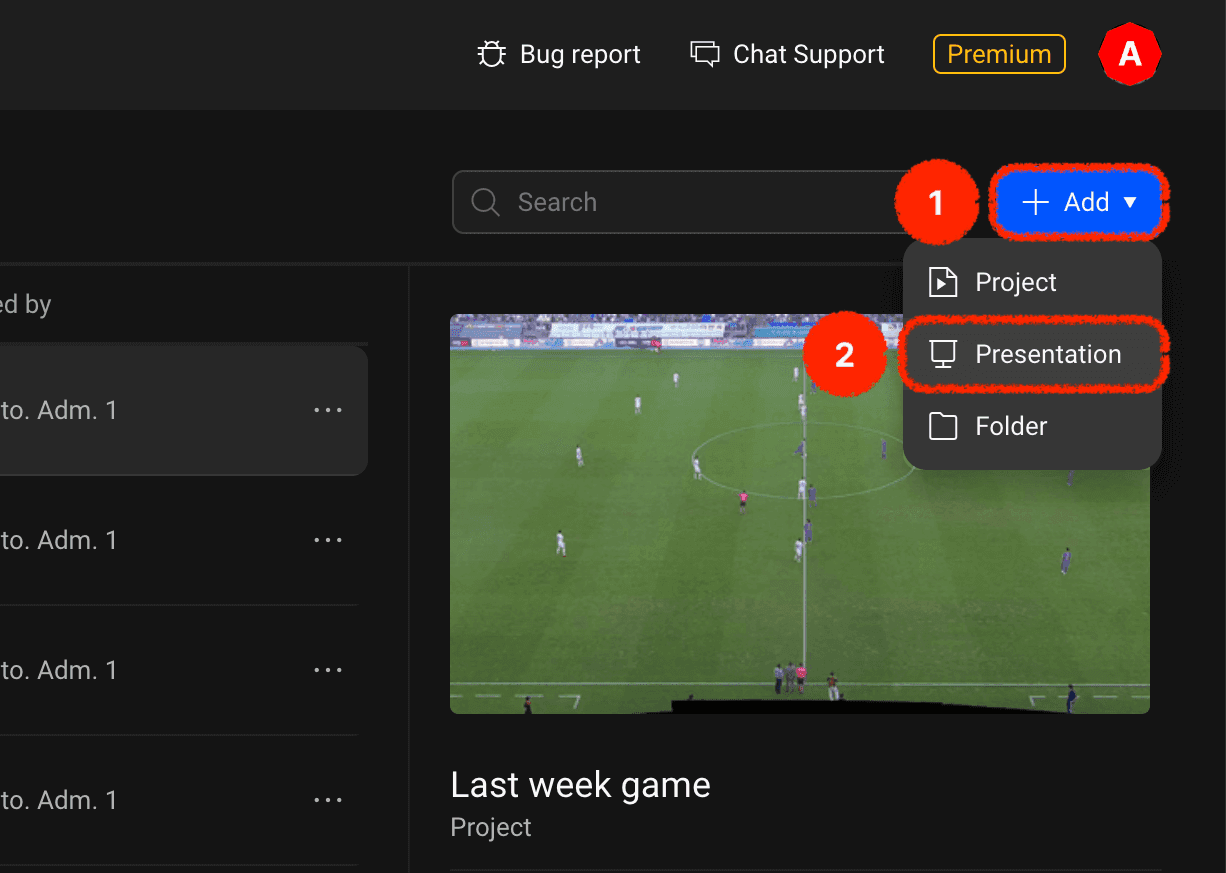
First, click the 'Add' button in the top right corner of the editor lobby and select the presentation menu.
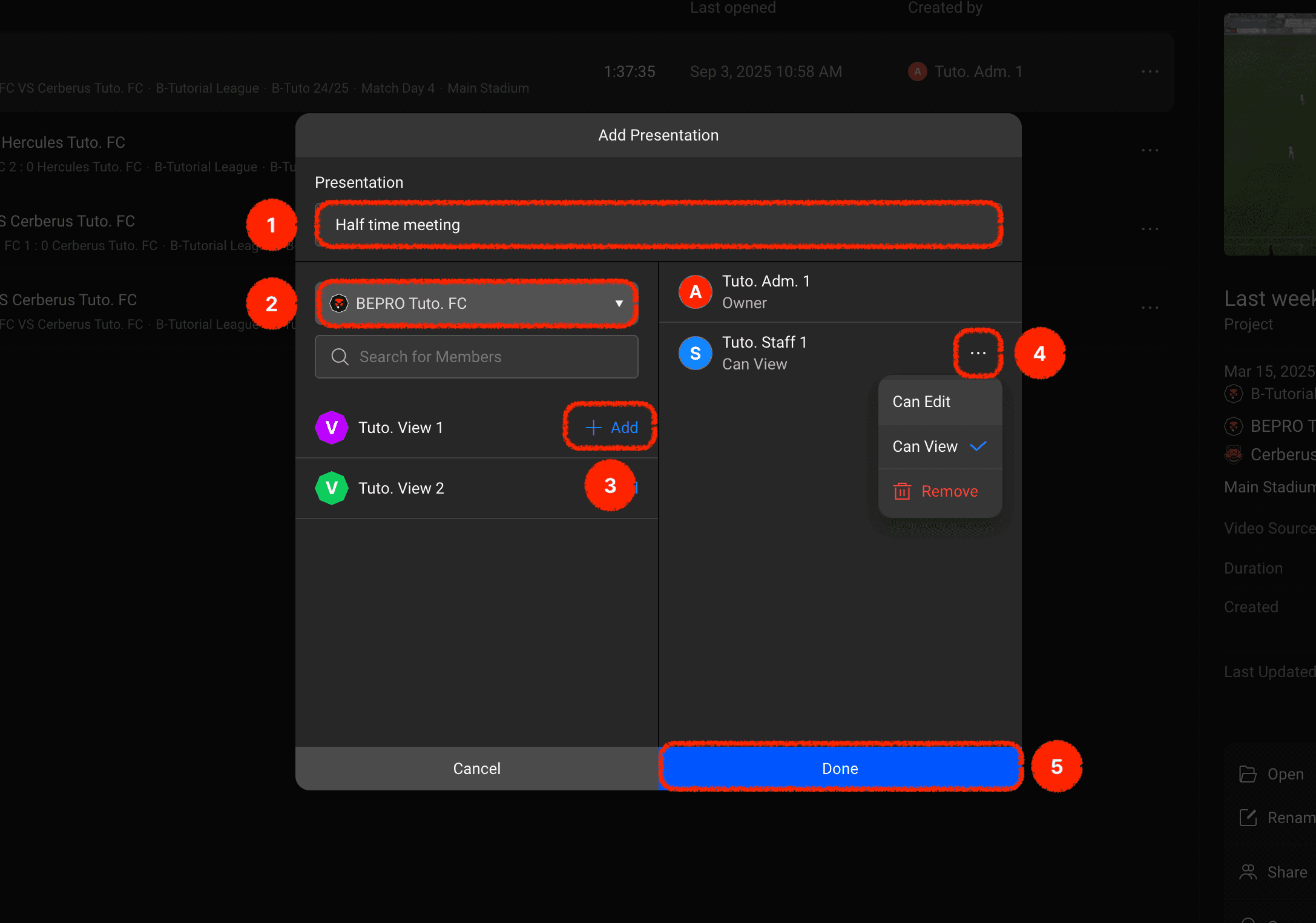
When the presentation modal appears, you can set the name and users to share with.
Let's examine each menu:
Name Input: Please enter the name of the presentation
Select Team to Share: When you select a team you belong to, the members of the selected team will appear in the list below
Add Collaborators: You can set desired team members as presentation collaborators
Set Collaborator Roles: Added collaborators appear in the right panel, and you can select roles or remove them by clicking the 'More' button
Complete Button: Once all settings are finished, please complete the presentation creation
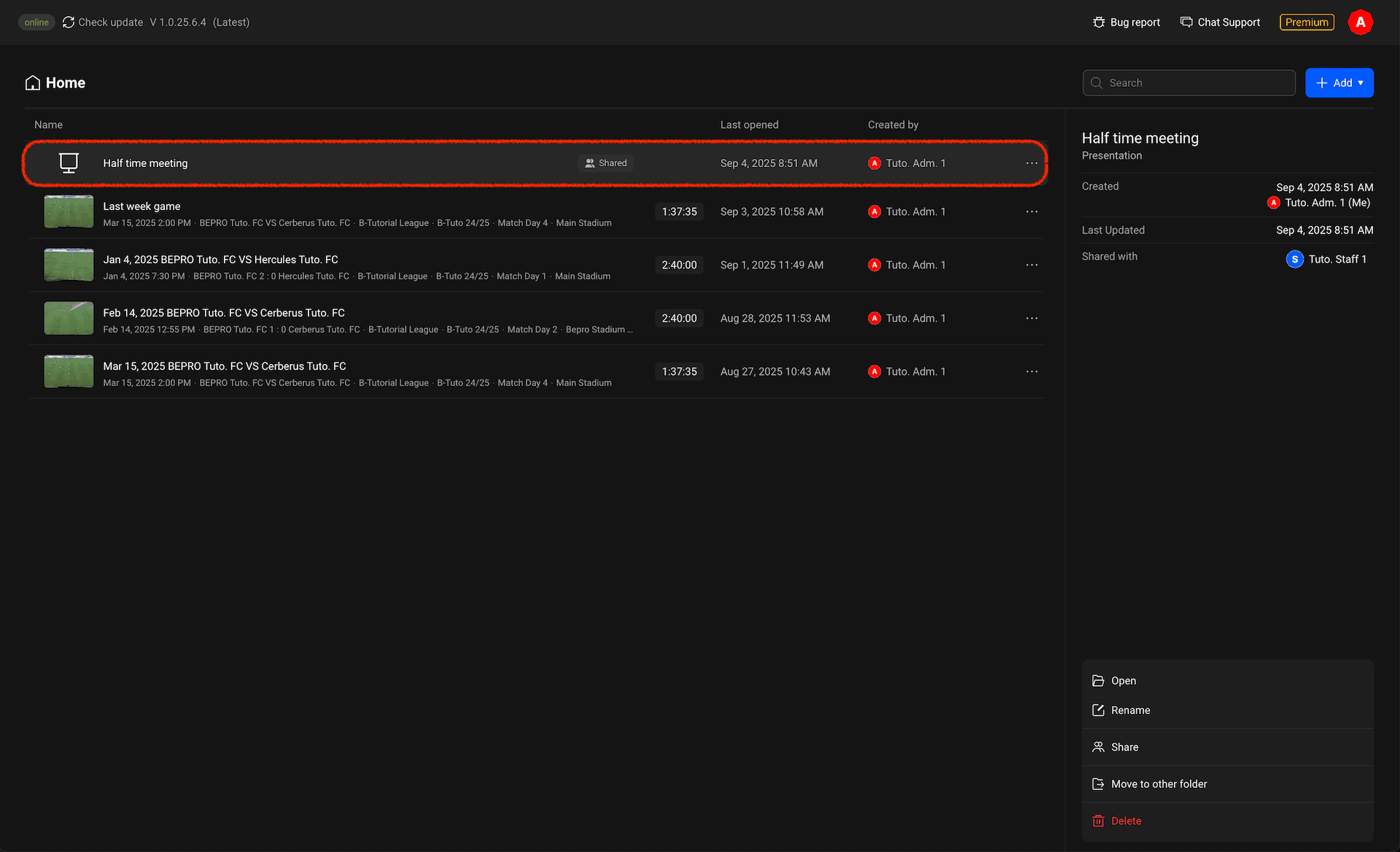
Once creation is complete, you can confirm that the presentation item has been added.
Previous