BEPRO Space
BEPRO Editor
Cerberus
Login & Signup
Request Match Analysis
1
BEPRO Editor
Basic
All Users
Work with presentations
Let's learn how to work with presentation
Hello, this is the BEPRO team!
In this article, we'll explore how to add items to presentations and share the results.
Adding Clips to Presentations
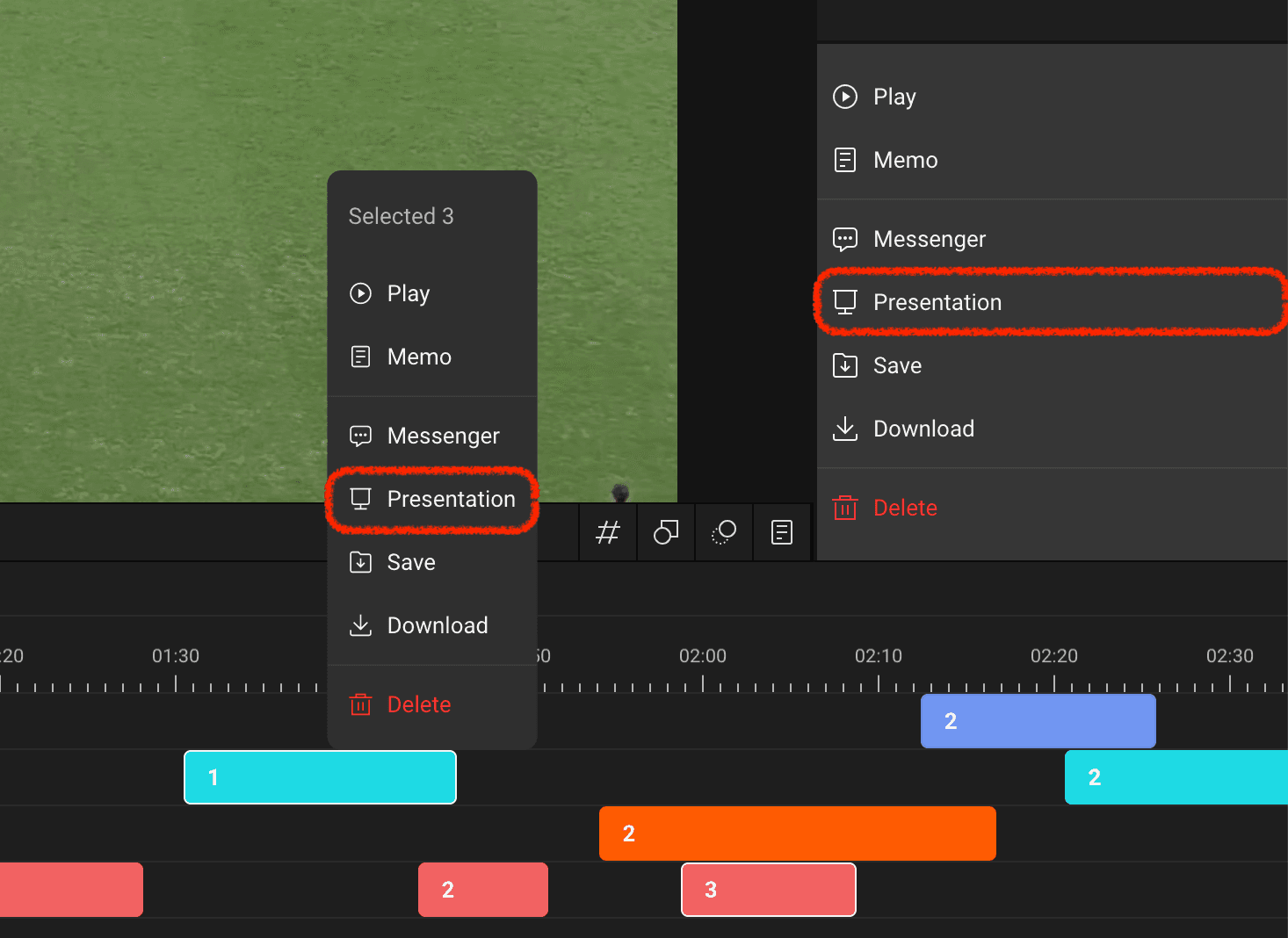
In the BEPRO editor project, select clips and right-click to open the context menu, or click on the presentation menu from the right-hand panel.
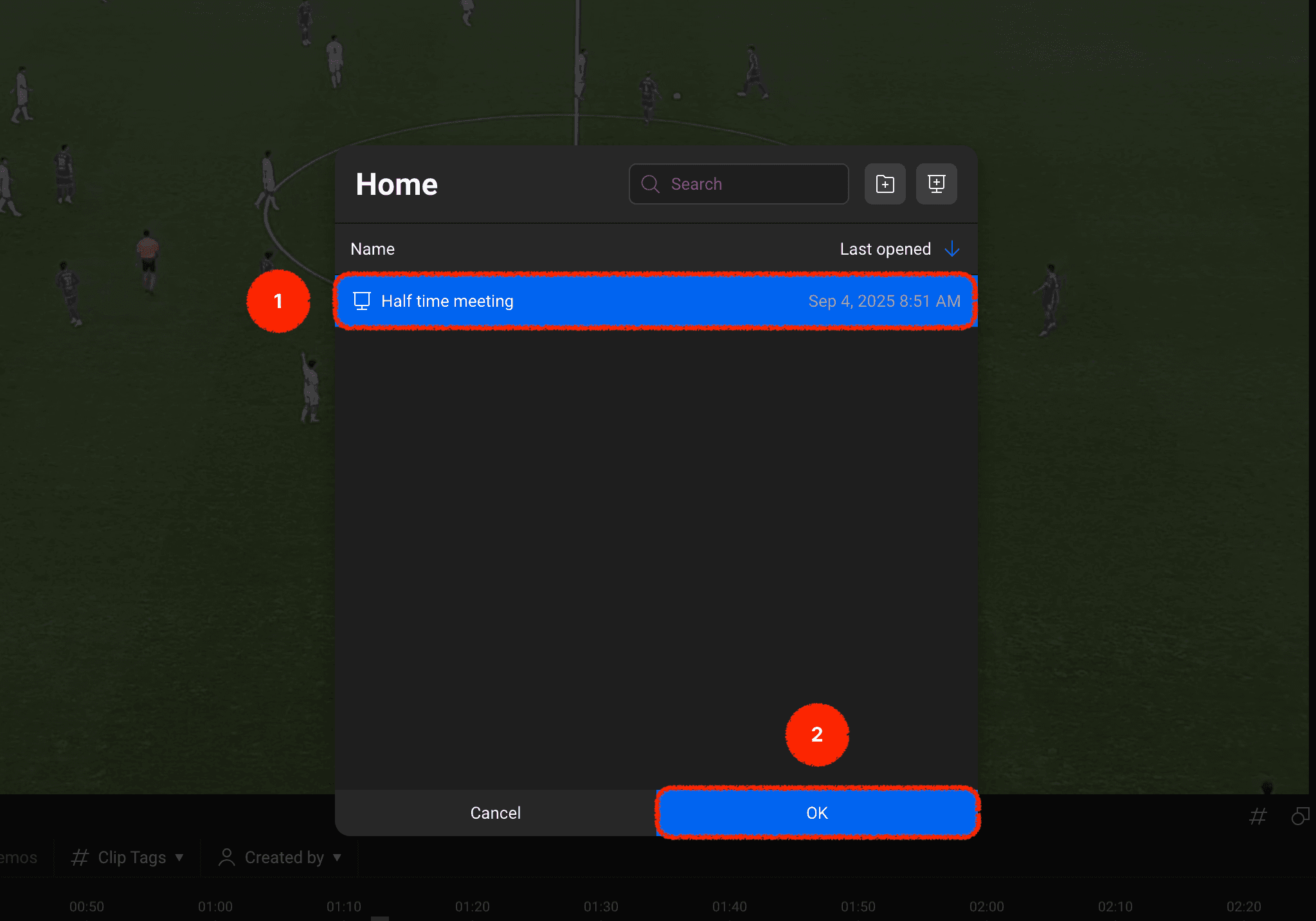
A list of presentation files available in your file tree will appear.
Select the presentation you'd like to send the clips to, then press the confirm button.
Presentation Interface Layout
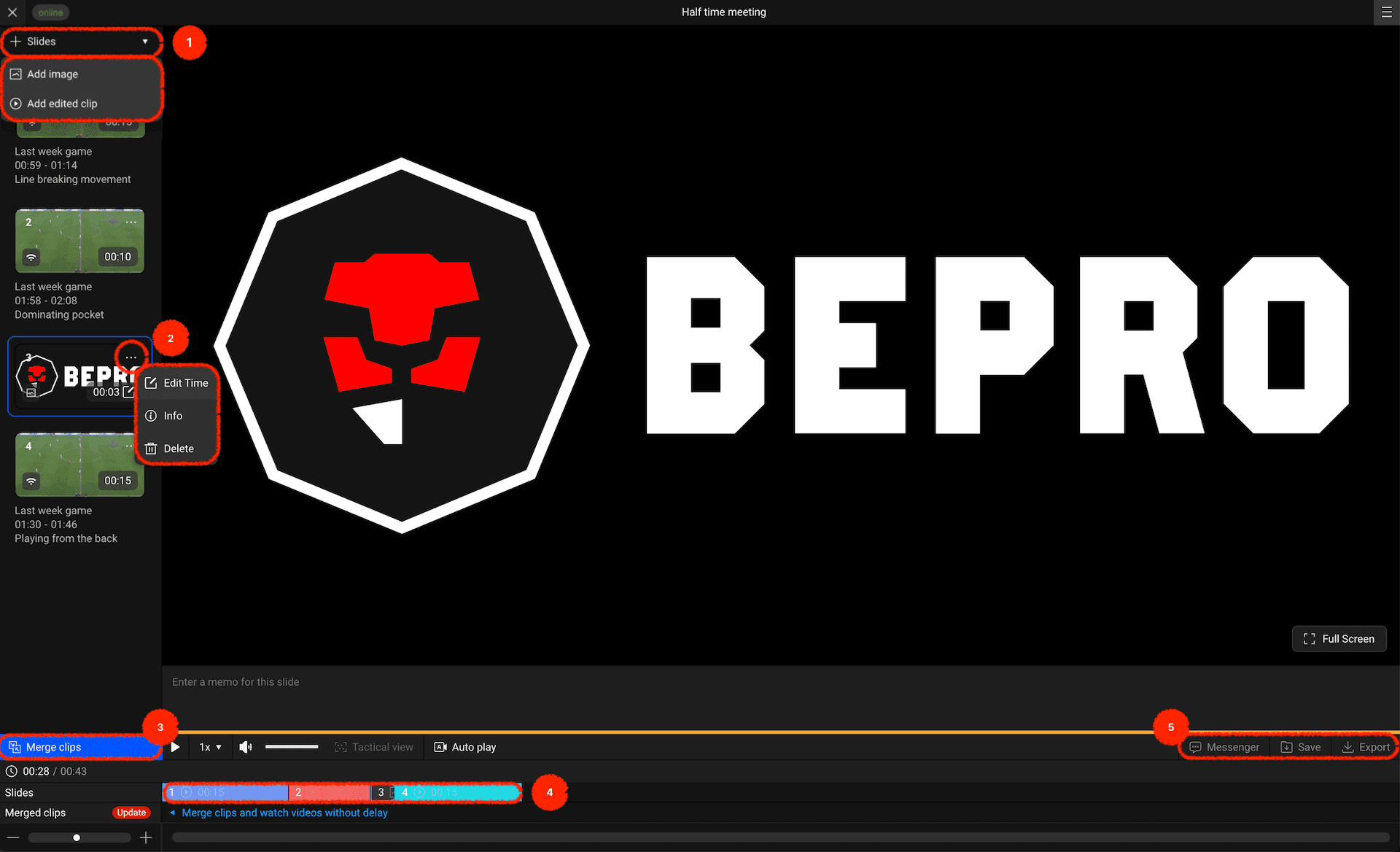
You can then confirm that the clips have been sent to the selected presentation.
The presentation interface contains several unique features. Let's have a brief look at the layout
Add Slide: You can add other clips from images or project files.
Image Settings: You can set how long images will be displayed when combined into a single video.
Merge Videos: You can combine all videos in the slide into one, and when merged, they can be viewed without delays between videos.
Slide Timeline: Shows slides in a horizontal timeline bar format, making it easy to gauge the total duration.
External Sharing Methods: You can send via messenger, save to library, or save to your computer. This function is available after merging videos into one.
Sharing & Exporting Presentations
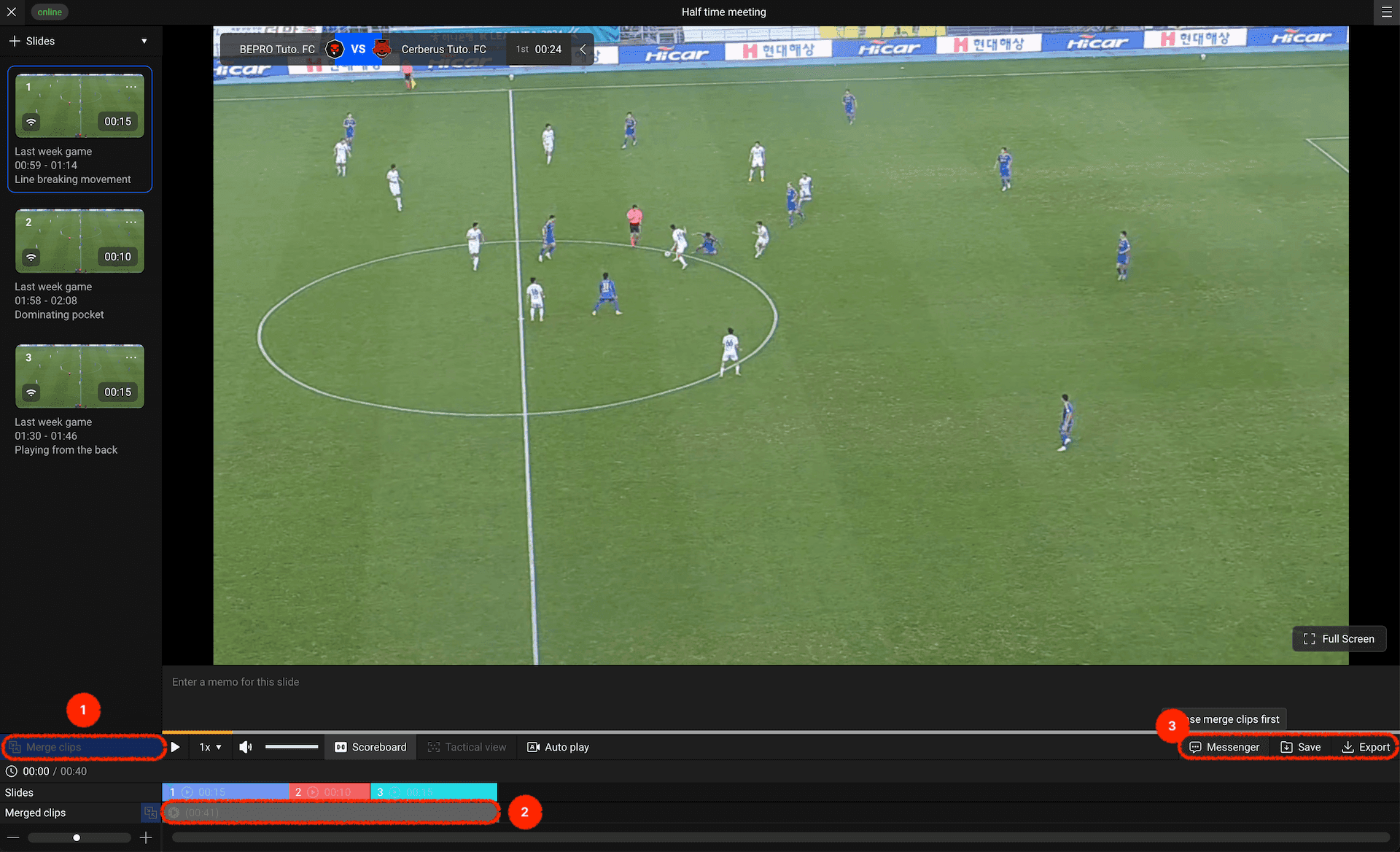
To share externally once slide composition is complete, you must first merge the videos into one.
First, press the merge button on the left to combine the slide items into one.
Once complete, a merged video will be generated at the bottom.
You can now send the merged video via messenger, save it to the library, or download it to your computer.
Use the presentation feature to prepare team meetings with greater ease!
Previous