BEPRO Space
BEPRO Editor
Cerberus
Login & Signup
Request Match Analysis
1
BEPRO Editor
Basic
All Users
Create labels
Let's learn how to create labels
Hello, this is the BEPRO team!
In this article, we'll explore how to create and manage labels that are utilised when starting projects in the BEPRO editor.
Label Management Modal
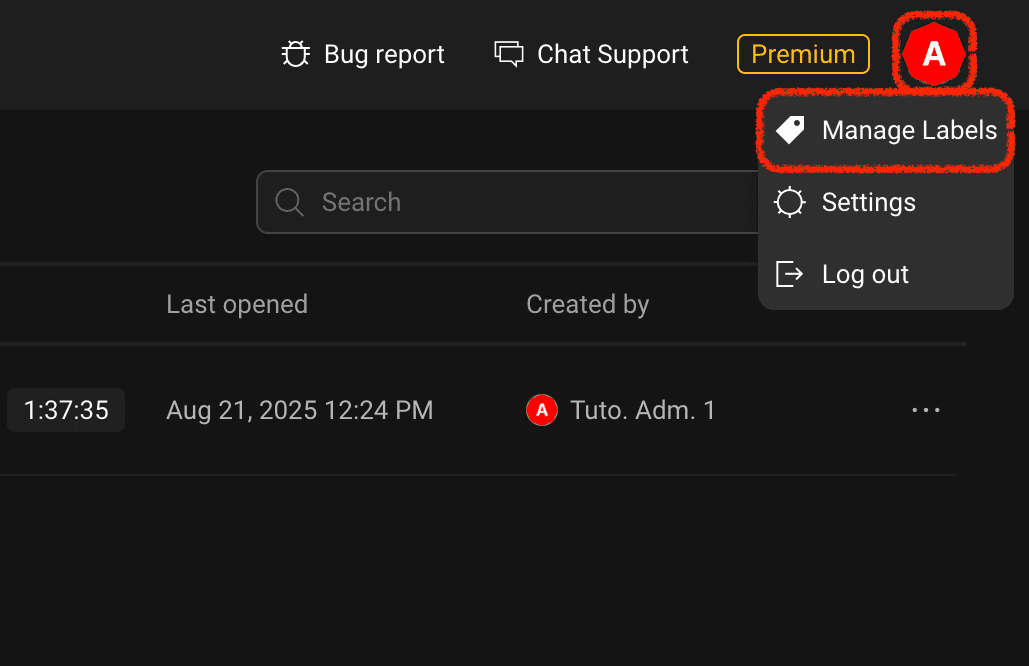
To create and modify labels, you need to click the profile button in the top right corner of the lobby, then click the Label Management menu.
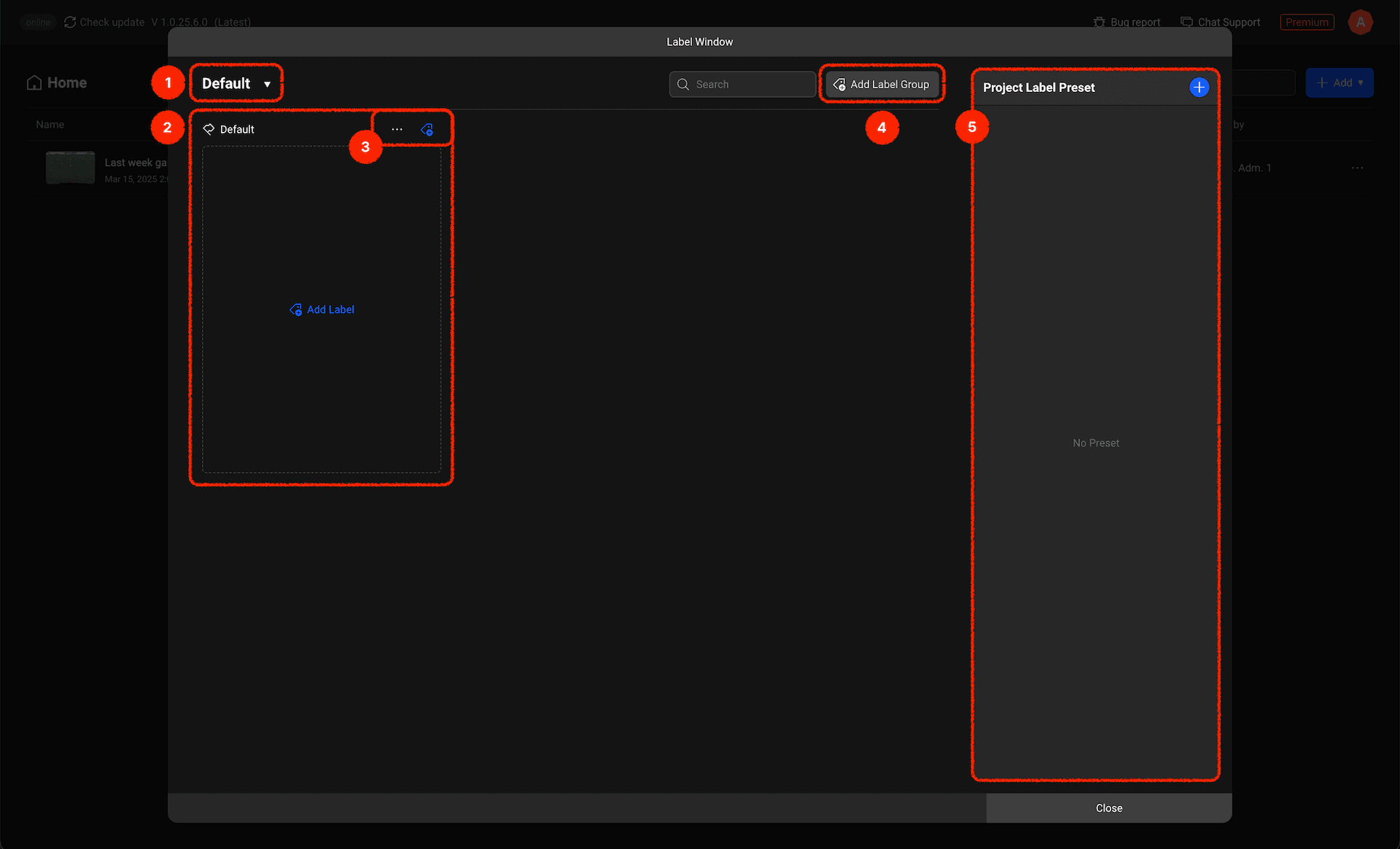
The Label Management modal is structured as shown above. Let's examine each component:
Label Window Selection Button: Our team analysis and opponent team analysis may require different label configurations. You can create and manage separate label windows for these purposes.
Label Groups (Premium Feature): Within a label window, you can create multiple label groups of various types such as events, players, pitch areas, etc.
Label Group Management Button: You can modify label group names or add new labels within a group.
Add Label Group Button (Premium Feature): Adds a new label group to the label window.
Project Label Preset List: If you have frequently used label configurations for projects, you can create presets here and easily use them when starting new projects.
Now, shall we add a label by clicking the Add Label button within a label group?
Add Label Modal
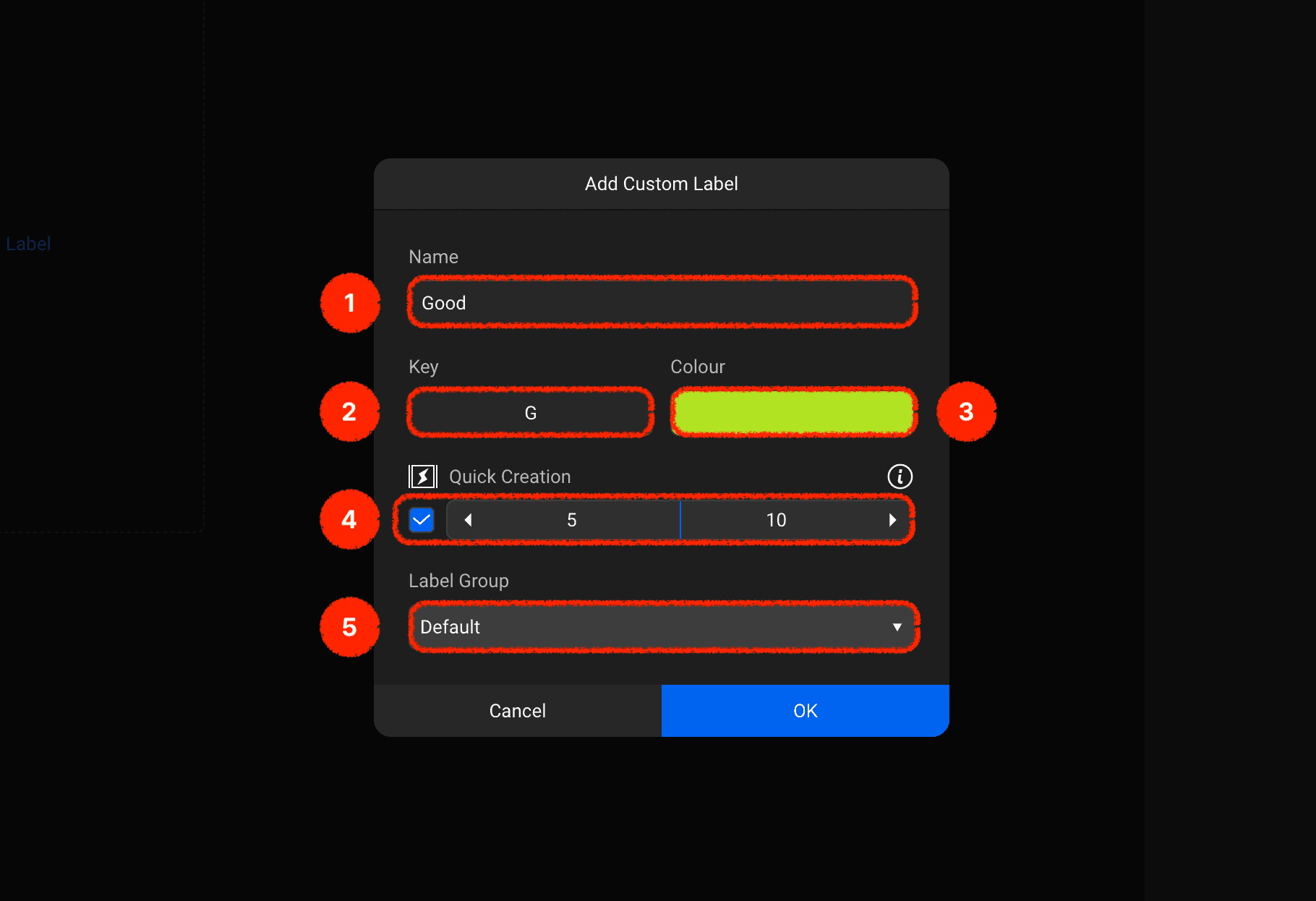
When you click the Add Label button, a modal like the one above appears.
Name: Enter the label name.
Shortcut Key: You can set a shortcut key to create clips with this label.
Label Colour: Sets the colour of clips created with this label on the timeline.
Quick Creation: Pressing the shortcut key immediately creates a clip. The length of the clip to be created can be set in seconds before and after the current playback position.
Label Group (Premium Feature): If you have multiple label groups, you can change which label group this label belongs to.
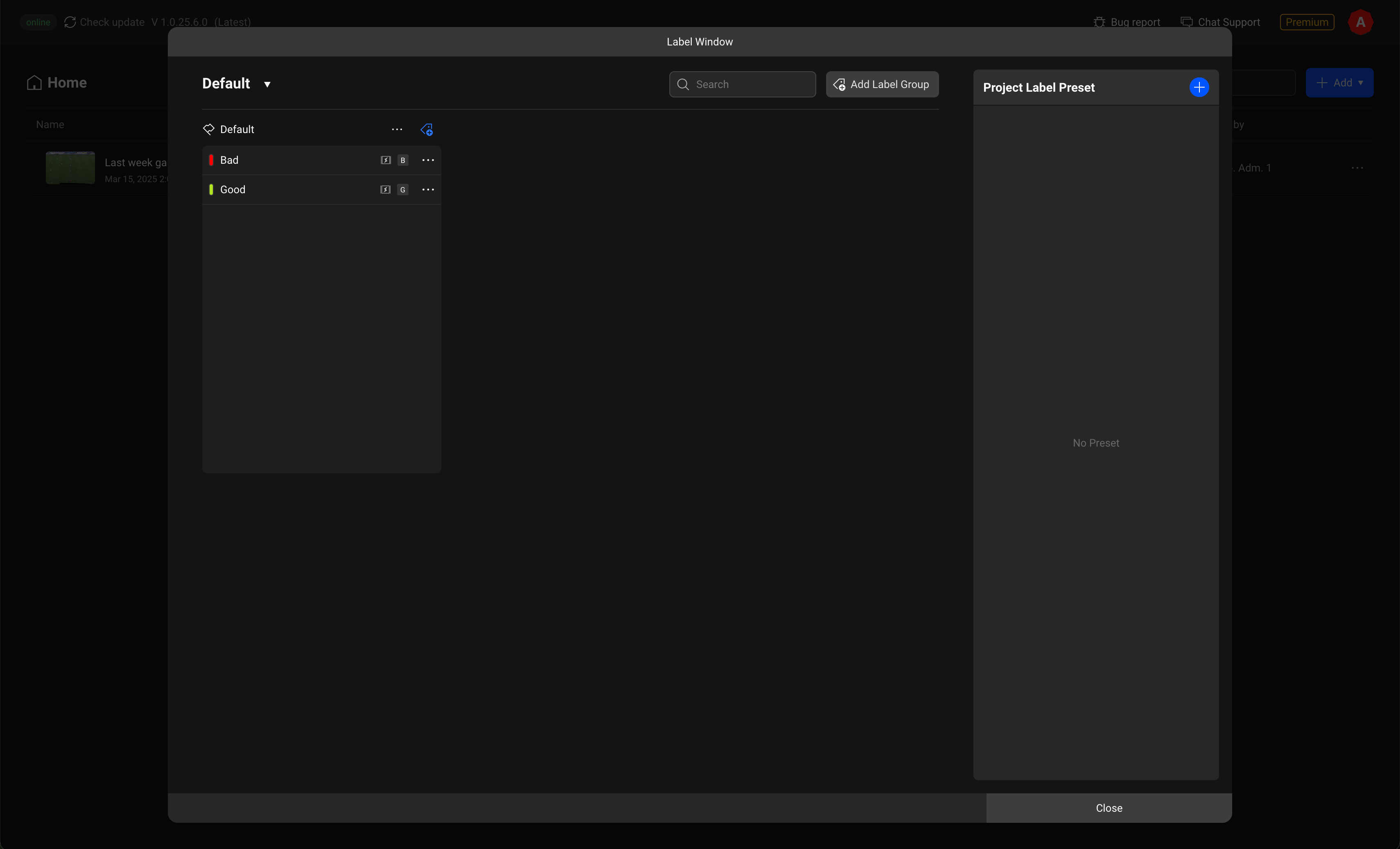
This is the screen after a label has been added.
Now, create the labels you'll use for analysis according to your team's specific requirements!
Previous