BEPRO Space
BEPRO Editor
Cerberus
Login & Signup
Request Match Analysis
1
BEPRO Editor
Advanced
All Users
Dynamic Graphic
Let's learn how to add dynamic graphics over videos!
Hello, this is the BEPRO team!
In this article, we'll explore how to input dynamic graphics.
Dynamic graphics refer to graphics that continue to display in specific sections without stopping video playback, unlike standard graphics which cause the video to pause momentarily when inputted.
Dynamic Graphics Input Methods
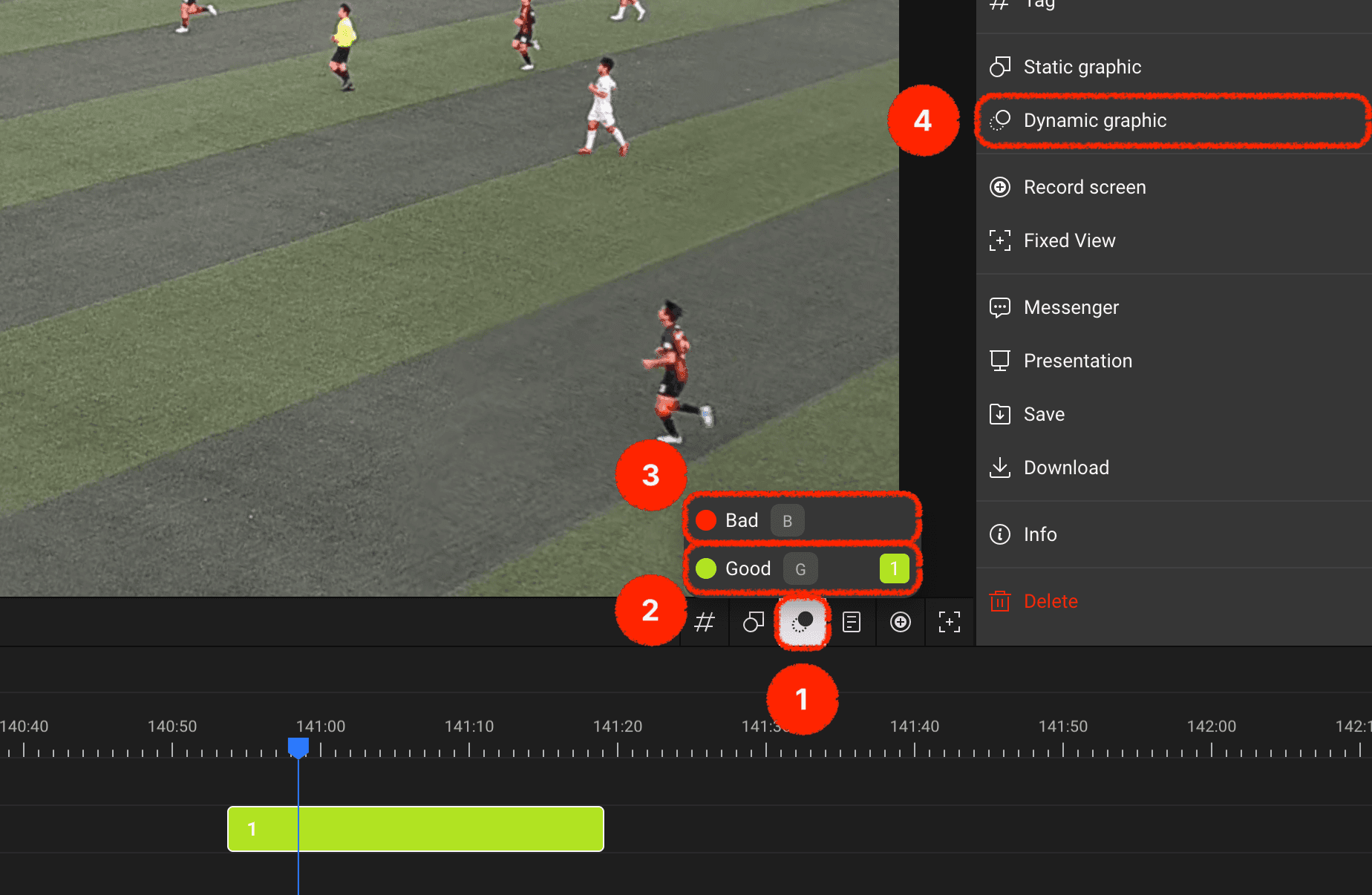
You can add dynamic graphics to your desired label track using the dynamic graphics add button in the timeline header.
If there's a label track with a generated clip at the current playback position, you can add dynamic graphics directly to that clip.
For label tracks without generated clips at the current playback position, you can create a clip whilst simultaneously adding dynamic graphics.
Alternatively, you can select a specific clip and add dynamic graphics through the graphics add menu in the right panel.
Dynamic Graphics Tools
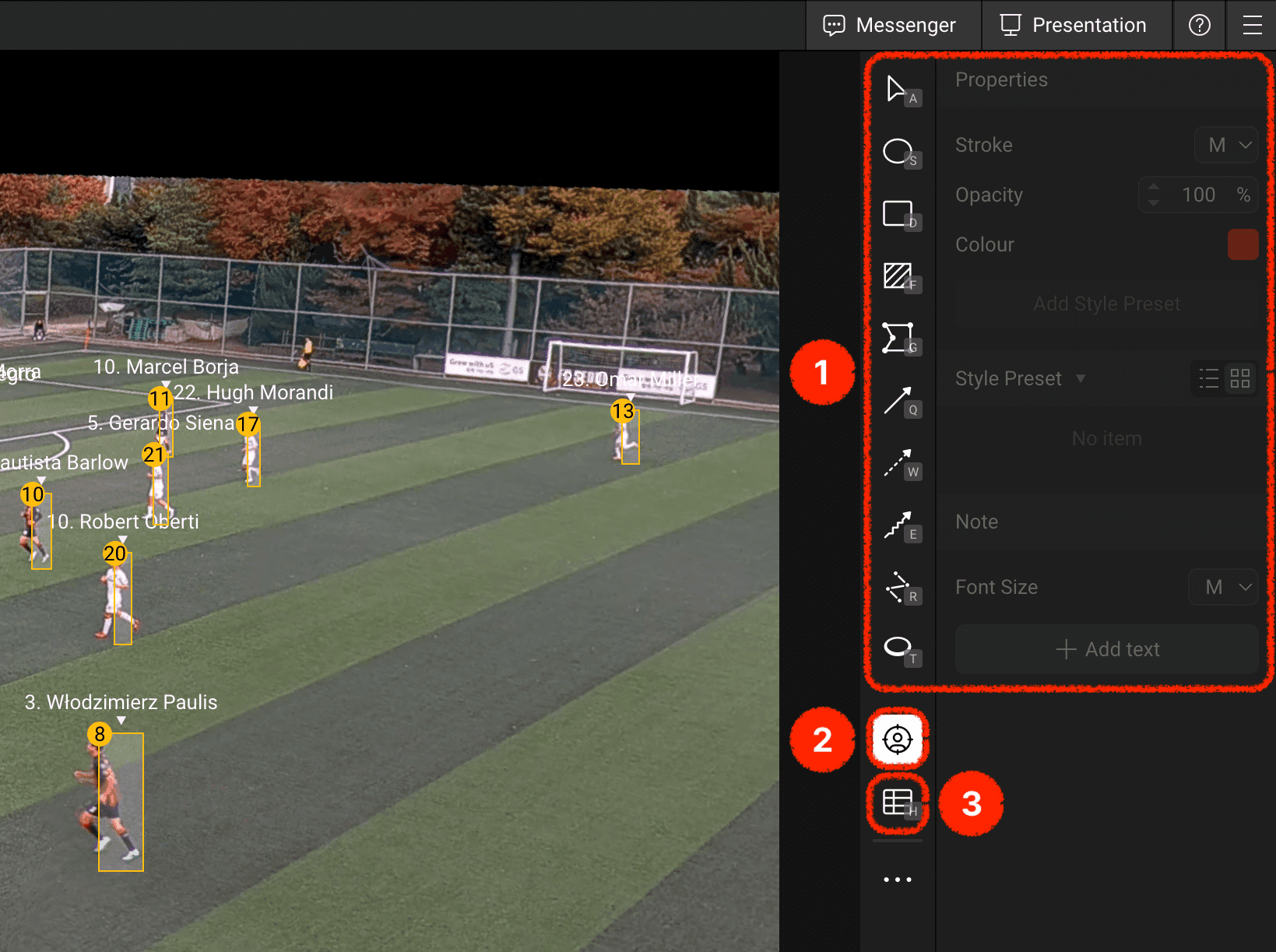
Static graphics tools can also be utilised.
If it's a tracking analysis match registered in BEPRO Space, you can use tracking graphics that follow players.
You can input tables that allow real-time comparison of specific player events.
Please refer to the link below for an article about the standard graphics tools mentioned in point 1.
Tracking Graphics
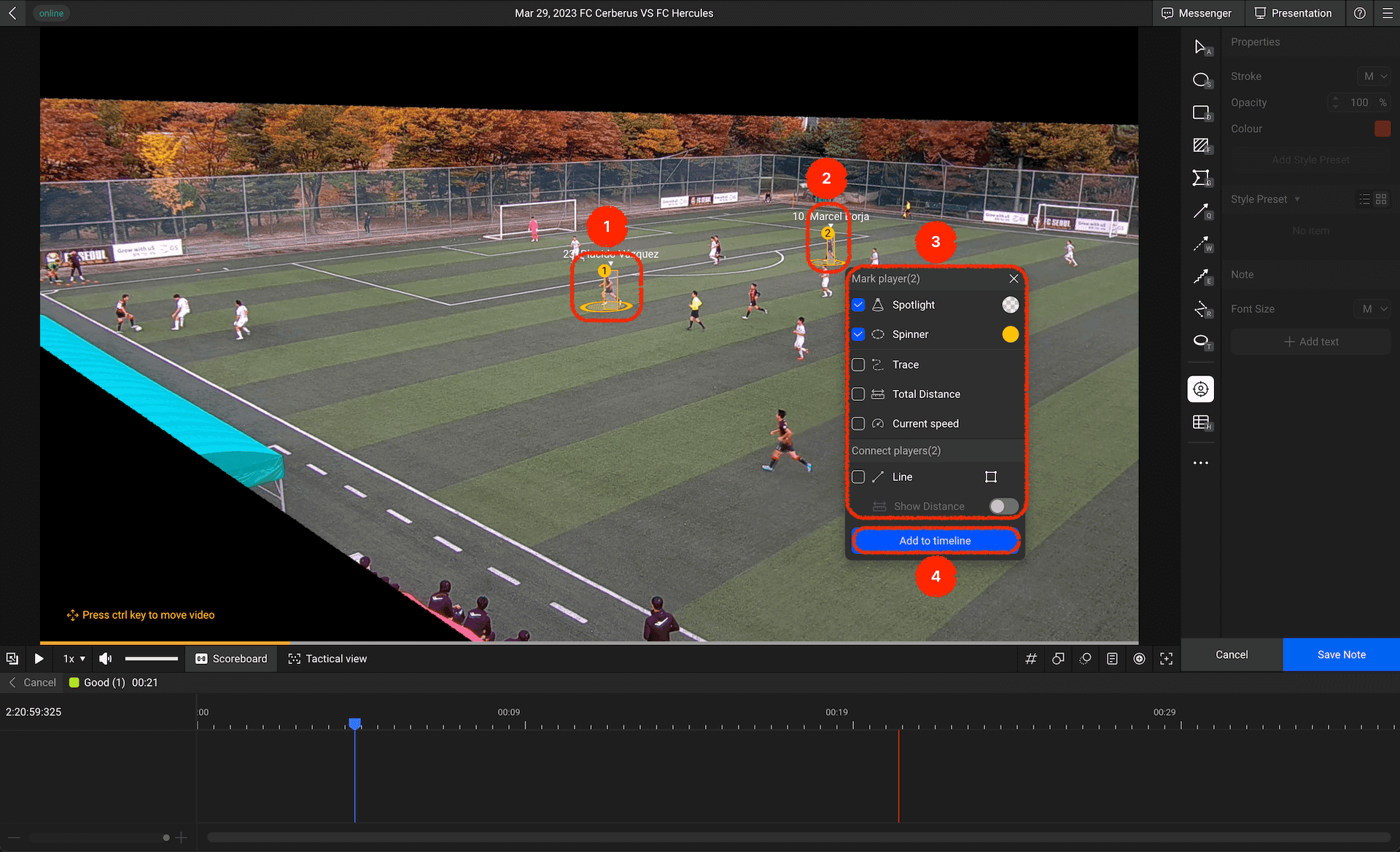
When tracking data is available, you can click on players, and a menu like the one above will appear.
You can highlight players or draw their movements, and select multiple players using the Shift key to draw lines and display distances between players.
Input your desired graphics and press complete.
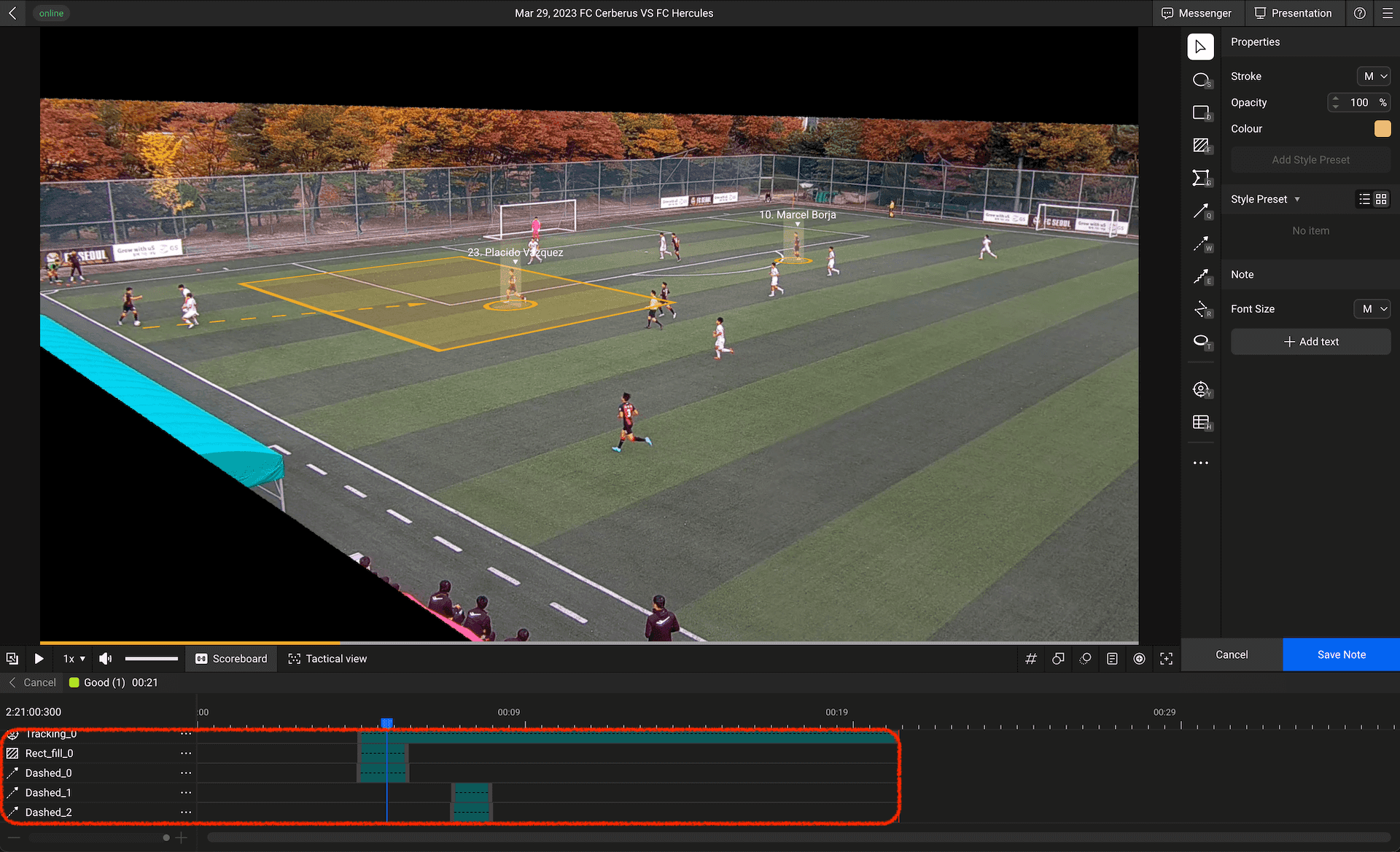
After inputting graphics, you can select the section where the graphics will be displayed.
Please adjust the graphics section by playing the video forwards and backwards.
Player Event Comparison Table
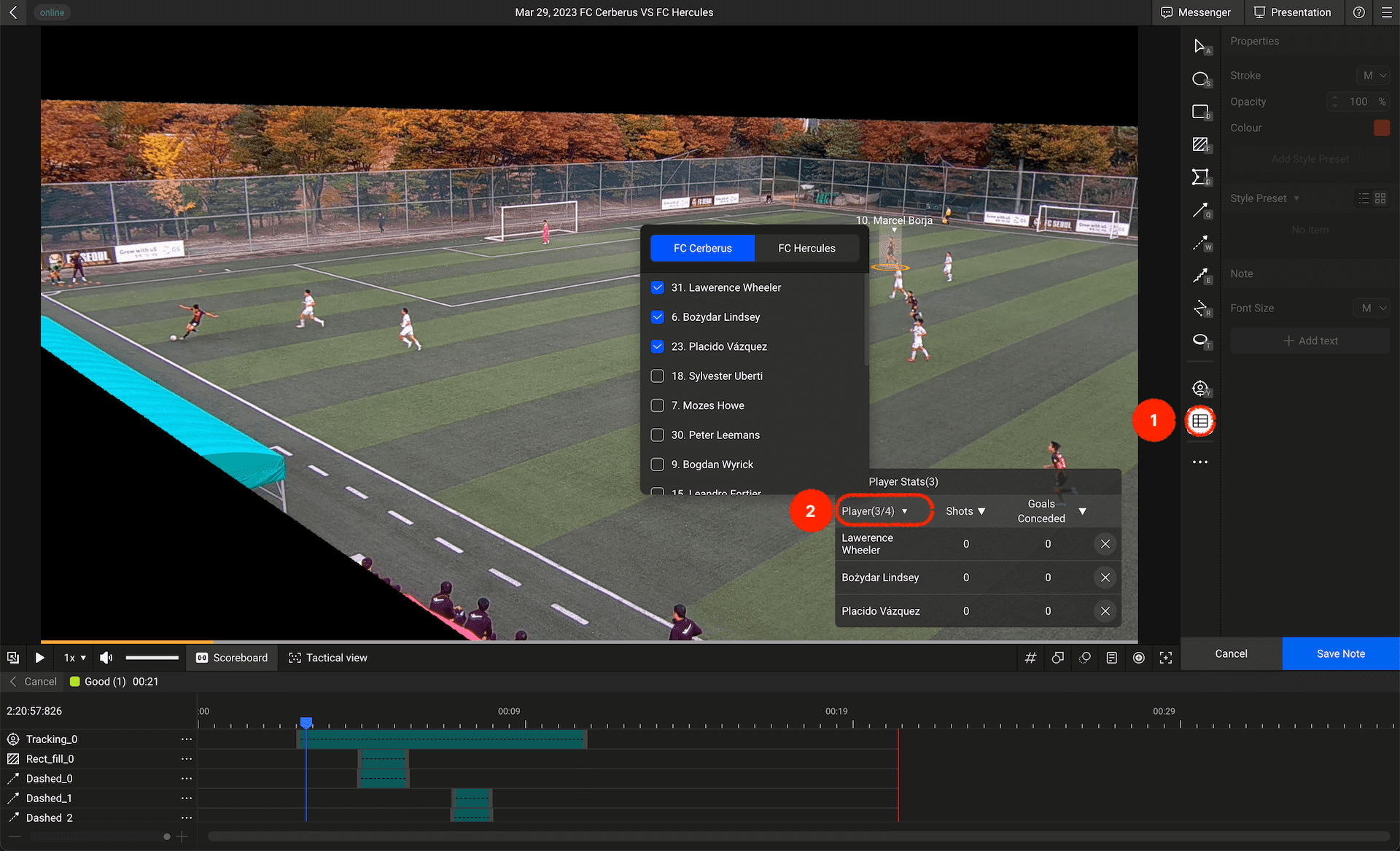
Clicking the player event comparison table menu will display a table, and you can select desired players to add to the table.
You can select up to 4 players maximum.
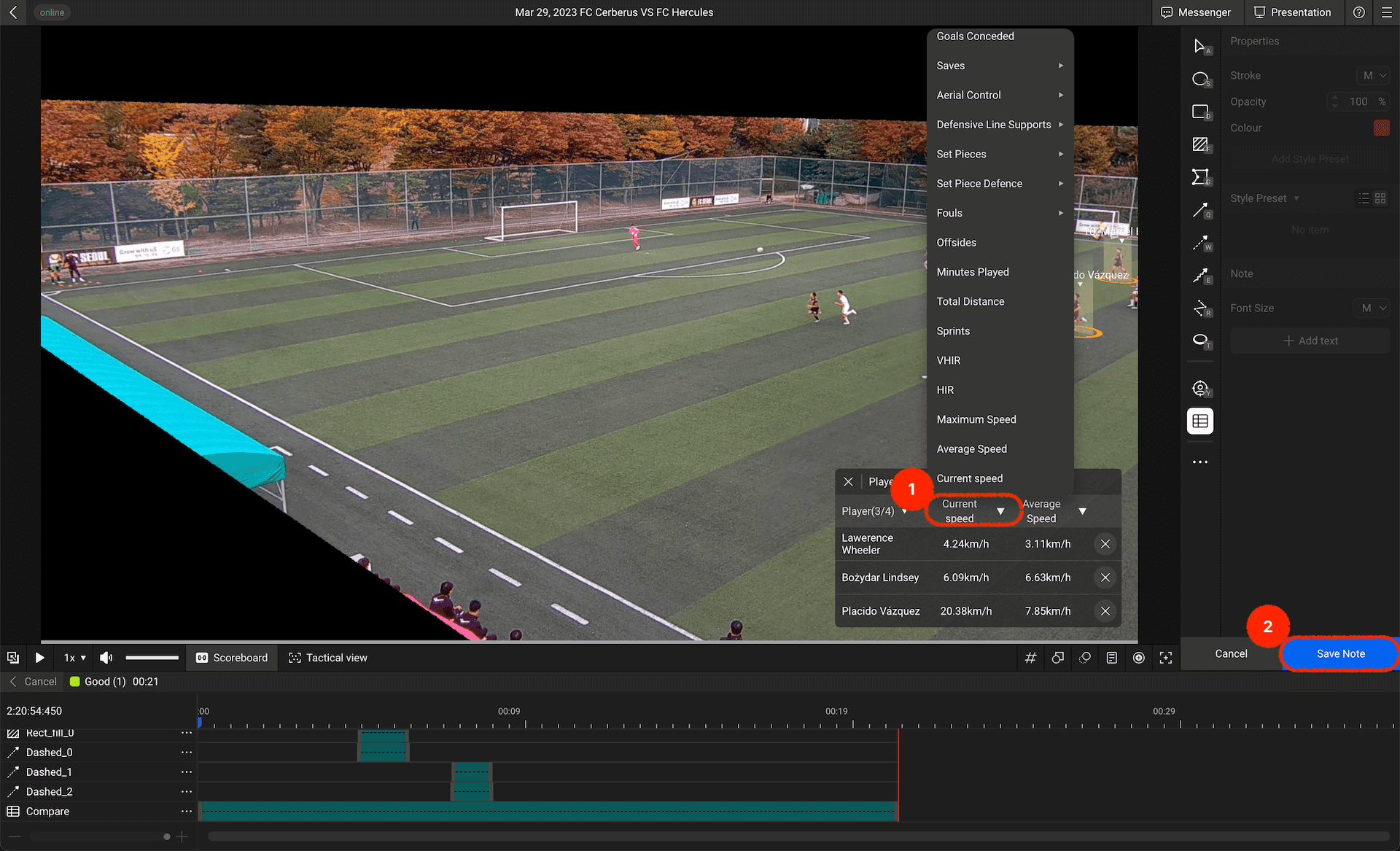
Once player selection is completed, please select the events to compare between each player.
You can select up to two events.
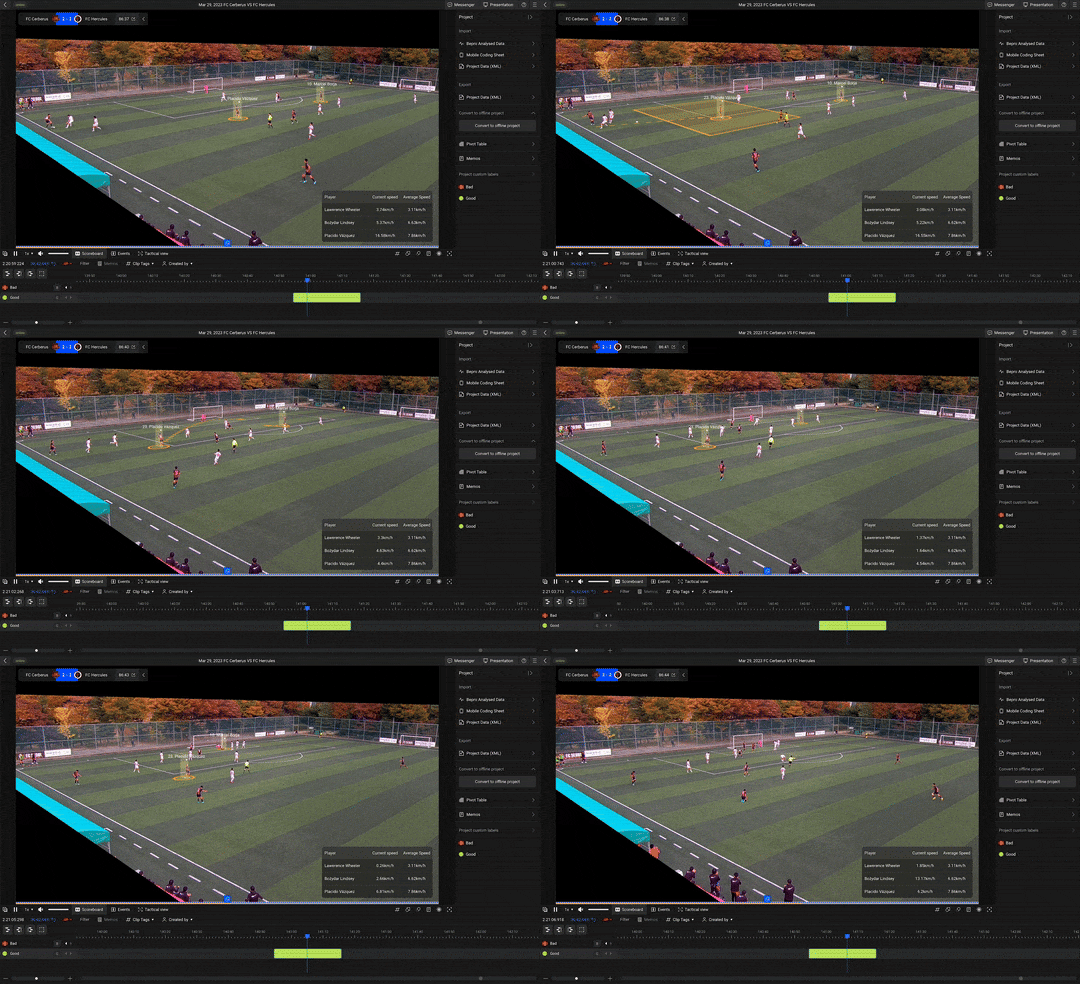
Press complete and play to confirm that the graphics appear in your desired section.
Create brilliant videos whilst explaining your intentions well with dynamic graphics!
Previous