BEPRO Space
BEPRO Editor
Cerberus
Login & Signup
Request Match Analysis
1
BEPRO Editor
Advanced
Staff or Above
Share presentation
Share presentation with your team members to collaborate
💡
Prerequisites
1. Basic Package
2. Download BEPRO Editor in BEPRO Space
Hello, this is the BEPRO team.
In this article, we'll introduce the feature that allows you to share presentations and edit them collaboratively.
You can select only the important scenes from clips edited in editor projects and send them to a presentation file.
However, when there are many clips and you need to gather clips from multiple projects to create a single presentation, it can be quite time-consuming.
Working collaboratively with team members allows you to complete presentations more quickly and efficiently.
How to Share Presentations
There are two methods for sharing presentations:
1. Sharing When Creating a Presentation
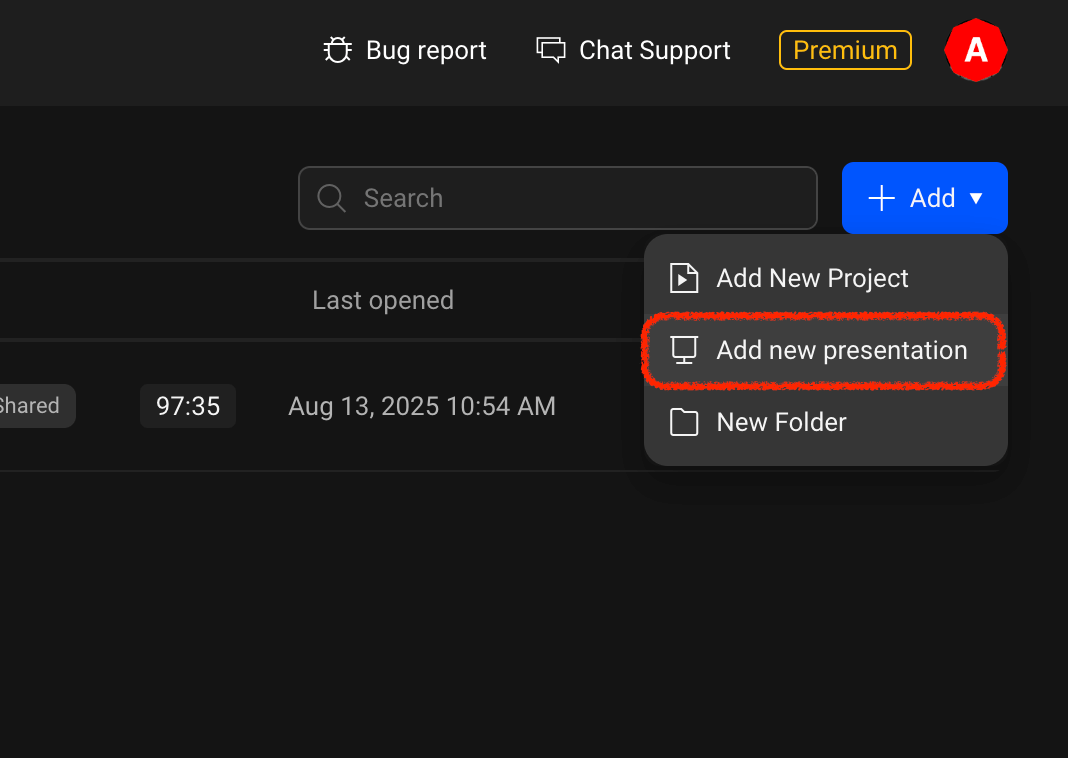
Click the "Add" button in the top right corner of the editor lobby, then click the presentation creation button.
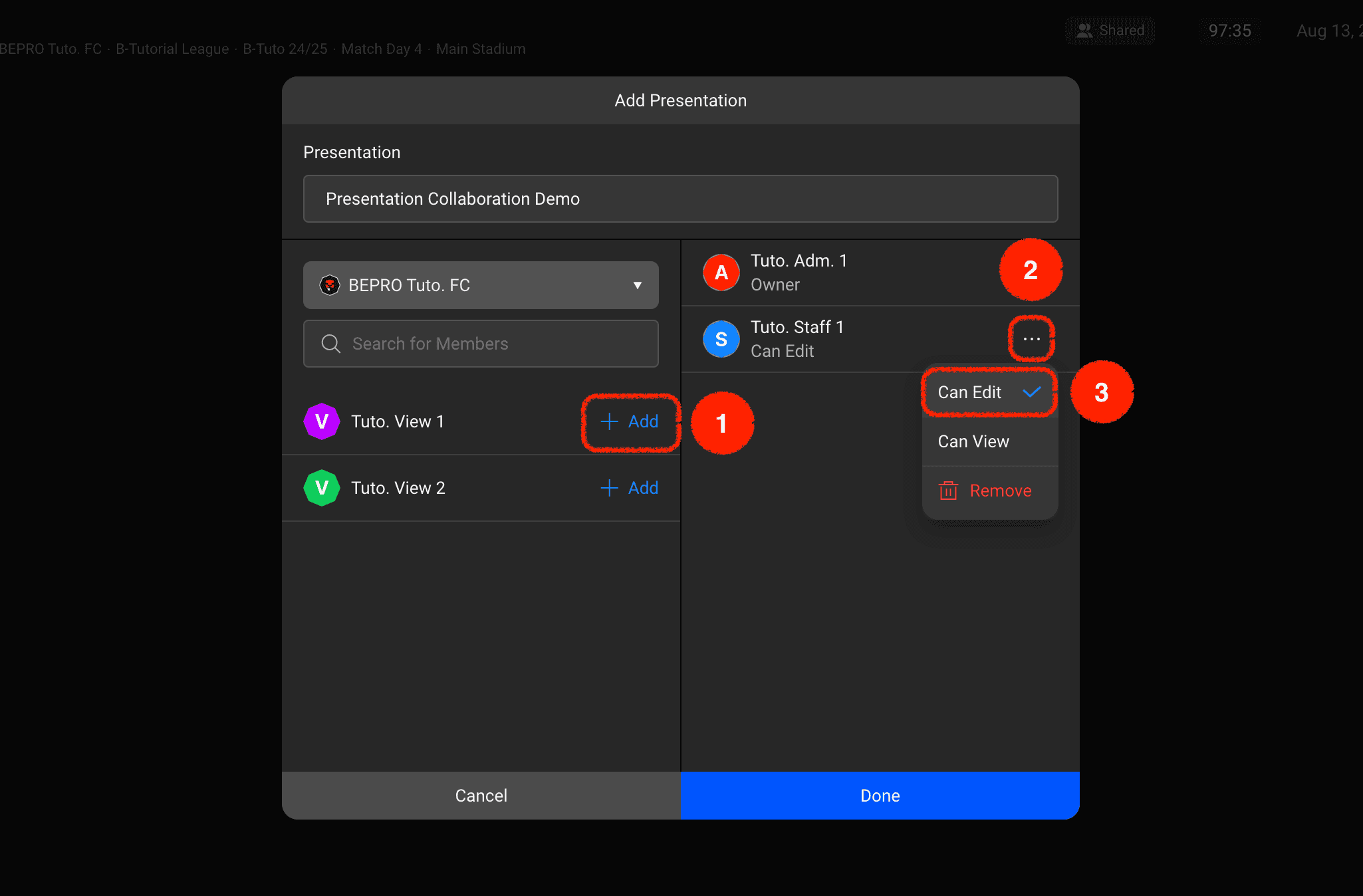
After entering the presentation name, add desired users from the left section by clicking the "Add" button.The default permission for users added to the sharing list is set to "Can View", which only allows viewing. To enable collaborative editing and management of the presentation content, please change the permission to "Can Edit".
2. Sharing an Existing Presentation
You can also share presentations that have already been created.
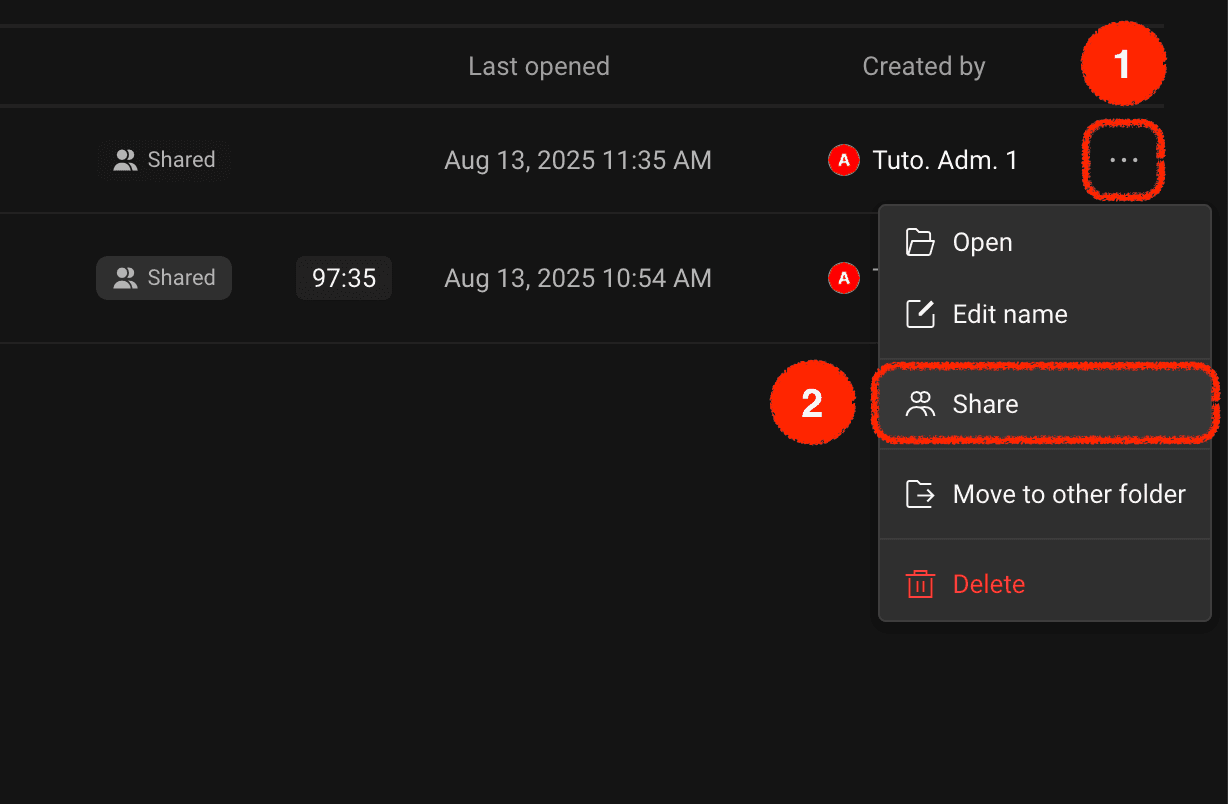
Click the more options button on the right side of the desired presentation item, then select the "Share" menu.The same modal as seen in method 1 will appear, and you can set up collaborators using the same method.
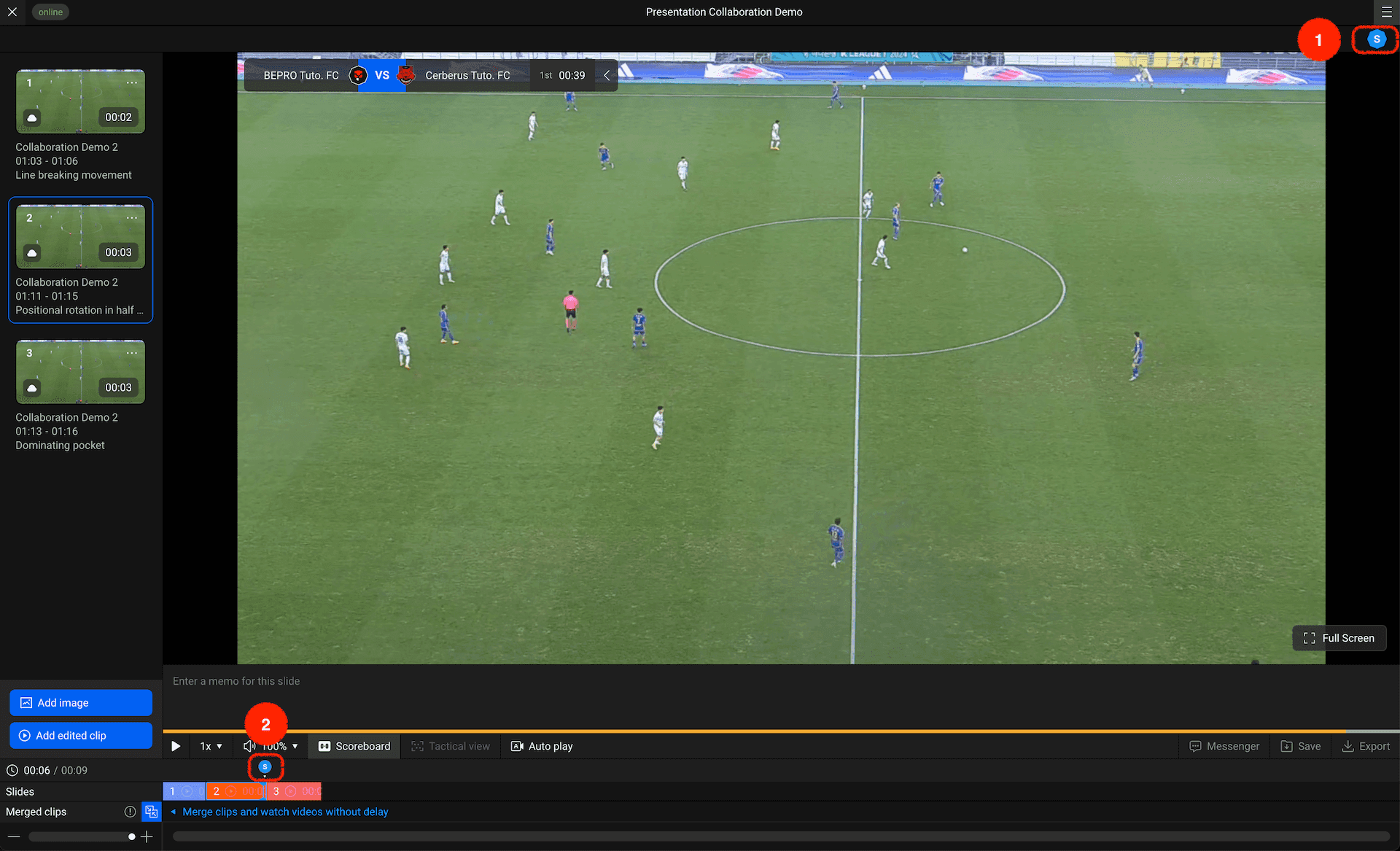
When working on a presentation together, a list of users currently working in real-time will be displayed in the top right corner of the presentation. You can also see which areas each collaborating user is working on within the presentation track.
Previous